Why Does Instagram Crop Photos? (An Instagram Post Size Guide)
Ever upload a photo to Instagram, and try as you might to pinch it into the perfect position, you still can’t get it to fit into the box the way you want? Yeah, me too. The only way to prevent this is to ensure your content fits Instagram’s preferred post dimensions.
Of course, the app has changed the aspect ratio for reels and feed posts over time to…keep things interesting, I guess?
Not to worry, though; this Instagram post size guide will tell you the exact dimensions your content should be to avoid unexpected cropping, as well as how to make it work when you’ve got content that doesn’t align with the needed dimensions.
Why Instagram Crops Photos
Instagram crops photos because the app is designed around specific aspect ratios and display formats. If your image doesn’t fit those dimensions, Instagram will automatically trim, zoom, or reposition your content to fit within the app.
Unfortunately, Instagram doesn’t display content the same way everywhere. A photo or reel cover that looks perfect in the feed might appear cropped on your profile grid or when shared as a preview.
How to stop the crop
The best way to prevent Instagram from cropping your photos is to upload images with the recommended dimensions and aspect ratios (more details below). If your content already fits the platform’s preferred sizes, unwanted zoom or trim is much less likely.
Here are our best practices:
Use Instagram-friendly dimensions
Before uploading, resize your images to match Instagram’s recommended sizes:
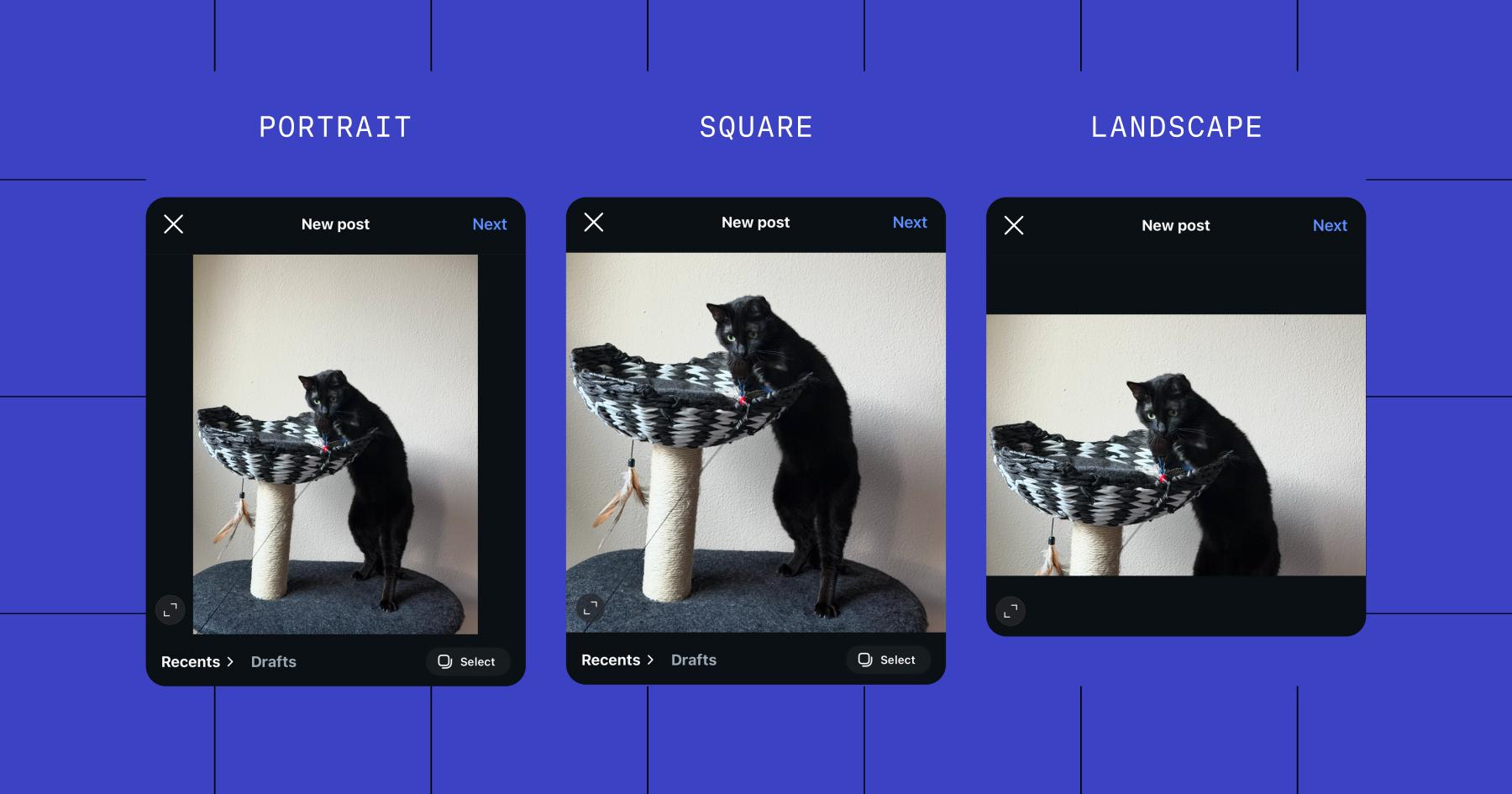
- Portrait posts: 1080 x 1350 pixels (4:5)
- Square posts: 1080 x 1080 pixels (1:1)
- Landscape posts: 1080 x 566 pixels (1.91:1)
- Stories and Reels: 1080 x 1920 pixels (9:16)
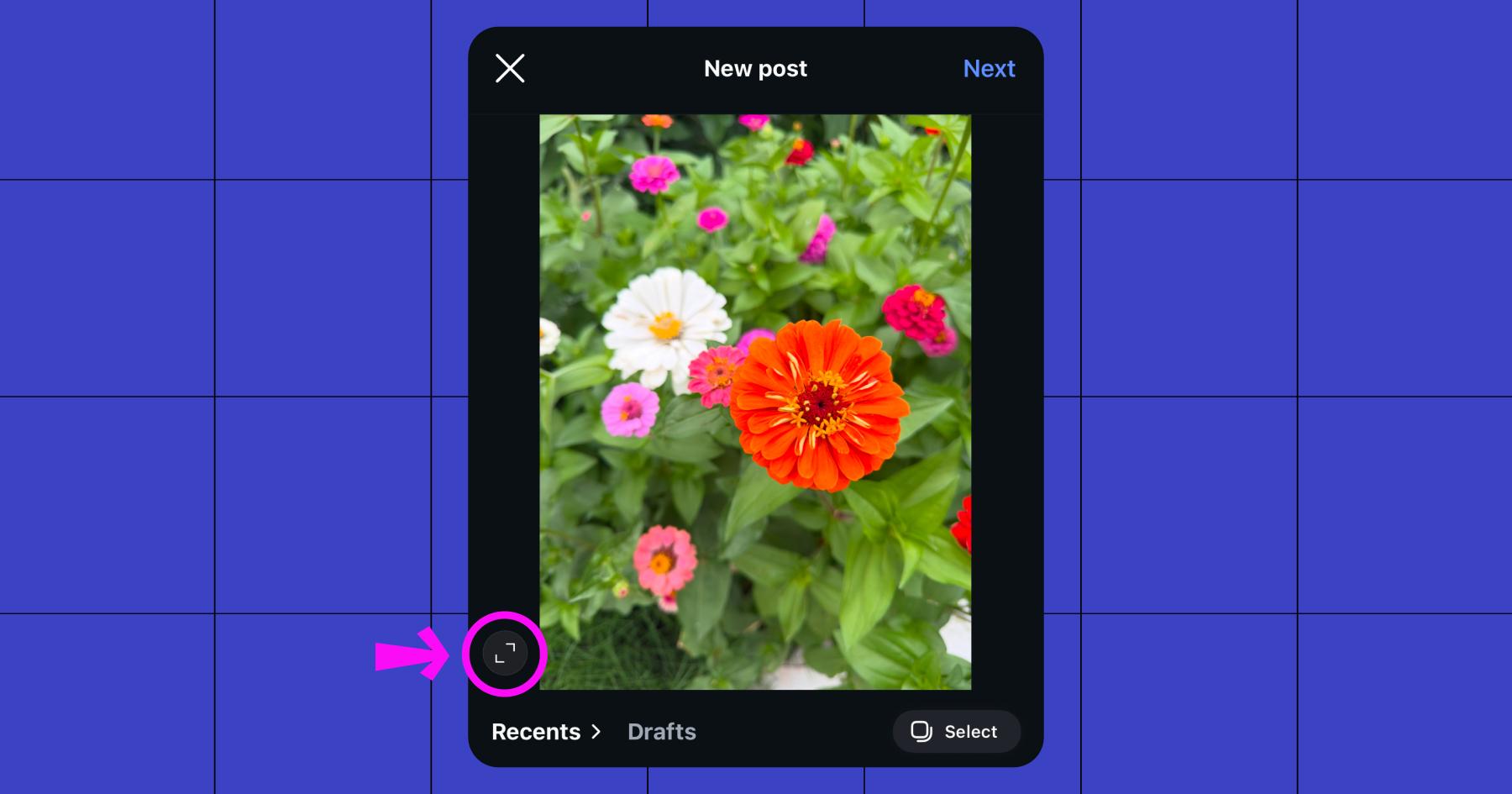
Tap the expand icon while uploading
When uploading a feed post, Instagram typically defaults to a square or portrait preview. Tap the expand/full-size icon in the lower-left corner of the image to restore the original aspect ratio.
Keep important elements centered
Profile grids, Reel previews, and Explore placements may crop your content differently than the main feed. To avoid losing anything important, keep your text, face (if you’re in it), graphics, and any other design elements near the center of the image.
Add borders or background padding
If your image doesn’t fit Instagram’s dimensions, you can add white space or a colored background around it to avoid Instagram cropping it automatically. Tools like Canva or Adobe Express make this easy.
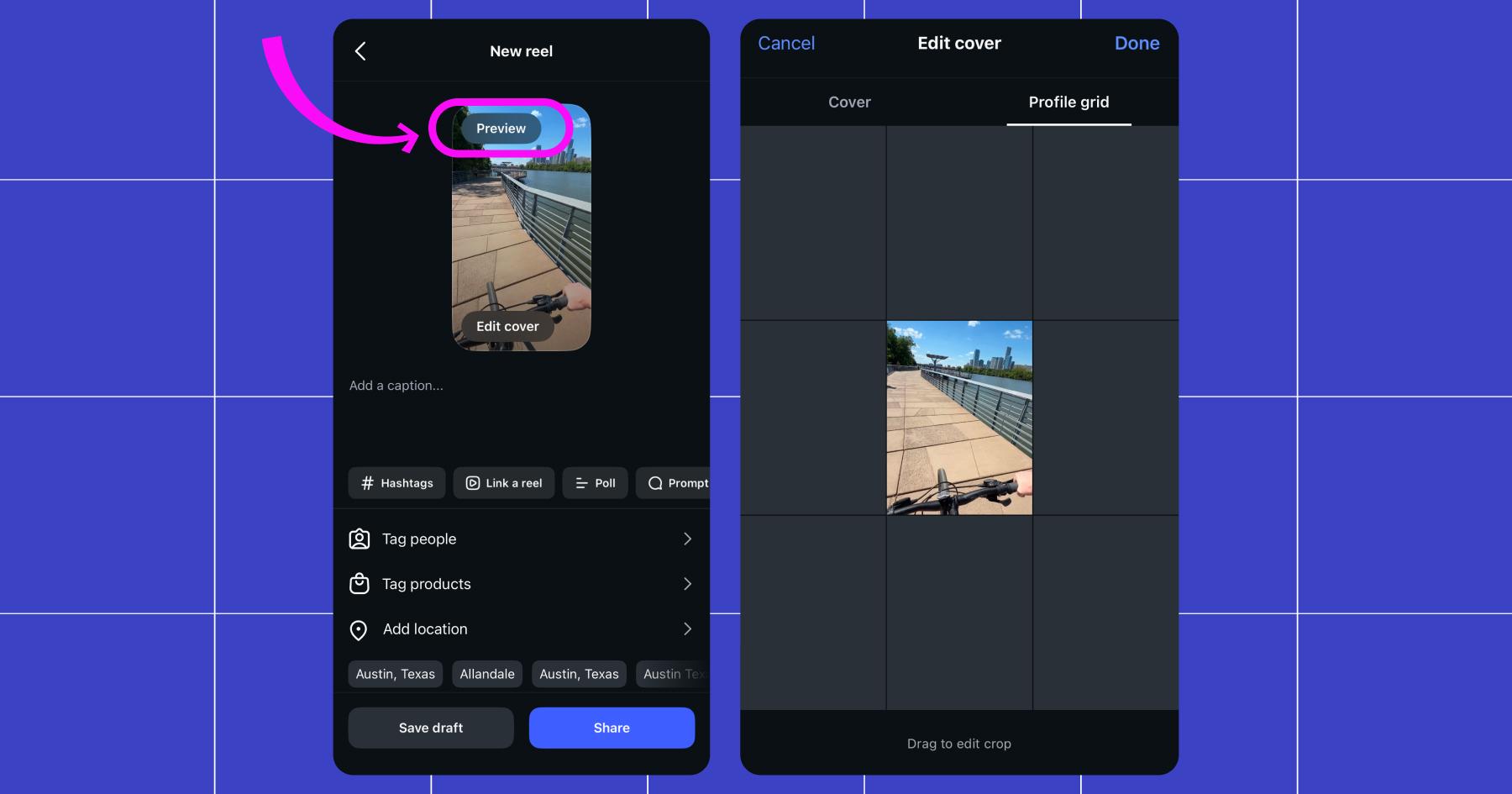
Preview before posting
A quick preview can save you from posting an accidentally cropped image or cut-off text. Always check how your content looks in:
- the feed
- your profile grid
- Reel previews
- carousel slides
A Quick Instagram Post Size Guide
Reels
- Aspect ratio: 9:16
- Dimensions: 1080 x 1920 pixels
Reel covers have the same aspect ratio and dimensions as reels themselves. Use the preview function when you’re choosing your reel cover to make sure it doesn’t crop weird on your grid. The best practice is to keep text and stickers within the central 4:5 area (1080 x 1440 pixels).
Looking for more? Let’s Get Reel: Videos are Instagram’s Most Important Content Format
Stories
- Aspect ratio: 9:16
- Dimensions: 1080 x 1920 pixels
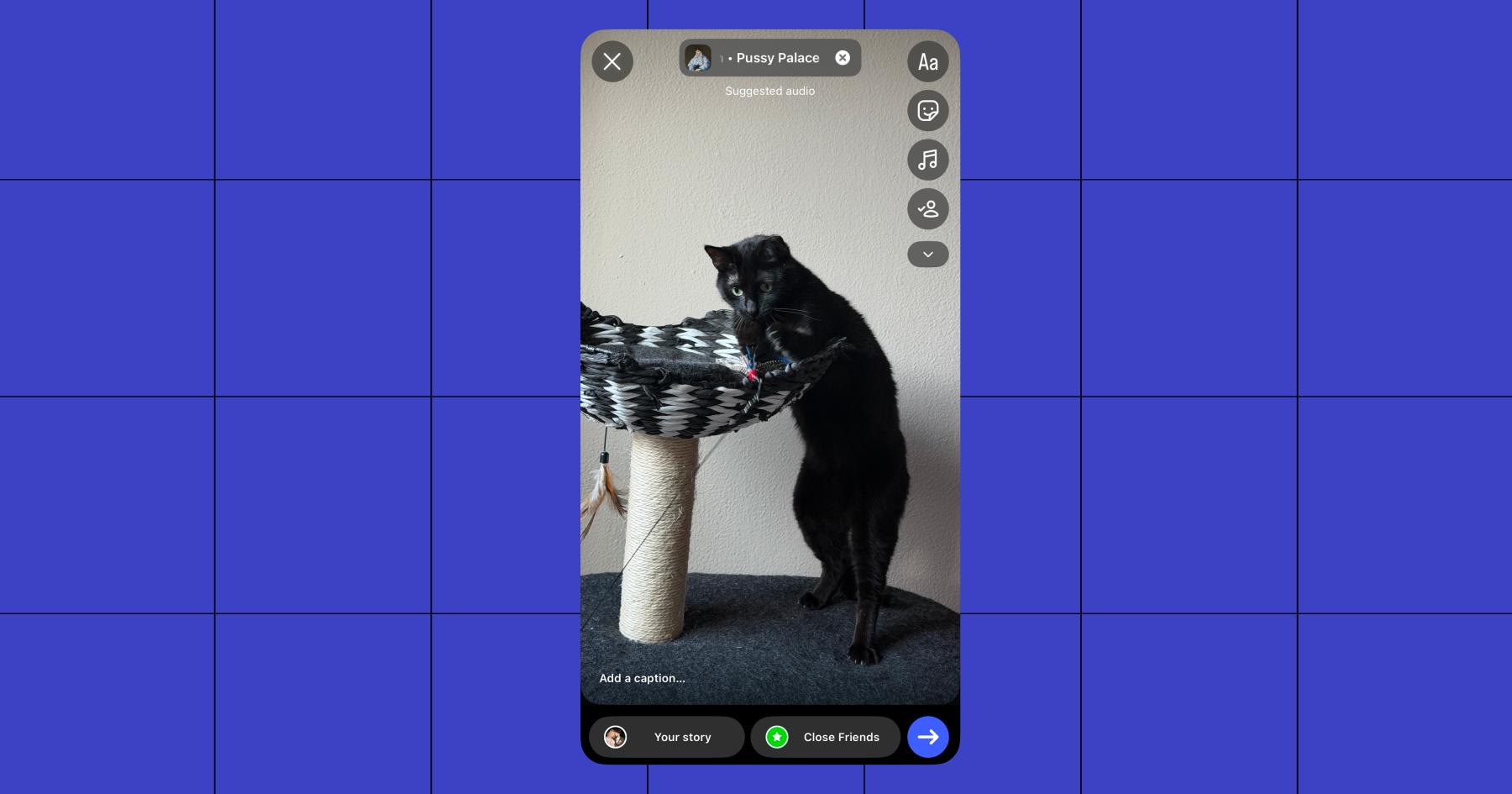
Avoid placing text or interactive stickers within the top or bottom 250 pixels, where the profile icons and reply bars live.
BTW, Need Instagram Story Ideas? We’ve Got ‘Em
Feed posts
With feed posts, you can use portrait, square, or landscape photos.
Portrait (recommended)
- Aspect ratio: 4:5
- Dimensions: 1080 x 1350 pixels
Square
- Aspect ratio: 1:1
- Dimensions: 1080 x 1080 pixels
Landscape
- Aspect ratio: 1.91:1
- Dimensions: 1080 x 566 pixels
Carousels
With carousels, you can go with portrait or square, but you can’t do both at once. All slides in a carousel must use the same aspect ratio chosen for the first slide.
Portrait
- Aspect ratio: 4:5
- Dimensions: 1080 x 1350 pixels
Square
- Aspect ratio: 1:1
- Dimensions: 1080 x 1080 pixels
Check this out: How to Create a Swipe-Worthy Instagram Carousel
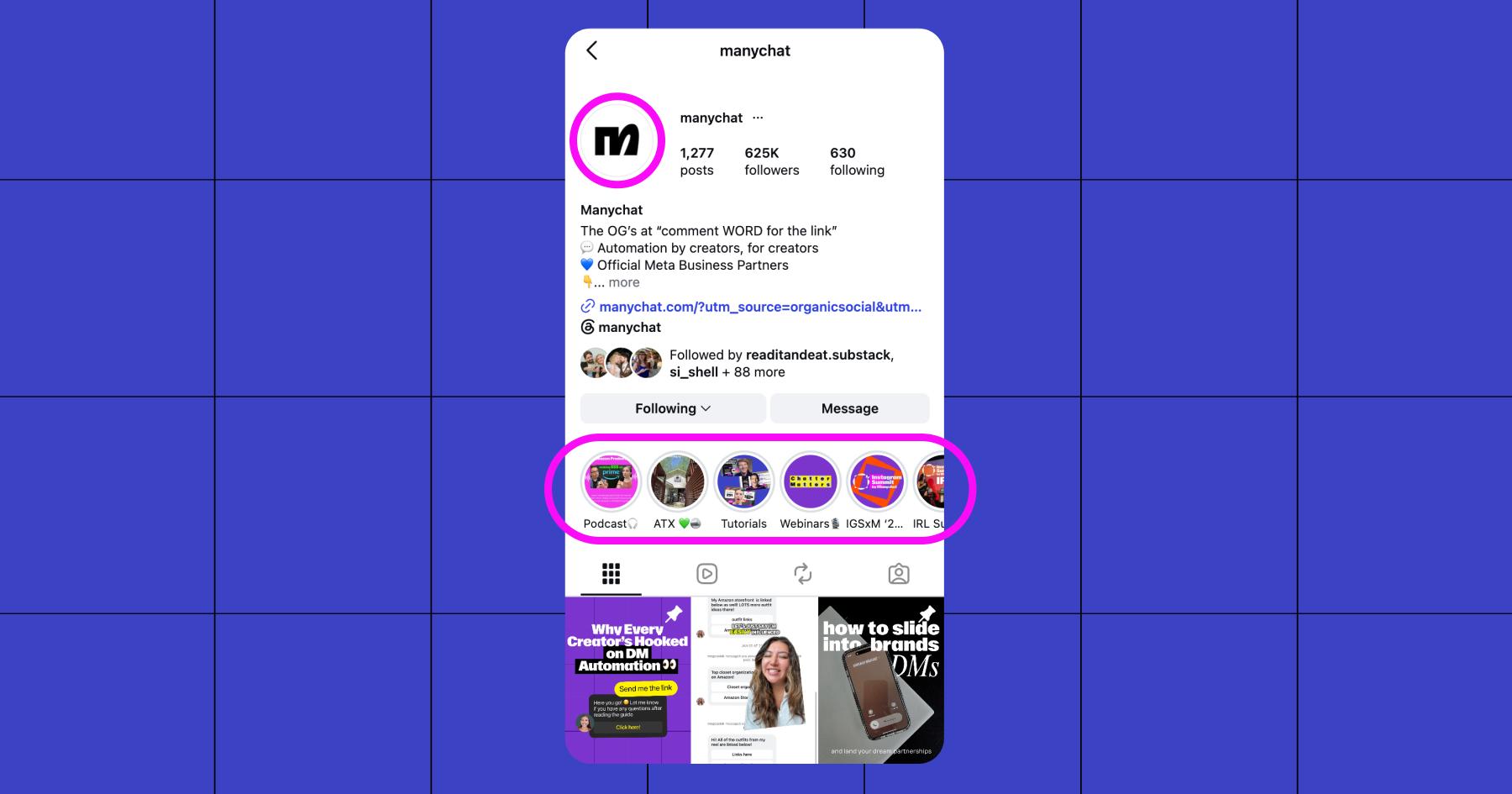
Profile picture and Highlights
Profile pictures and Instagram Highlights are the same size:
- Aspect ratio: 1:1
- Dimensions: 320 x 320 pixels (minimum), 1080 x 1080 pixels (recommended for high resolution)
Just keep in mind that these will display as circles, so you have to center the part of your photo or logo you want shown.
Content type | Recommended size | Aspect ratio |
1080 x 1920 pixels | 9:16 | |
Story | 1080 x 1920 pixels | 9:16 |
Feed/carousel portrait | 1080 x 1350 pixels | 4:5 |
Feed/carousel square | 1080 x 1080 pixels | 1:1 |
Feed/carouse landscape | 1080 x 566 pixels | 1.91:1 |
Profile picture | 1080 x 1080 pixels | 1:1 |
Highlight | 1080 x 1080 pixels | 1:1 |
The Best Instagram Photo Sizes for Engagement
If your goal is to maximize reach and engagement on Instagram, portrait content is your best bet. Over time, Instagram has also shifted toward vertical content formats that take up more screen space on mobile devices. That’s why, in general, Instagram content performance tends to follow this order:
Portrait > Square > Landscape
That doesn’t mean square or landscape posts are a no-go. But if you’re trying to stop the scroll, bigger visuals usually win.
No matter which format you choose, the key is making sure your content is high-resolution, easy to read on mobile, and properly centered. Otherwise, Instagram may crop important parts of your image, including text, products, or faces.
Want more ways to level up your Instagram strategy? Check out these related resources:
- Manychat for Instagram
- Instagram Story Polls: Low Effort, High Engagement
- Brock Johnson’s Formula for Getting More Sales in 2026
- Monetizing Your Instagram: A Guide For Influencers
Frequently asked questions
Instagram crops photos when the image doesn’t match one of the platform’s supported aspect ratios. If your photo is too wide, too tall, or doesn’t fit the selected post format, Instagram automatically trims or zooms the image to make it fit within the app.
Your profile grid preview doesn’t always display the full image shown in the feed. Instagram often crops previews vertically, especially for portrait posts and Reel covers. That’s why text or important design elements near the edges can get cut off on your grid, even if the post itself looks fine.
The easiest way to avoid cropping is to resize your content to Instagram’s recommended dimensions before uploading.
For feed posts, Instagram generally recommends a 4:5 aspect ratio (1080 x 1350 pixels). This portrait format takes up more screen space on mobile devices and usually performs better for engagement than square or landscape posts.
Instagram carousel posts use the aspect ratio of the first image or video. That means if your first slide is square, every following slide will also display in a square format, even if the original files were portrait or landscape.
Originally published: Jun 2, 2026, Updated: Jun 2, 2026
More stories worth reading
More content that's too good to miss