How to Set Up Instagram Quick Automation (A Comment-to-DM Guide)

You’ve been on the internet (you’re here, aren’t ya?). So, you’ve probably seen creators post something like: “Comment TICKET and I’ll send you the event link.”
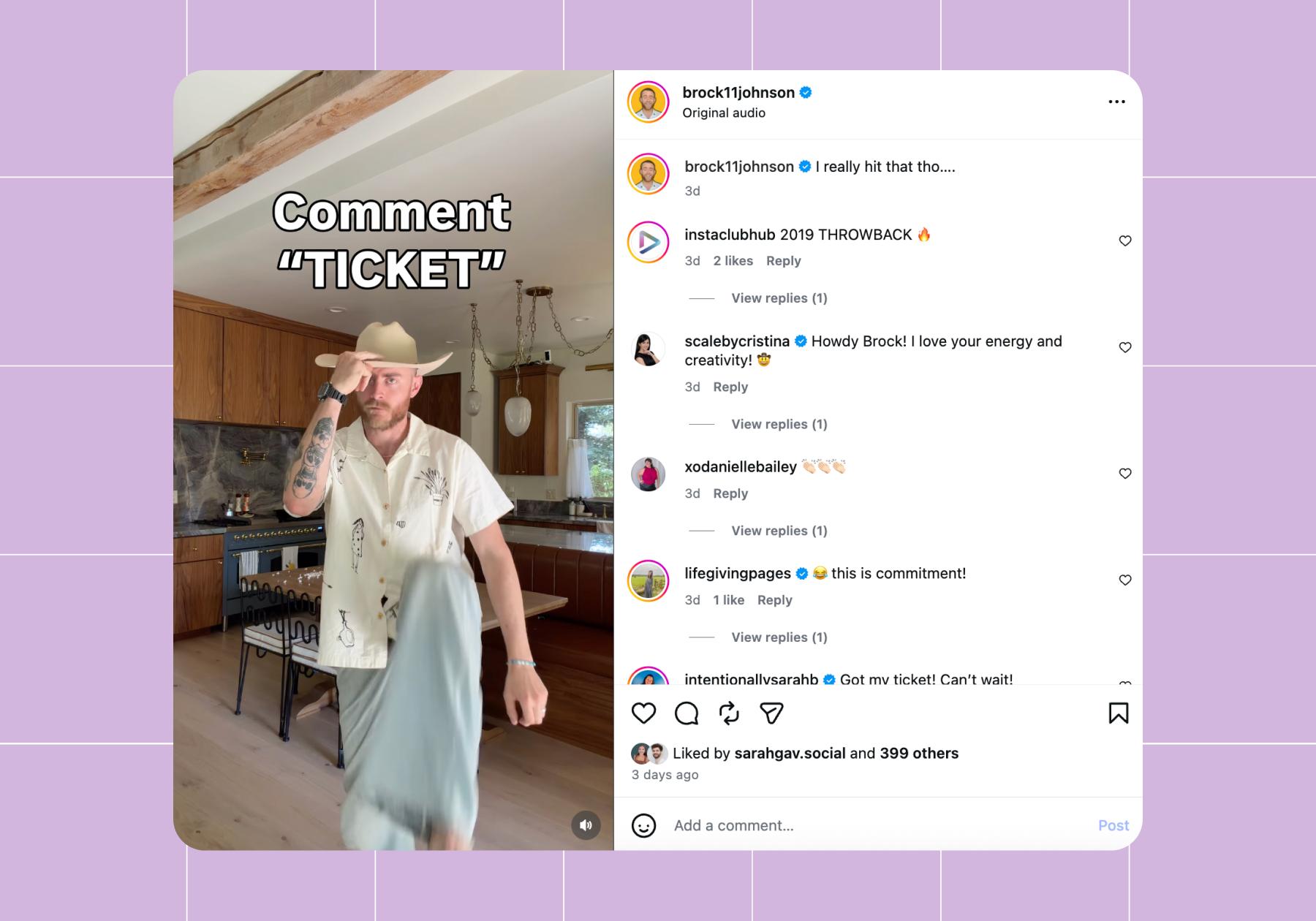
If you comment “ticket” on their post, you’ll get a DM containing the event link within seconds.
That’s an Instagram quick automation in action, and it’s a beautiful thing to watch play out. It frees creators from having to paste “link in bio” into their DMs a million times, and it lets scrollers get what they want, right when they want it.
If you’re curious about how Instagram quick automation works and why comment-to-DM automations have become so popular, keep scrolling. To sweeten the deal, I’ll even show you how to build your own automations in just a few clicks.
How Do Instagram Quick Automations Work, Anyway?

An Instagram quick automation is an automated workflow that kicks off when someone takes a specific action on Instagram, like:
- Commenting on a post or reel
- Replying to a Story
- Mentioning your account in a Story
- Sending a specific keyword in DMs
These actions are called triggers, and you get to choose which ones are tied to your automated flows.
Manychat is an automation tool that offers several Instagram quick automations. You can learn more about all of your options with our in-depth guide, Manychat Quick Automations: Automate on Instagram in Less Than 10 Minutes.
For this article, we’ll walk you through how to set up comment-to-DM, the most popular Instagram quick automation with Manychat.
Comment-to-DM: The most popular Instagram quick automation
Comment-to-DM automations automatically send a direct message whenever someone comments on a post, reel, or Live video.
The example I mentioned at the top — somebody commenting “TICKET” on a post and getting the link to an event landing page in their inbox — is a comment-to-DM automation.
You can use a Meta-approved automation tool like Manychat (our recommendation, obviously), LinkDM, or even the native Instagram autoresponder to set up a comment-to-DM flow.
Why use automations like comment-to-DM on Instagram?
There are a few reasons why people set up automations like comment-to-DM on Instagram.
To generate engagement
The Instagram algorithm rewards content that drives meaningful interactions, and DM automation helps foster those interactions by encouraging conversation.
A HypeAuditor x Manychat study comparing 3,000 creators using DM automation with 3,000 who aren’t found that those using automation consistently achieved higher engagement rates across all audience sizes. For mid-sized creators, engagement rates were up to 30% higher.
Why? Because comments are one of Instagram’s strongest engagement signals, and comment-triggered DM automations give people a compelling reason to leave one.
In the same study, creators using DM automation generated dramatically more comments per post than creators who didn’t; among micro creators, automated accounts averaged 46 comments per post compared to just 18 for non-automated accounts (a 156% increase).
To save yourself hours of work
When you’re manually responding to every link request and question that comes through your inbox and notifications tab, it’s hard to focus on other things like creating content or pitching to brands. Automation handles repetitive tasks like these automatically, so everyone gets what they need, and you don’t have to be in the DMs all day.
To grow your audience with less effort
DM automation can also help you grow your Instagram following. The HypeAuditor analysis found that creators using DM automation experienced significantly faster annual follower growth across every creator tier studied.
It makes sense: when you deliver valuable content through comments and DMs, people are more likely to follow you and keep interacting with your account.
How to Build a Comment-to-DM Automation (Fast AF!)

Enough yapping. Let’s build a comment-to-DM automation, shall we? It’s super simple with Manychat, which leads me to the first step:
Step 1: Sign up for Manychat and connect your Instagram account
- If you don’t already have a Manychat account, sign up.
- Then, connect your Instagram account to Manychat.
Step 2: Find the ‘Auto-DM links from comments’ template
- Once you’re in Manychat, open the dashboard and head to Automations.
- Click + New Automation.
- Click on the Auto-DM links from comments template.
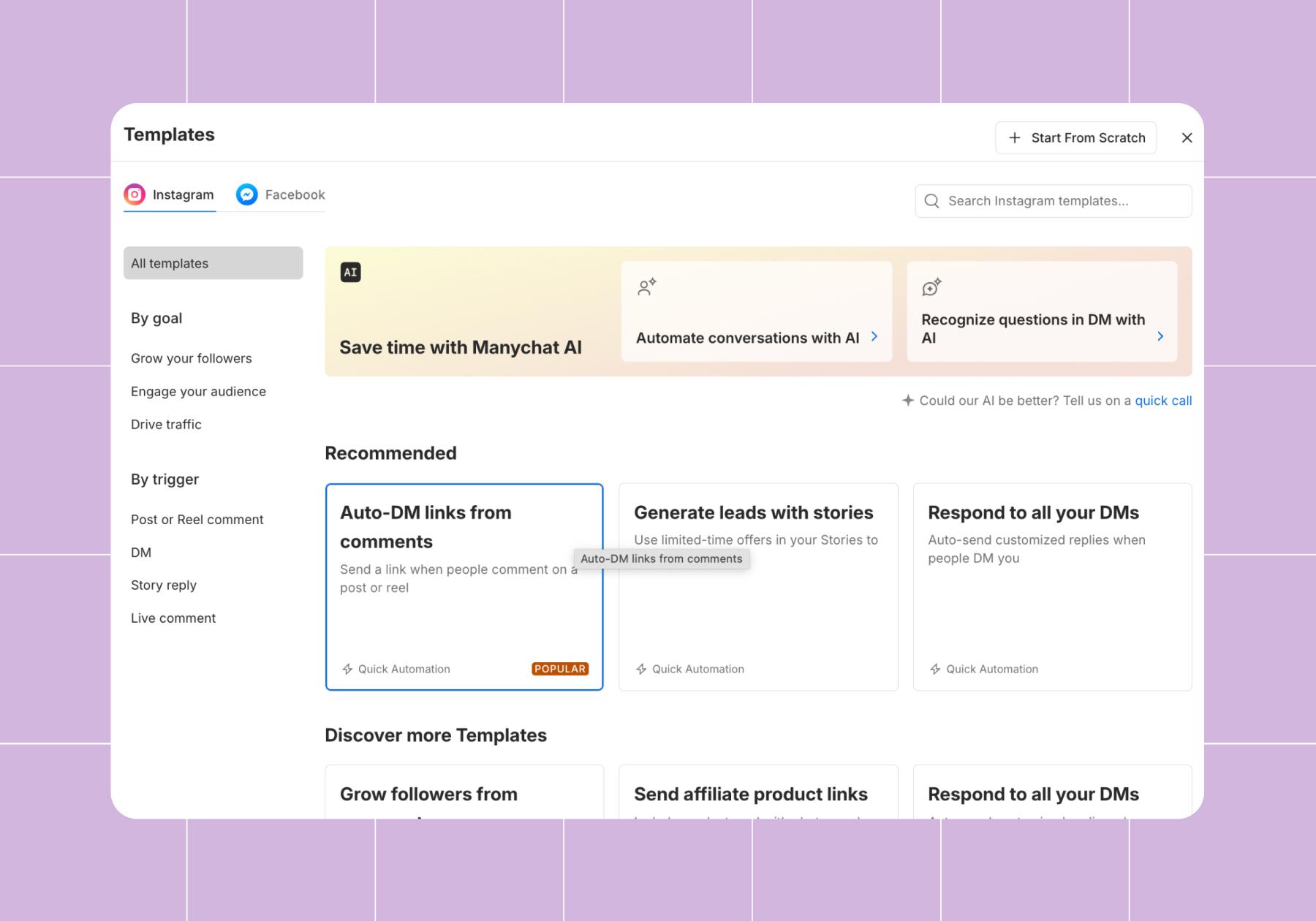
Step 3: Customize your comment-to-DM automation
You’ve found Manychat’s comment-to-DM Quick Automation. Now, let’s talk about how to use it best.
- First, you have to choose whether the flow will trigger when someone comments on any of your posts, a specific post, or the next post.
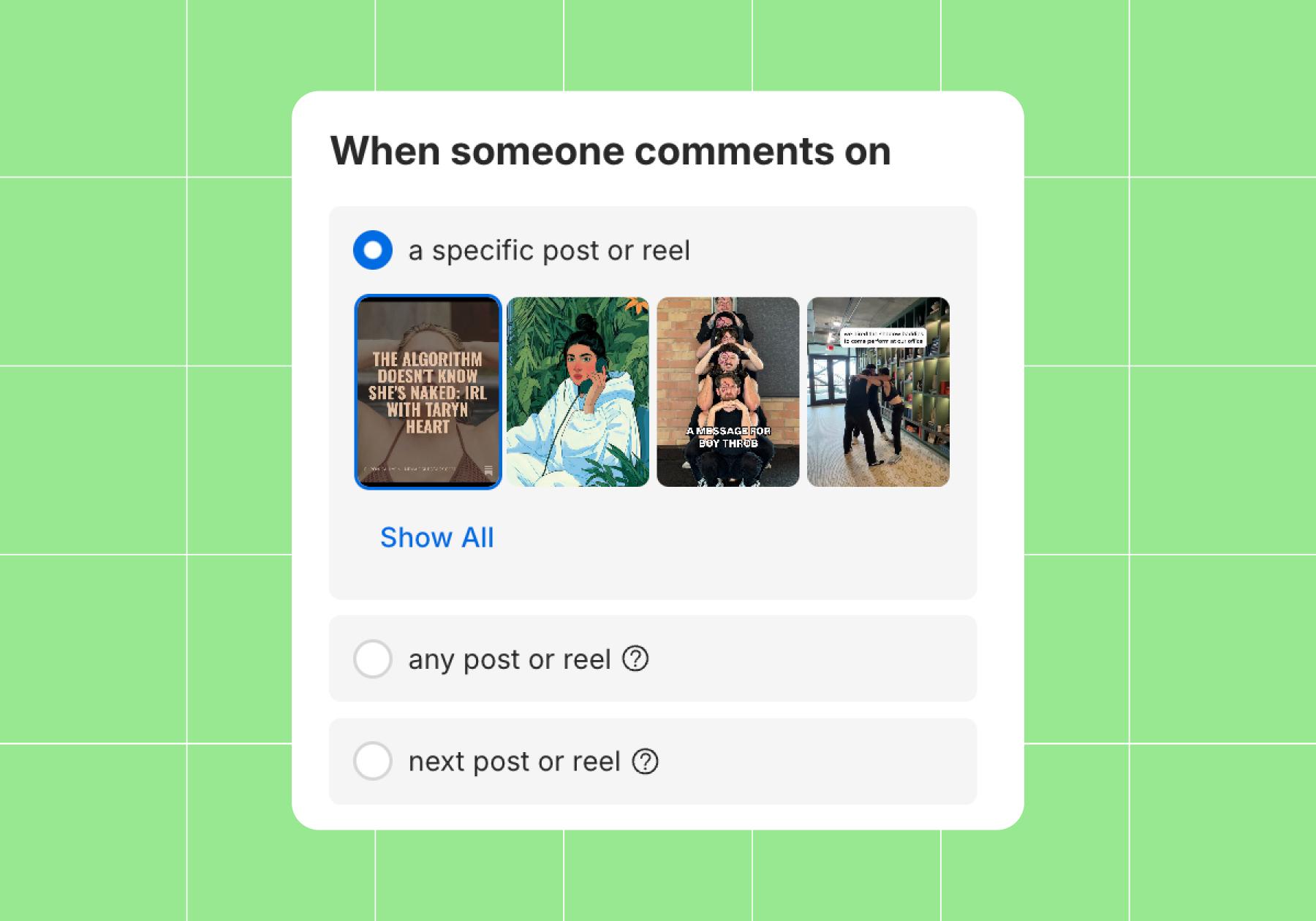
Choosing a specific post is recommended for most situations.
You’d only choose to have the automation trigger off all posts if you were setting up an evergreen flow, like sending people who comment “wtf is going on with my order” a DM with an email address they can reach out to. Choosing the next post or reel is also a good option, but it can get tricky if you have things scheduled to go out at certain times and you set up the automation without considering that.
For this walkthrough, we’ll have the automation fire off a specific post.
- Next, you have to choose whether you want to use a trigger keyword or have any comment trigger the automation.
Keywords are preferred because if you slide into someone’s inbox who didn’t actually want you there, there’s a good chance you’ll get unfollowed (at the very least, they’ll be less likely to comment on your posts again in the future).
In the example below, I chose the keyword “heart” and the ❤️ emoji because they are related to the post: a Chronically Online Magazine feature on Taryn Heart.
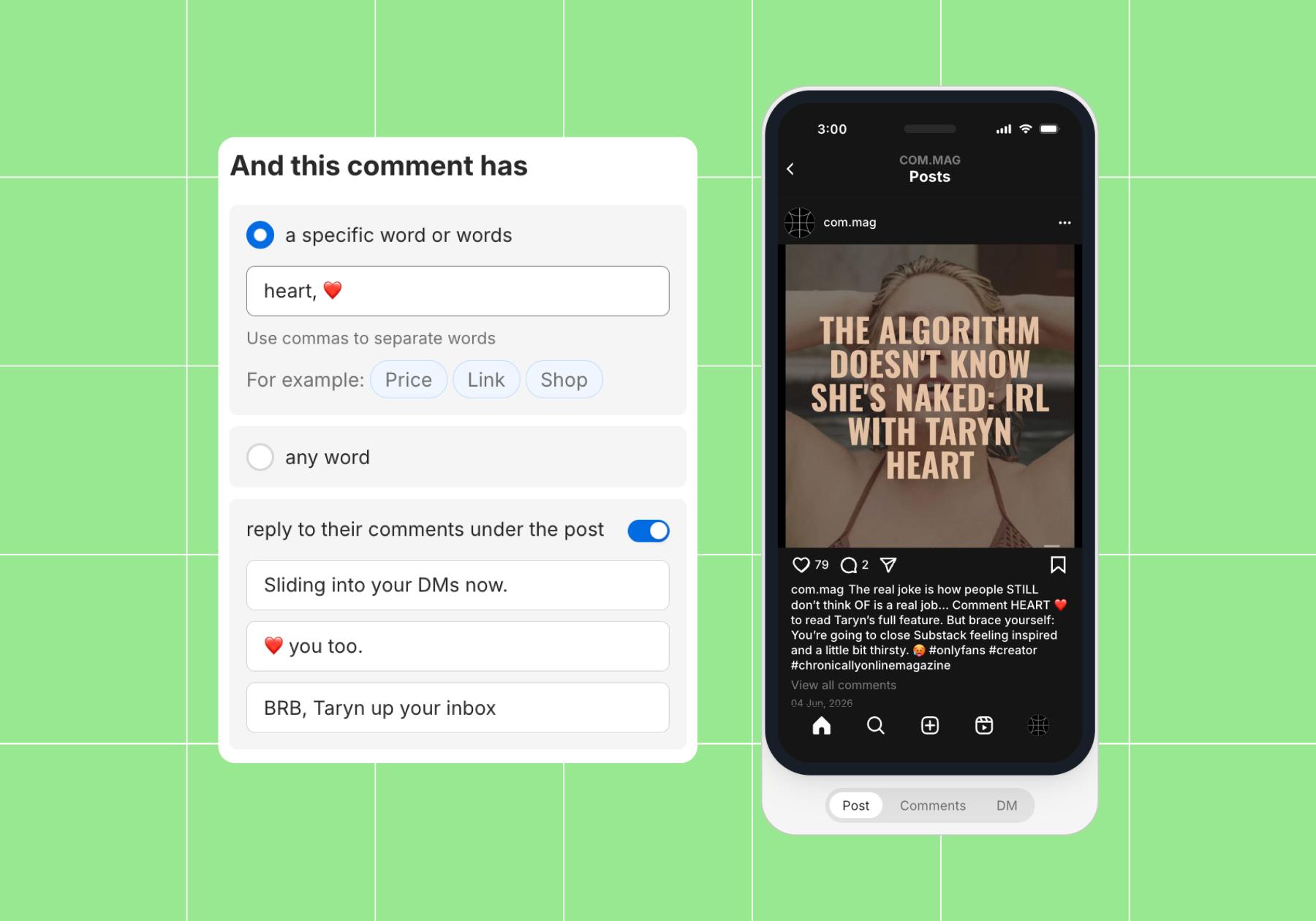
Choose simple keywords that are relevant to the content you’re posting.
💡Tip: Add a few common typos of the word just in case anyone has fumble fingers (for instance, I could have added “haert, hart, hert,” etc. as trigger keywords).
Keep in mind that the automation will be triggered by any comment that includes the keyword on this specific post (or any post, if you chose that). This is why you should avoid using a generic term or word that people say all the time as a trigger.
- At this point, you also need to choose whether you want Manychat to respond to comments in addition to sending them a DM. Toggle on reply to comments under the post and write some responses that sound like you if you want to do this.
The Instagram algorithm loves content that inspires discussion, especially soon after it’s posted, so that is one benefit of using this feature. However, the more comments you get, the more times you will see these responses, so keep that in mind if you’re worried about it being obvious you’re using automation.
- Finally, you need to customize the DMs the scroller will get, starting with your opening DM.
Opening DMs are optional. You can use them to greet the person, and you can also choose to ask the person to follow you or provide their email address before you offer up your link.
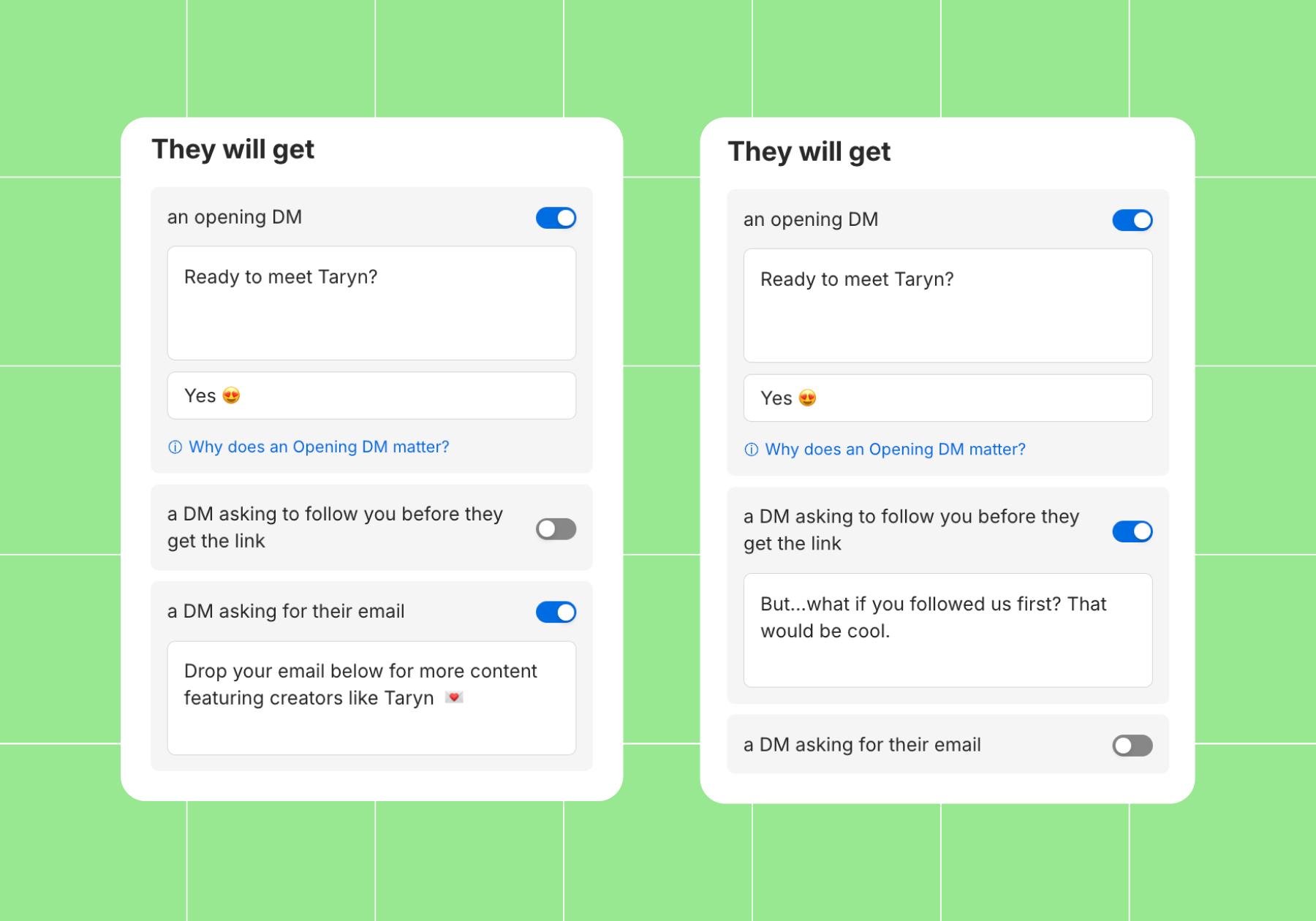
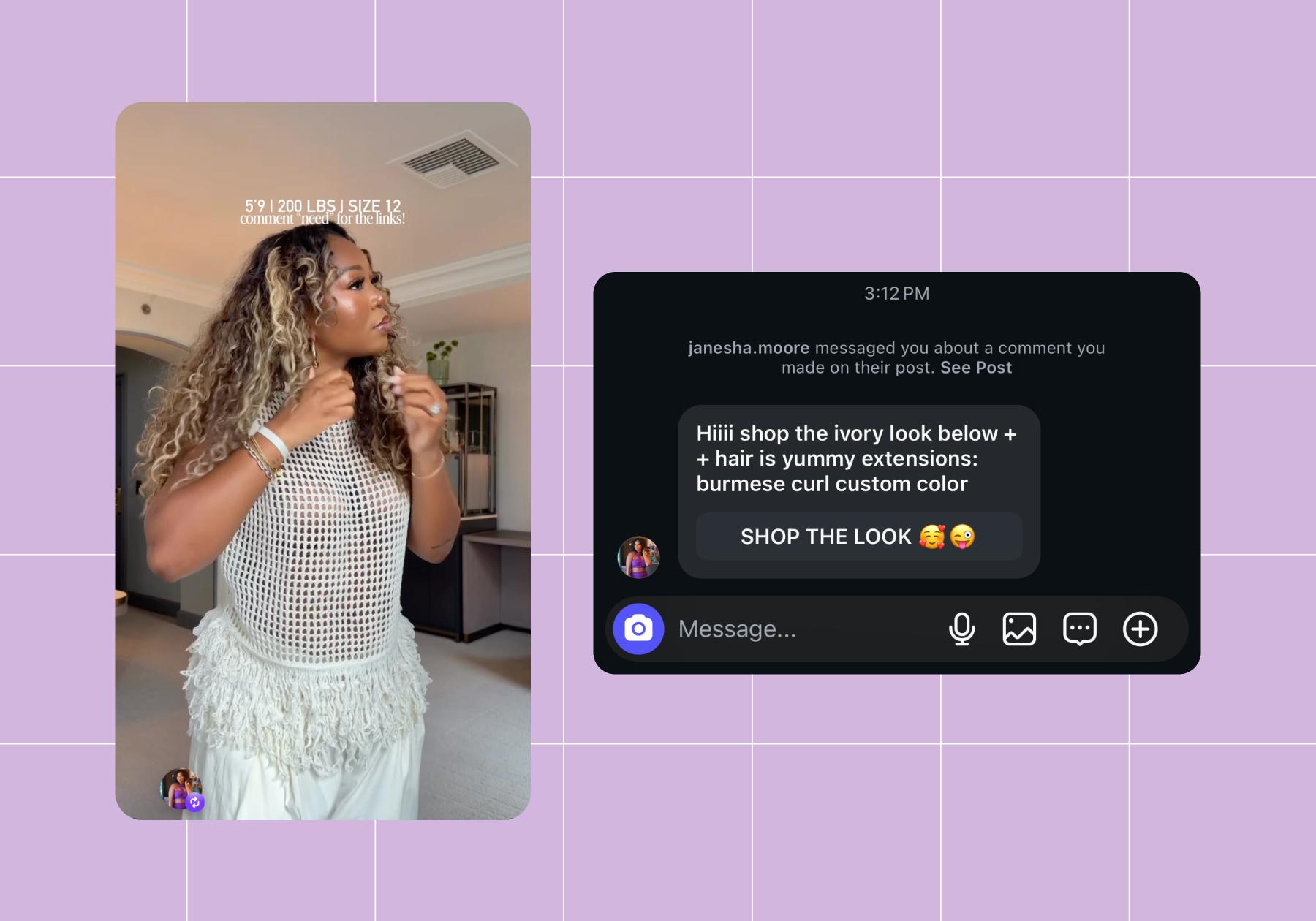
If you don’t want to do those things, you can just toggle them off. However, you’ll still need to write a DM that precedes the button with the link. Here’s an example from affiliate marketer Janesha Moore (@janesha.moore):
And here’s what that would look like in Manychat (going back to Taryn for the example below):
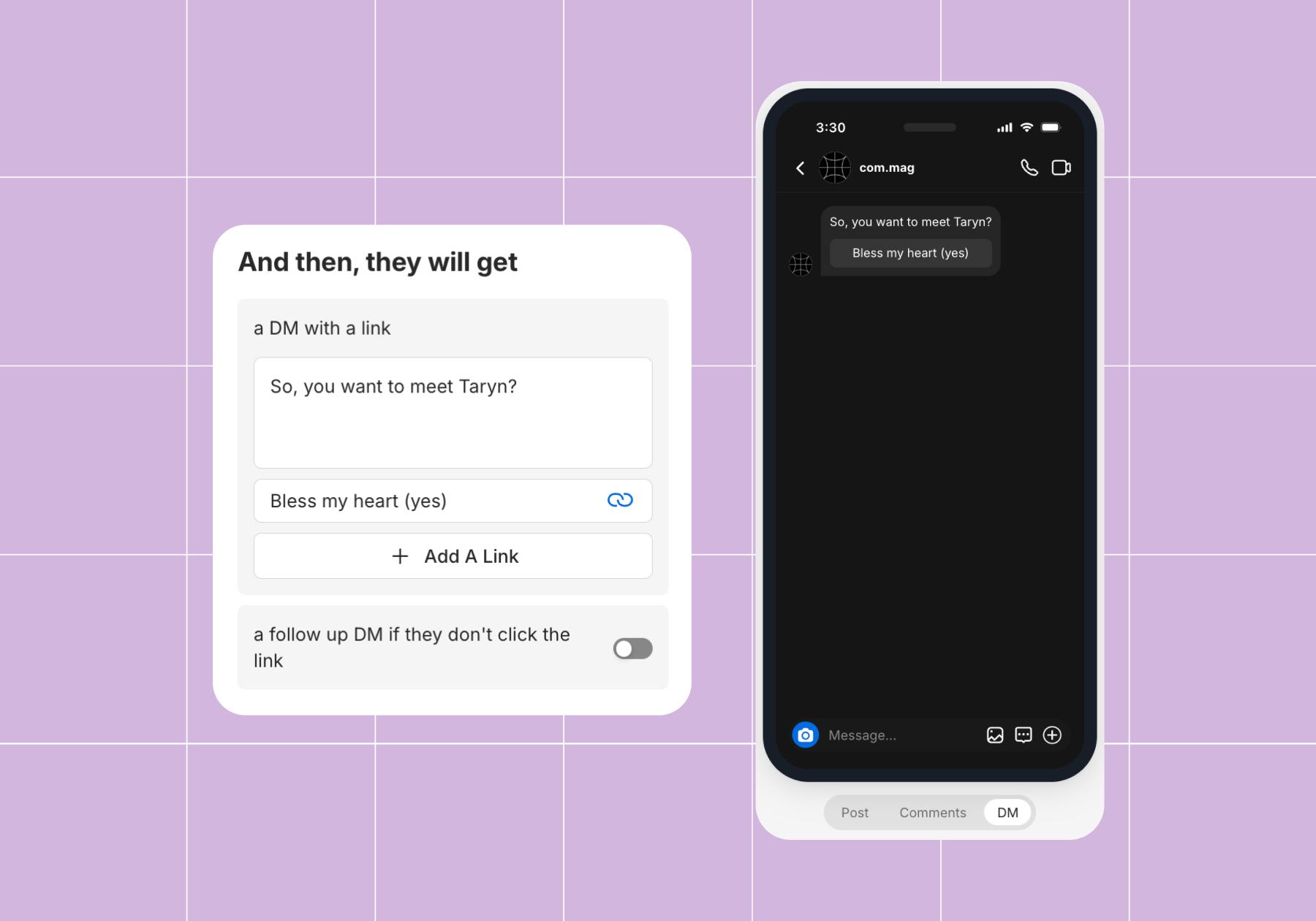
- When you’re ready, click Set Live in the upper right corner.
Congrats, you’ve just completed your first comment-to-DM flow. And if that didn’t work for you, perhaps my colleague David will do a better job of explaining how this works:
Mistakes that can tank your comment-to-DM funnel
Automation can produce incredible results, but only when it’s implemented thoughtfully. Here are some common mistakes to avoid.
- Using too many (or bad) keywords: One clear keyword is usually more effective than trying to manage dozens of variations. Also, avoid anything generic that people might comment naturally.
- Writing spammy DM copy: Nobody wants to feel like they’ve been dropped into your sales funnel immediately. Keep it human, even when you’re automating.
- Overcomplicating your flows: Every step you add to the user experience creates friction. Keep your flows as simple as possible by minimizing the number of messages in a sequence.
- Using unapproved automation tools: Instagram automation should always run through approved solutions that use Meta’s official Messenger API.
Other Instagram Quick Automation Triggers (Story Replies, Mentions, and More)

While comment-to-DM automations get most of the attention, comments aren’t the only way to start automated conversations on Instagram. There’s a whole wide world of automations out there to explore.
Story replies
When someone replies to your Instagram Story, they’re stopping their scroll to engage with your content. Oftentimes, they’re coming in hot with a question, reaction, or the usual: a request for a link. Instead of manually responding to every message, you can use Manychat’s Generate leads with Stories Quick Automation to acknowledge and answer every one of them.
Learn all about it: Instagram Story Going Stupid? 🫨 Use Manychat to Automate Replies
Story mentions
Instagram also supports Story mention automations. So, when a user tags your account in their Story, you can set up an automated response that acknowledges the mention, thanks them for sharing, and provides a discount code or something else.
DMs
A direct message to your account can be a trigger for an automated conversation as well. It works similarly to comment-to-DM: when someone sends a specific word or phrase to you in a DM (“collab,” “merch,” “help,” etc.), you have an automation that immediately responds with relevant information and guides them through the next steps.
Want even more Instagram automation options? Say less, fam. David’s got you:
You made it this far. Why not sign up for Manychat?
Frequently asked questions
Instagram quick automation is a workflow that automatically responds when someone takes an action on Instagram, such as commenting on a post, replying to a Story, mentioning your account, or sending a keyword in DMs.
Yes. You can set up automations that fire only when someone comments on a specific Reel, a Live video, or any post. Manychat lets you choose the exact post or apply the trigger account-wide.
Yes, when done through Instagram’s official Messenger API. Manychat is an approved Meta partner, so automations built here comply with Instagram’s terms of service.
Instagram doesn’t publish a hard daily cap, but best practice is to keep automated DM volume reasonable — typically under 1,000 per day for established accounts. Manychat handles rate-limiting for you.


Originally published: Jun 17, 2026, Updated: Jun 24, 2026
More stories worth reading
More content that's too good to miss