Instagram Story Going Stupid? 🫨 Use Manychat to Automate Replies

If Reels are the Instagram content equivalent of a wacky inflatable man, Stories are that same crazy dude when he’s off the clock.
Let me explain, because I know that analogy is wack (get it?).
Reels are great for getting your content in front of new people, but with Stories, the main audience is your followers — people who are already familiar with you and your content. So, when you’re posting to Stories, you can skip the flashy edits and keep it low-key. In fact, that’s what most scrollers want anyway.
But let’s say one of your Stories does end up getting a lot of engagement. You share a quick pic of your outfit, living room, office setup, whatever, and the people are loving it. Reactions are coming in left and right, along with a flood of DMs asking for the product links.
You definitely don’t want to leave them on read (they’re your people, remember?), and you want to cash in on any potential sales out there…but you also have a life to live.
So, you sign up for Manychat and set up Story replies.
How Manychat’s Instagram Story Reply Trigger Works

Manychat connects with Facebook and Instagram, and we’re an official Meta Business Partner. (So you can automate to your heart’s content and not worry about your account).
You can use Manychat to set up automations that send links, greet new followers, and answer questions. And if you want to turn Instagram Story interactions into sales without being in your DMs all day, Manychat is for you.
So, sign up, then keep reading to learn how to set up a simple Story automation.
The Story reply trigger
Every Manychat automation has an entry point (a trigger) that kicks it off. With the Story reply trigger, reactions and replies to Instagram Stories are the initiating event.
You can designate keywords and reactions that trigger it, or keep it open to any Story interaction.
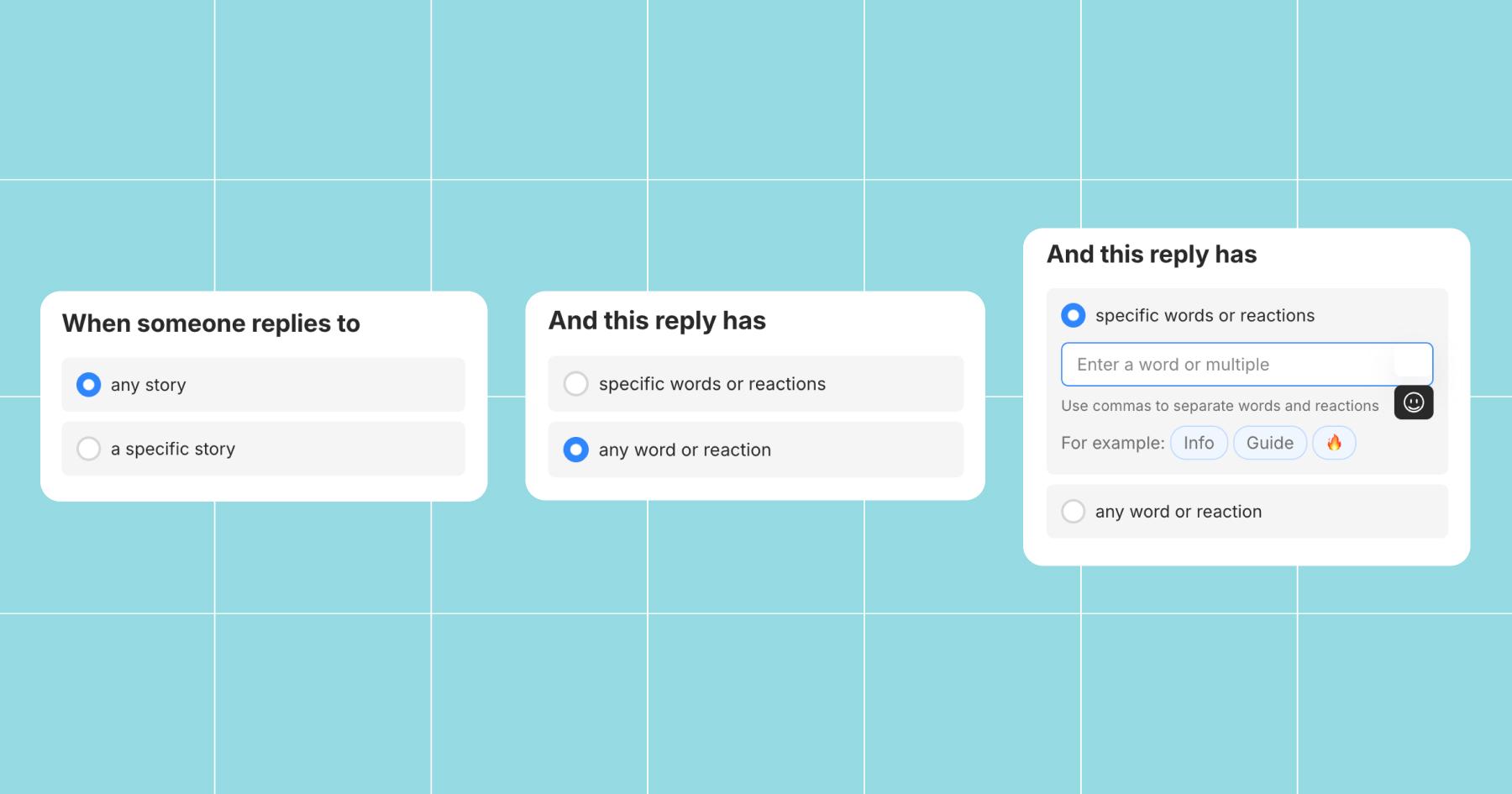
For a quick (literally < two minutes) tutorial on how to set up Manychat to generate leads, watch this video.
Keep it scrollin’ for the step-by-step in plain text.
How to Turn Story Replies into Sales with Manychat

If you’ve got something to sell, whether it’s your own branded product or an affiliate marketing situation, you can use Instagram Stories and Manychat to do it. Here’s how.
Post an Instagram Story
If you didn’t see this one coming, that’s on you. You need an Instagram Story to be live for people to interact with it, so get to posting. More specifically, a post about the thing you want to promote or sell.
Related reading: Need Instagram Story Ideas? We’ve Got ‘Em
For the sake of this walkthrough, I’ll be posting a Story on the Chronically Online Magazine Instagram. My goal will be to get people to subscribe to our YouTube channel (rather than sell something).
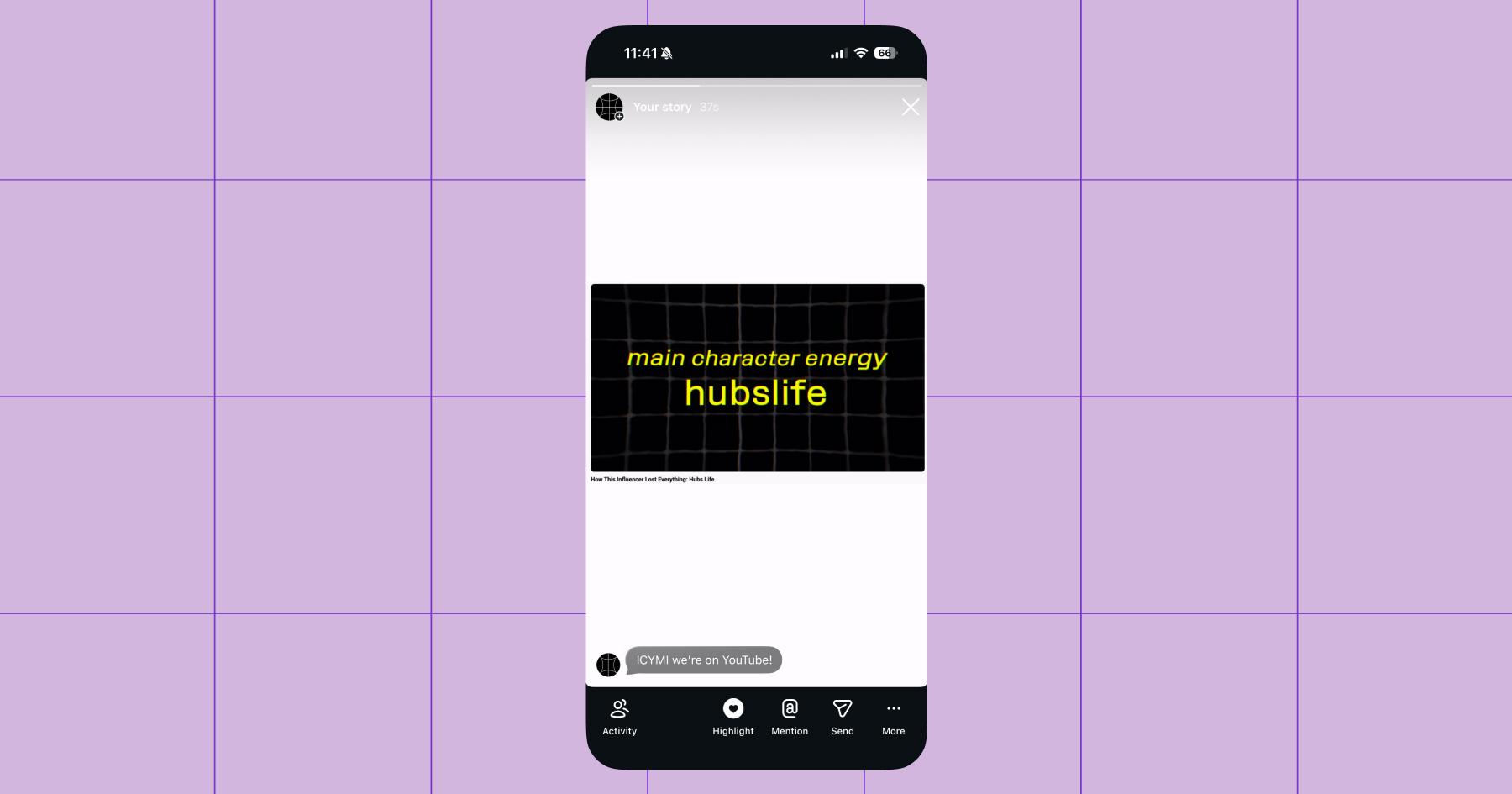
I posted a simple screen recording of our latest video. And now that it’s live, it’s time to build a Manychat flow.
Build a Manychat automation with the Story reply trigger
Open Manychat and head to Automations, then:
- Click + New Automation.
- Click + Start From Scratch.
Note: You can also choose a quick automation or template if one speaks to you.
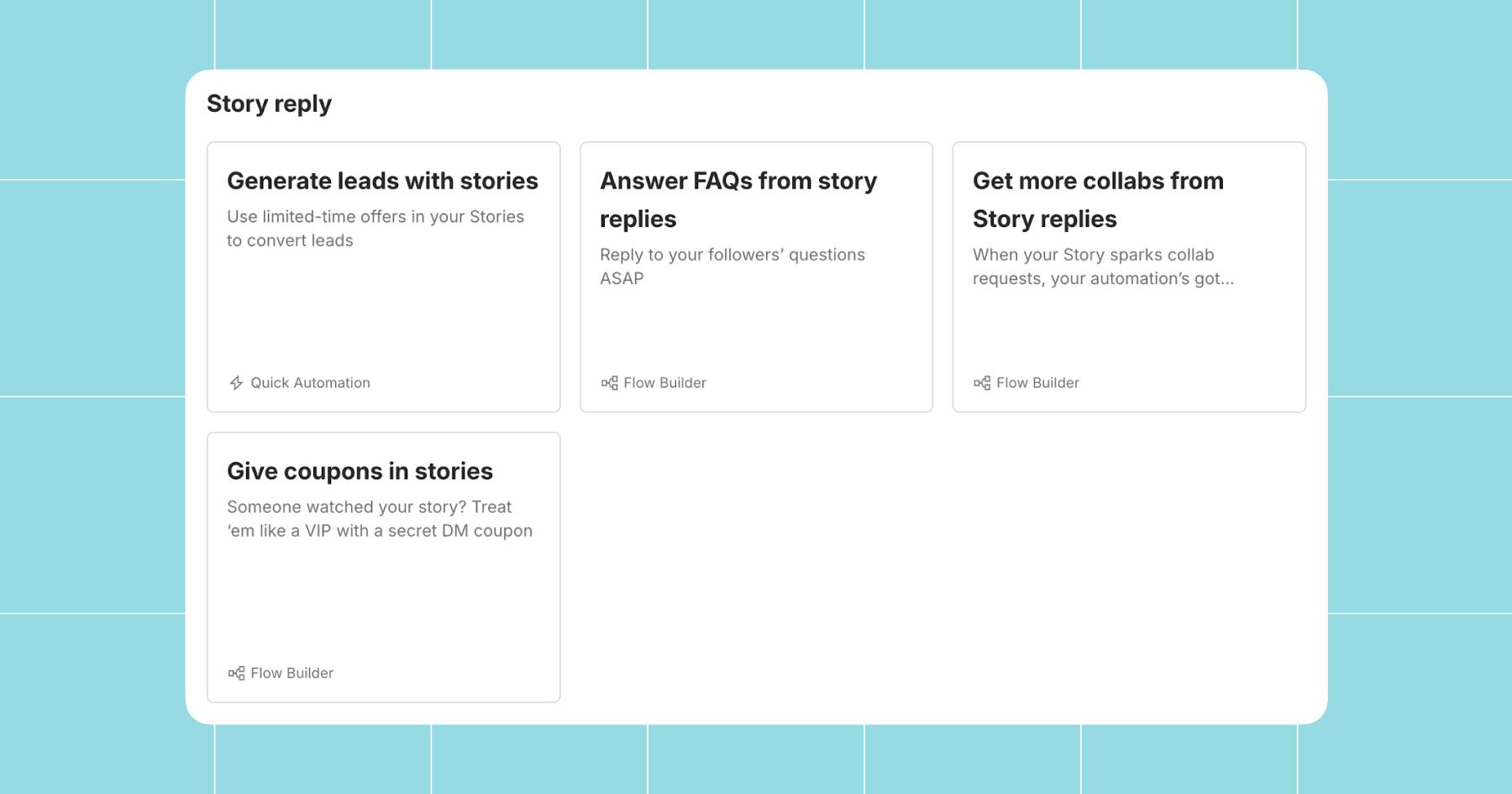
- Under Start with a trigger, select Story reply.
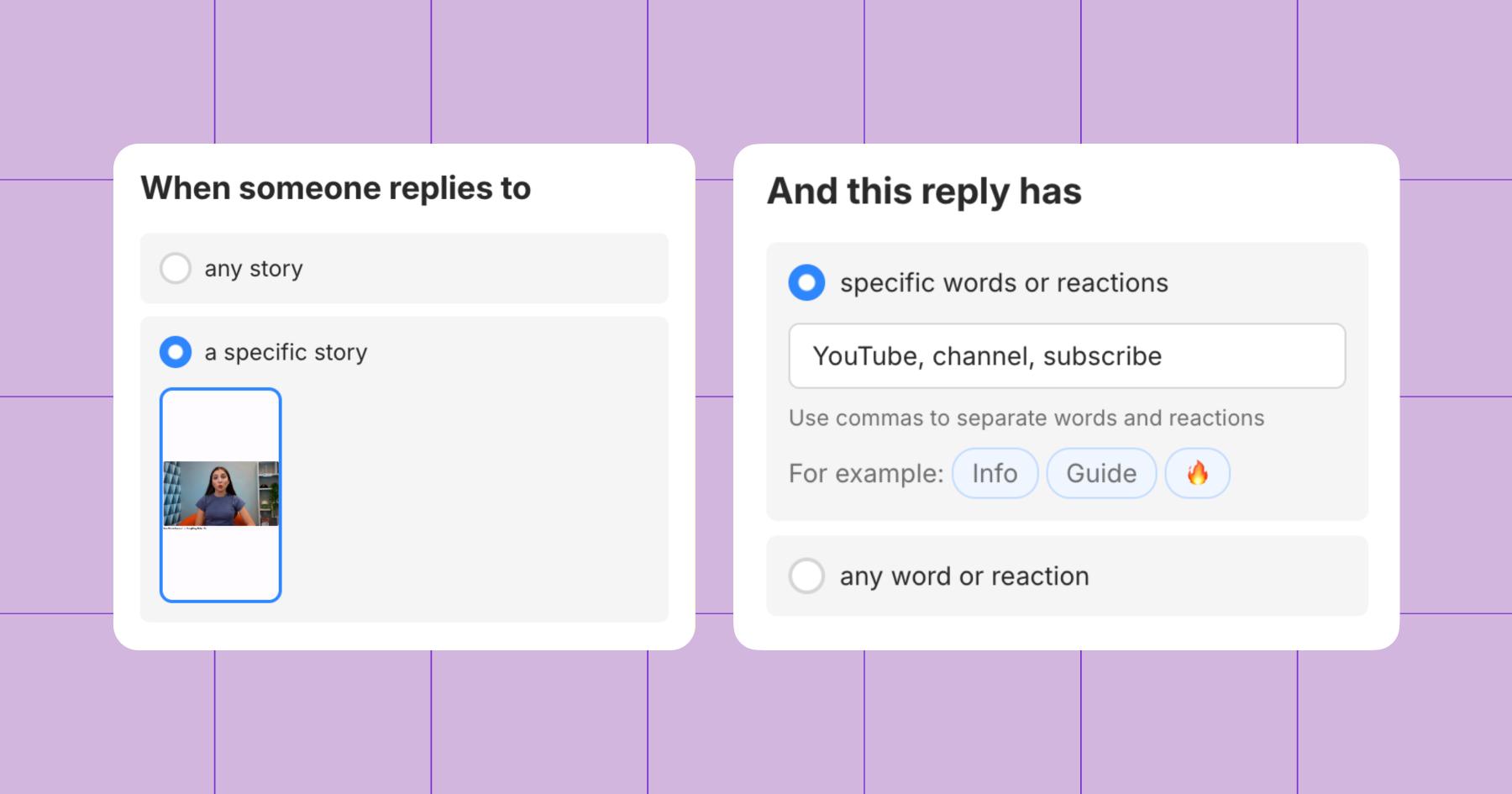
- Under When someone replies to, choose the Story you just posted.
- Under And this reply has, choose whether you want to add a keyword or have it fire from any word or reaction.
Using a keyword ensures your automation triggers only for people who have shown interest in what you’re promoting. If you want to be really direct about it, you can add a text CTA in your Story: “DM me the word ‘YouTube’ for a link to the channel.”
Just make sure to choose a keyword that’s related to the post, so there’s no chance of someone accidentally triggering the automation.
Since I’m trying to get people to subscribe to our YouTube channel, I’m going to add the keywords “YouTube,” “channel,” and “subscribe.”
- Next, write the message you want to send to them and add the link for whatever you’re sharing.
- Before you publish your flow, make a few final decisions, like whether you want to:
- React to Story replies with ❤️
- Collect their email address
- Ask them to follow you
- Follow up with a nudge
I’m going to assume people who see this Story are already following the COM account, but I will react to replies with a ❤️and send a follow-up message.
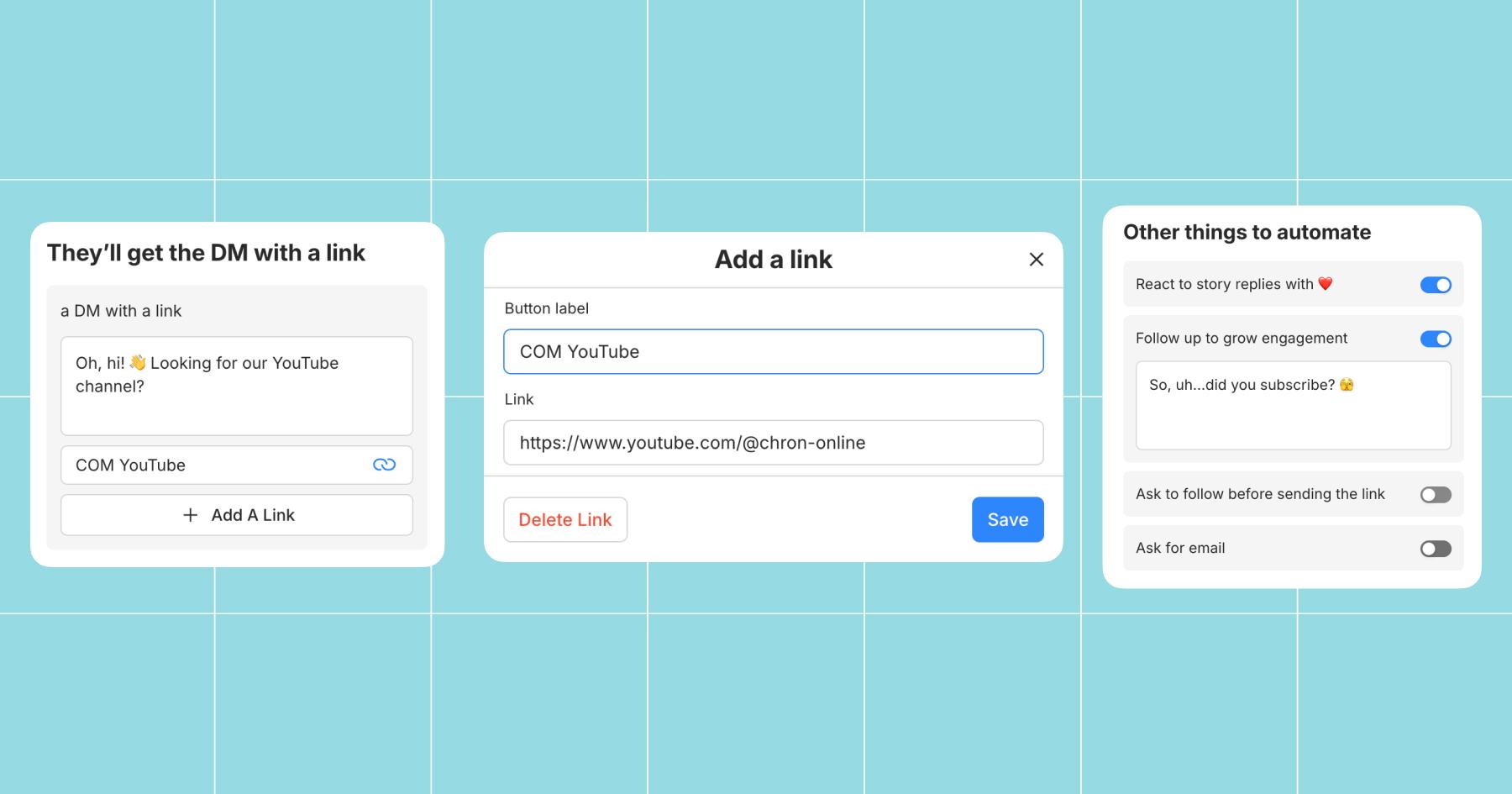
- Hit Go Live.
After your automation has been chugging along for a while, you’ll be able to see the click-through rate (CTR). Hopefully, it’s sky-high. 📈
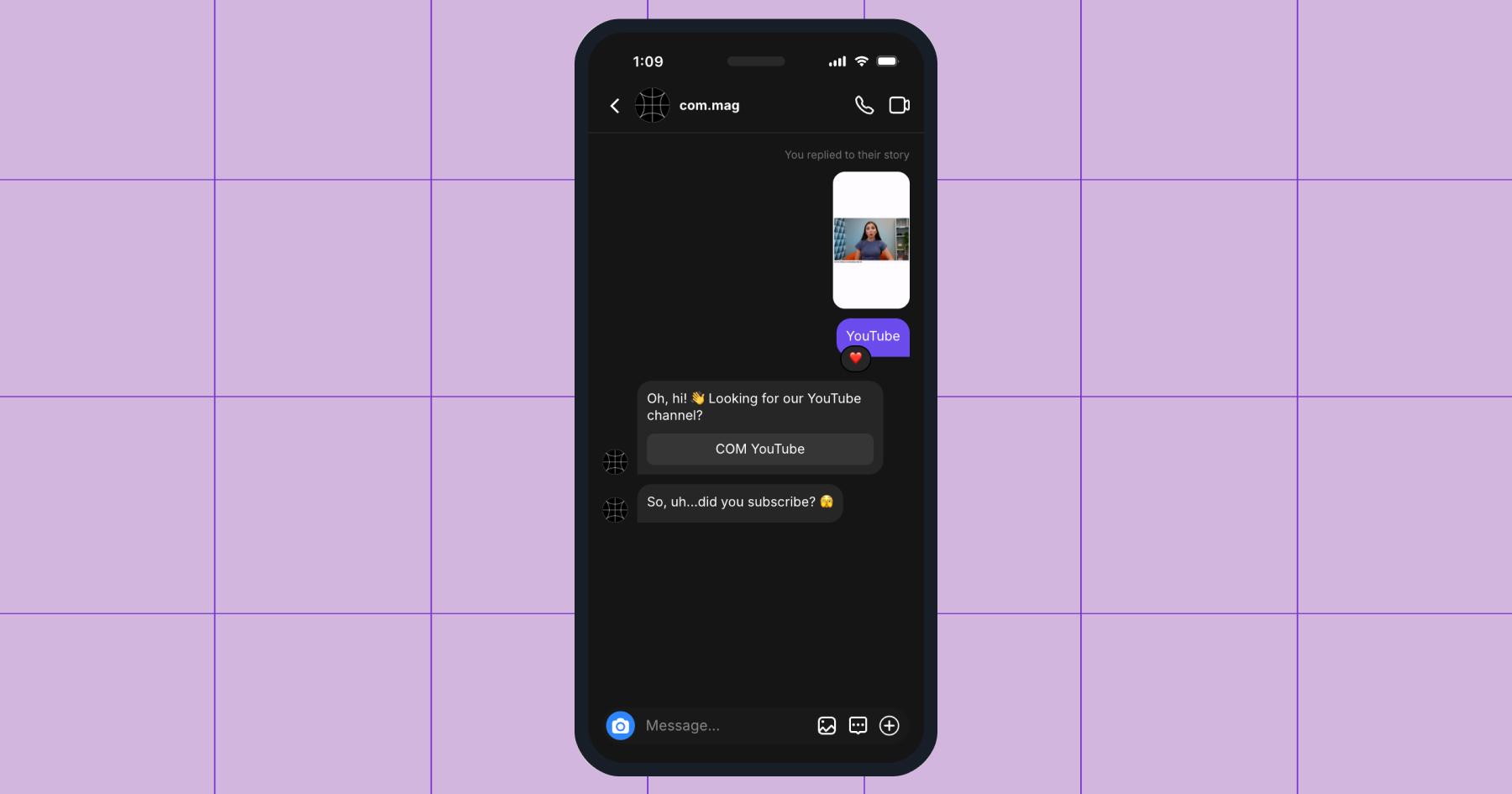
Let the Good Times Scroll
If we’re talking Stories, I guess it’s more of a tap than a scroll, but you get the point.
For a more in-depth look at using Manychat and Instagram Stories to sell, watch this Chatter Matters with Rodrigo Silvano.
Or, keep reading: Monetizing Your Instagram: A Guide For Influencers
Frequently asked questions
The key here is selective triggering. Use Story replies and keyword-based Instagram DM triggers to limit your automations to situations where users have already interacted with your content.
Someone who liked your Story probably isn’t as interested in buying as someone who replied to it. Use intent signals, such as replies or mentions, to separate potential buyers from passive scrollers.
Some creators fear getting shadowbanned, but the real risk is over-automation. Best practice is to limit triggers, respect the 24-hour rule, and keep your automated messages context-specific.


Originally published: Feb 26, 2026, Updated: Feb 26, 2026
More stories worth reading
More content that's too good to miss