How to Add a Swipe-Up Link on Instagram (and 3 Better Ways to Do it)

You’ve got a link, and you want to share it: It’s a tale as old as the internet. Fortunately, if you’re posting an Instagram Story, adding one is easy.
Ahead, I’ll show you the three best ways to share a link from your Instagram Story, from using the link sticker to setting up a simple Manychat flow.
3 Ways to Share a Link from Your Instagram Story

You don’t need to know how to add a swipe-up link on Instagram, because that option doesn’t exist anymore (welcome to 2026, time travelers).
If you’re a seasoned Instagram user, you might remember that at one point, accounts had to have 10,000 followers to be able to share a link. That’s no longer the case; anyone can add a link sticker to their Story.
1. Instagram’s link sticker (the “swipe up” replacement)
If you want to add link stickers to your Stories, here’s what to do:
- Copy the link you want to share.
- Open Instagram, hit the +, and choose Story.
- Add a photo or video, then tap Stickers.
- Find the 🔗 Link sticker and tap it.
- Paste your link and customize the sticker text if you’d like.
- Hit Next. Tap the Sticker to change the font or style.
- When you’re ready, post it!
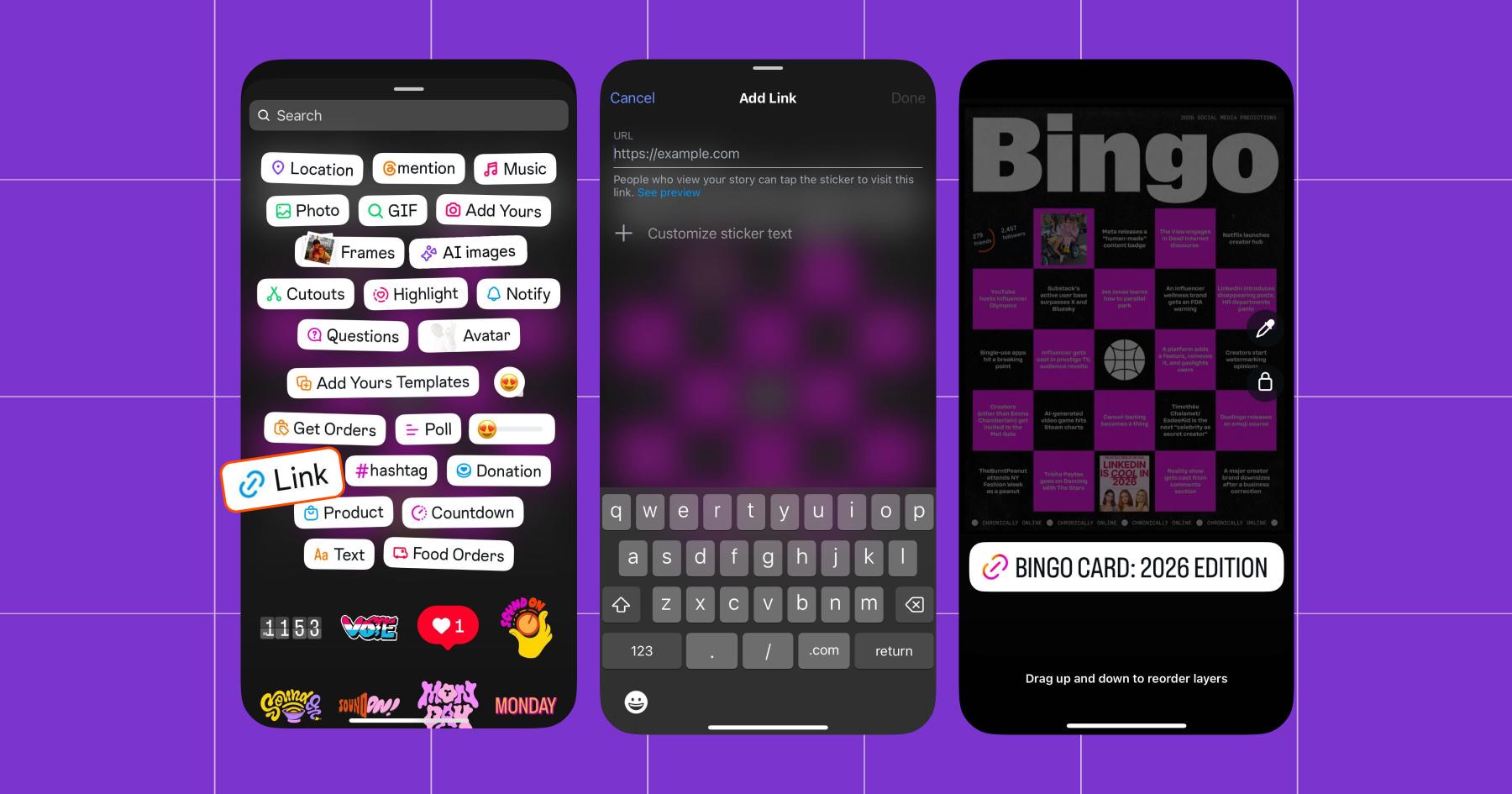
When your Story expires, you’ll be able to see how many link taps you got in Instagram Insights (if you have a Creator or Business account).
2. Manychat’s Instagram story reply trigger
With a free Manychat account, you can set up a simple flow that sends users a link when they respond to your Instagram Story.
Here’s how to do it:
- Sign up for Manychat and connect your Instagram.
- Open Manychat, and go to Automations.
- Hit + New Automation.
- Under By trigger, select Story replies.
Now you need to make some choices. Do you want this automation to fire off of any Story reply, or only replies to certain Stories?
If it’s something specific, like an affiliate link, keep it tied to one or two Stories.
If it’s more general, like a link to your website, set it up to trigger from any Story reply, but only if specific keywords are mentioned (like “website” or “contact”).
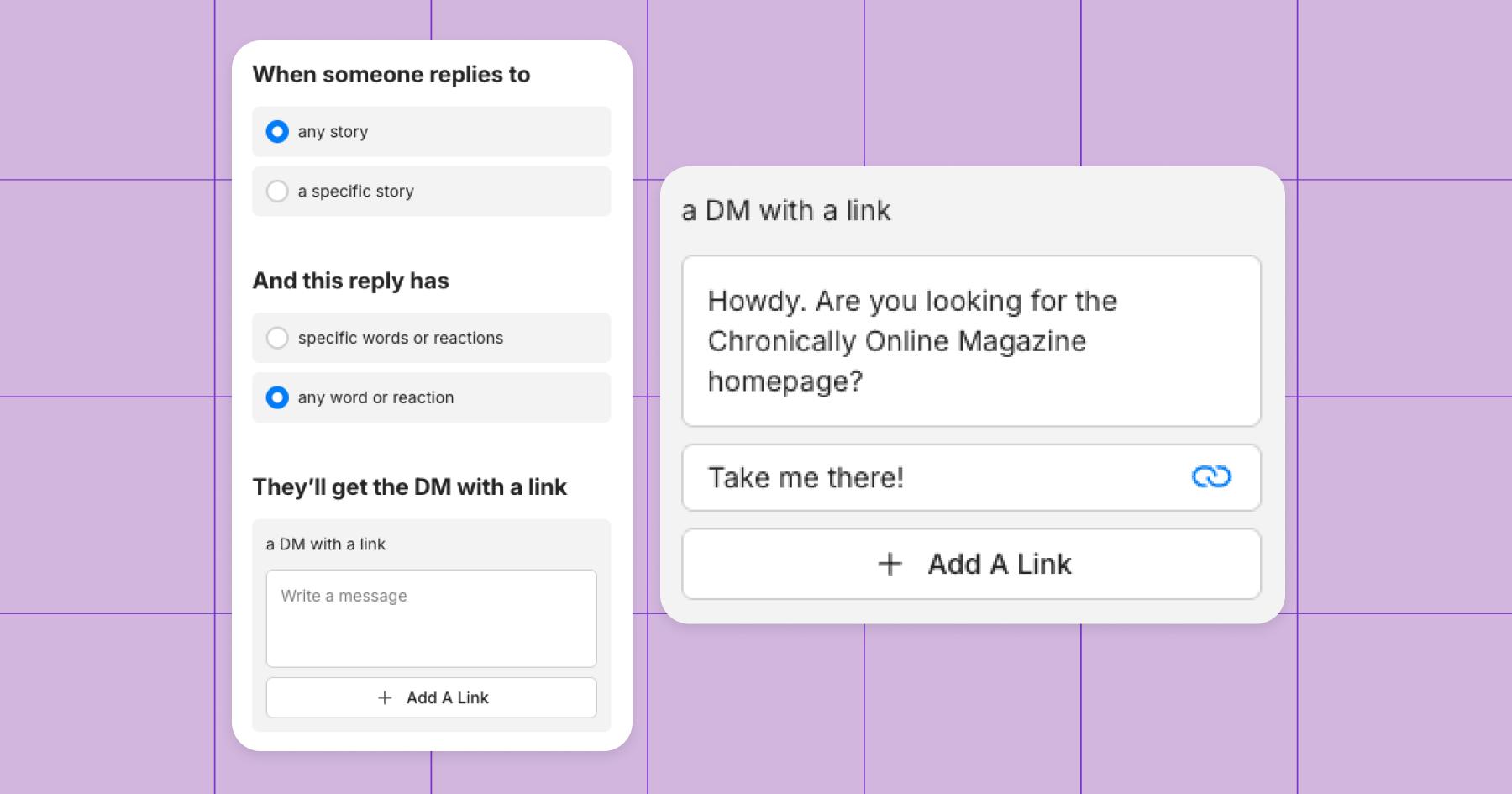
- Choose whether the flow will trigger from any Story or a specific one.
- Choose whether you want to add a trigger keyword.
- For this flow, I set up an automation that points people to Chronically Online. I added “read more,” “article,” and “COM website” as trigger keywords.
- Write your DM (keep it casual; no hard selling here).
- Add your link.
- Hit Go Live.
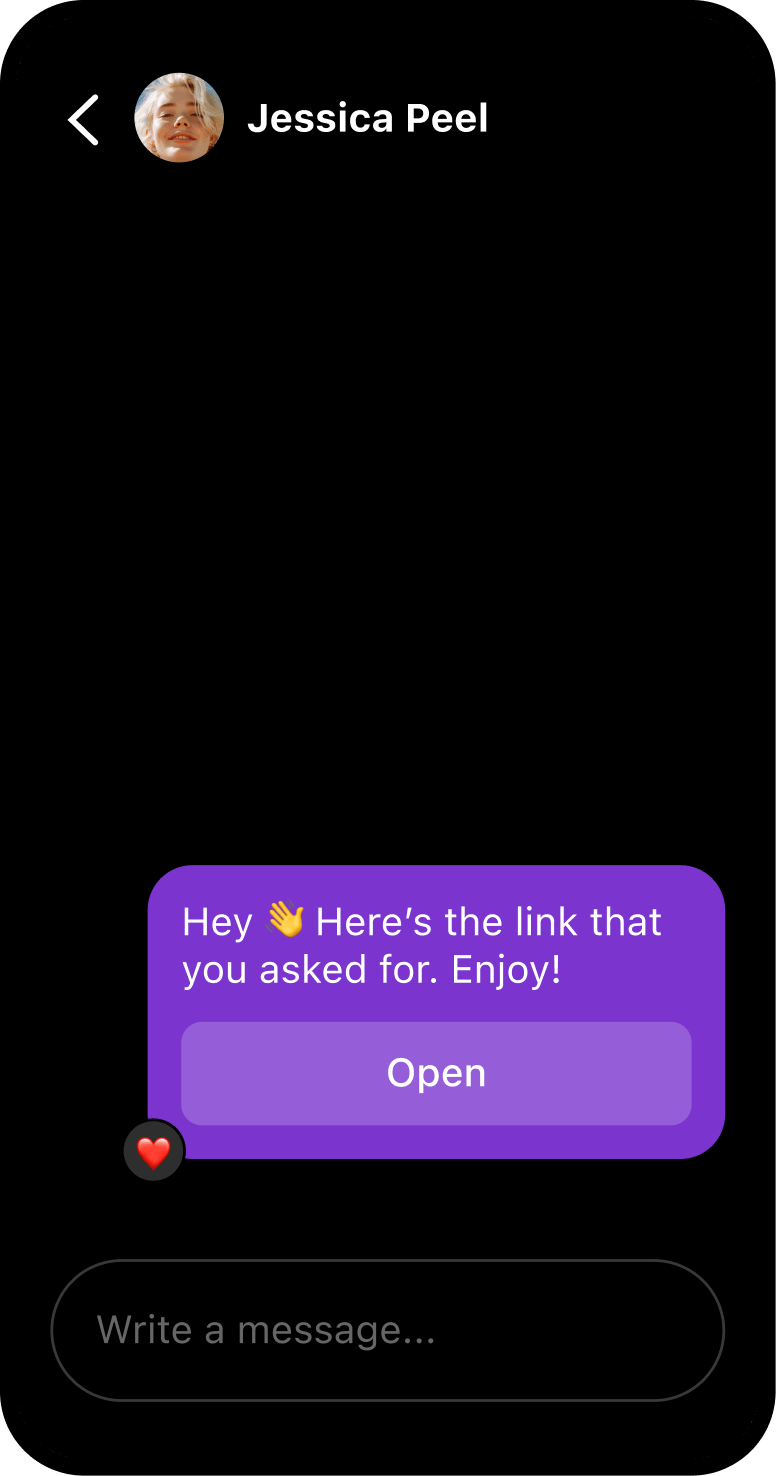
Now, when someone responds to your Story, Manychat will reply and send them the link.
Learn more on the help center: Instagram Story Reply Trigger
3. Link in bio
Ah, the ol’ link in bio. It’s a strategy that works, and a lot of creators still use it, especially since tools like Stan Store and Linktree have made it really easy to share everything you’ve got and make it look nice.
While I don’t have step-by-step instructions for setting up each of those things, I will explain how it works: First, add a link or two to your Instagram bio. It’s easy to do — just head to your profile, tap Edit profile, scroll down, and click Links. (You can add up to five links here.)
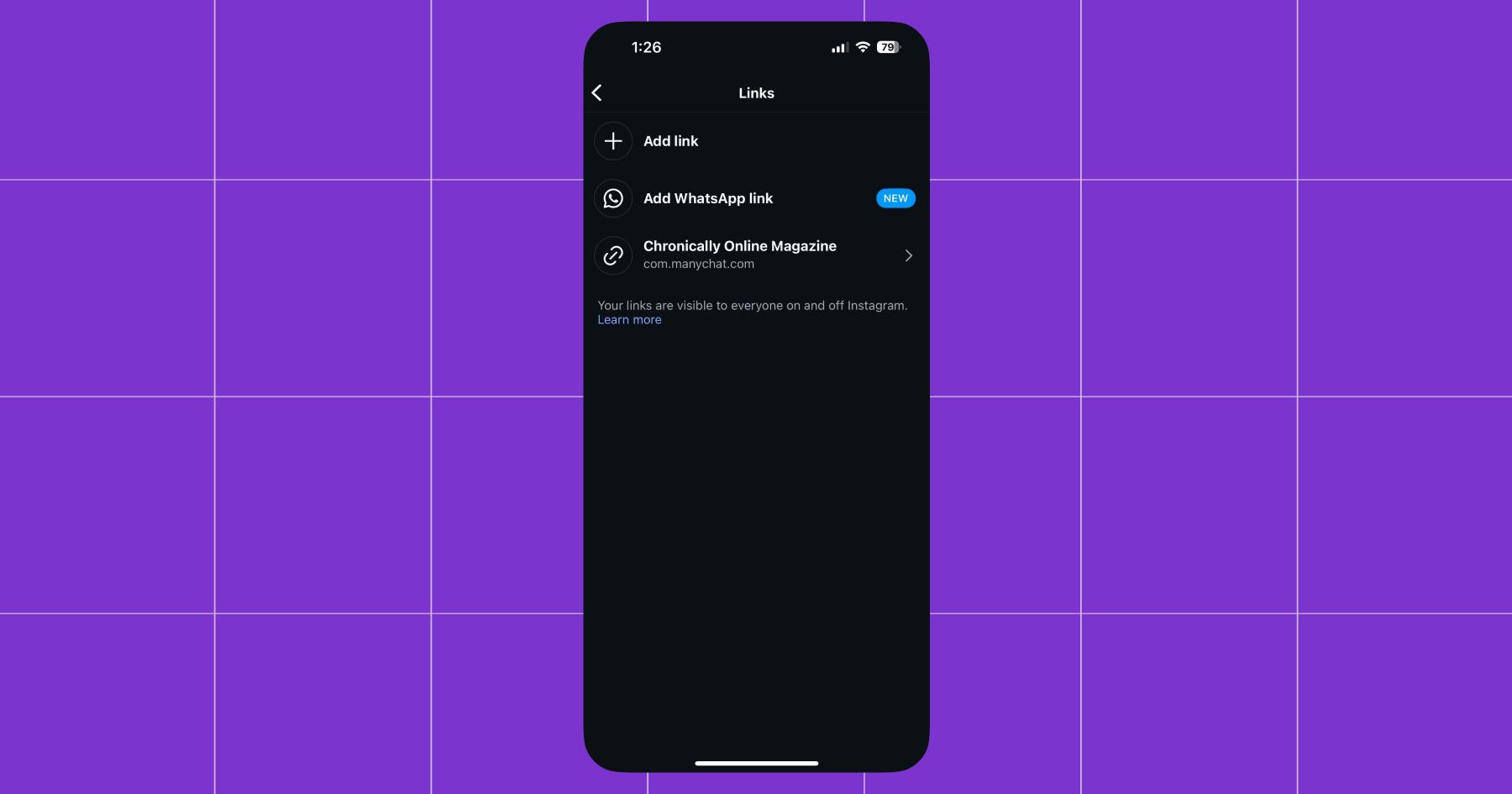
Then, post a Story promoting something and tell viewers to visit the link in your bio.
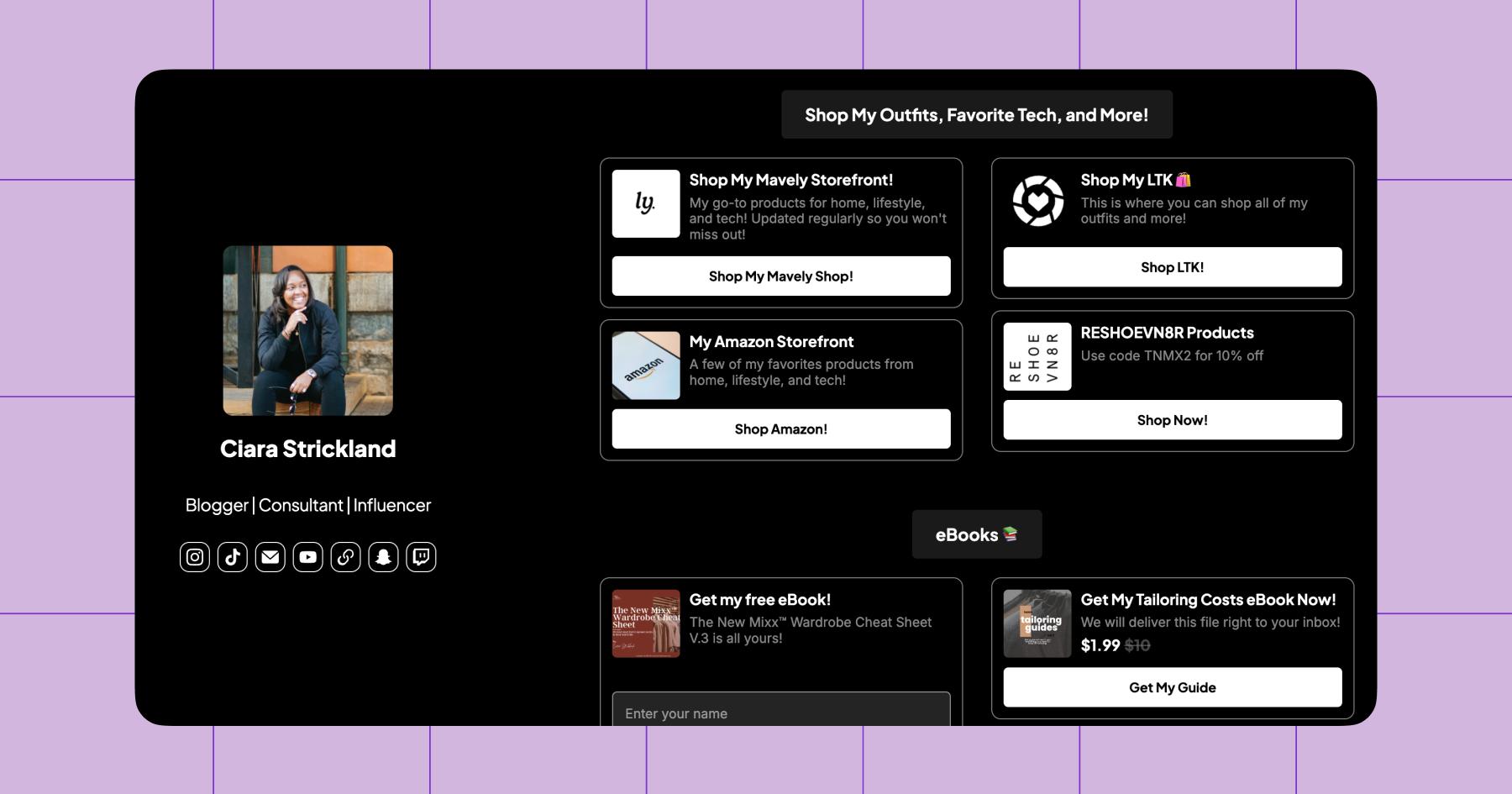
When someone taps that link, you can either send them directly to the thing you’re promoting (you’ll have to update links often if this is your strategy) or to a Stan storefront or Linktree menu with various destinations.
Here’s an example of Ciara Strickland’s (@thenewmixx) Stan storefront, which she links to in her bio:
Of course, the pro move is to use Manychat to send people to your Linktree or Stan Store from everywhere — comments, DMs, Story replies, etc. — and have it linked in your bio.
Link Ya Later

While Instagram’s swipe-up feature is gone, sharing links via Stories is actually easier than ever. Between link stickers, link-in-bio tools, and DM-based options like Manychat, you’ve got all the options you could possibly want.
Now, learn how to make your Stories interesting so people actually tap that link: Need Instagram Story Ideas? We’ve Got ‘Em
Frequently asked questions
Nope. You don’t need 10,000 followers to use the Instagram Story link sticker anymore. Anyone can add links to Stories now.
For most creators, yes. The Instagram Story link sticker sends people directly to one destination instead of asking them to leave the Story, visit your profile, and choose the right link.
Yes, as long as you’re approved for Instagram Shopping. Product stickers work regardless of follower count and let people tap straight to a product page. For creators, product stickers work best when paired with education or context in the Story (quick demos or “why I love this” moments), so sharing feels natural rather than salesy.
Assuming the link itself is the strategy. Whether you’re using a link sticker, Instagram Shopping, or link in bio, success depends on how you guide people to it. Make sure there’s a clear reason for someone to want to tap right now.


Originally published: Feb 19, 2026, Updated: Feb 21, 2026
More stories worth reading
More content that's too good to miss