
Are messages getting lost in your Instagram inbox? Brand deals getting buried and @mentions nowhere to be found?
Don’t worry: it’s not just you. Missed connections are a common challenge for most creators, but with a little inbox management, you can make sure that every opportunity, shoutout, and tag that comes your way gets seen and acknowledged.
Let’s talk about how.
The Instagram Inbox, Dissected

Note: The inbox features discussed in this article are associated with Professional (Creator or Business) Instagram accounts. Personal Instagram accounts will have a similar inbox, but simpler, with fewer folders.
To access your Instagram inbox, open the app and tap the paper plane at the bottom center of the screen. Once you’re in, you’ll see three folders:
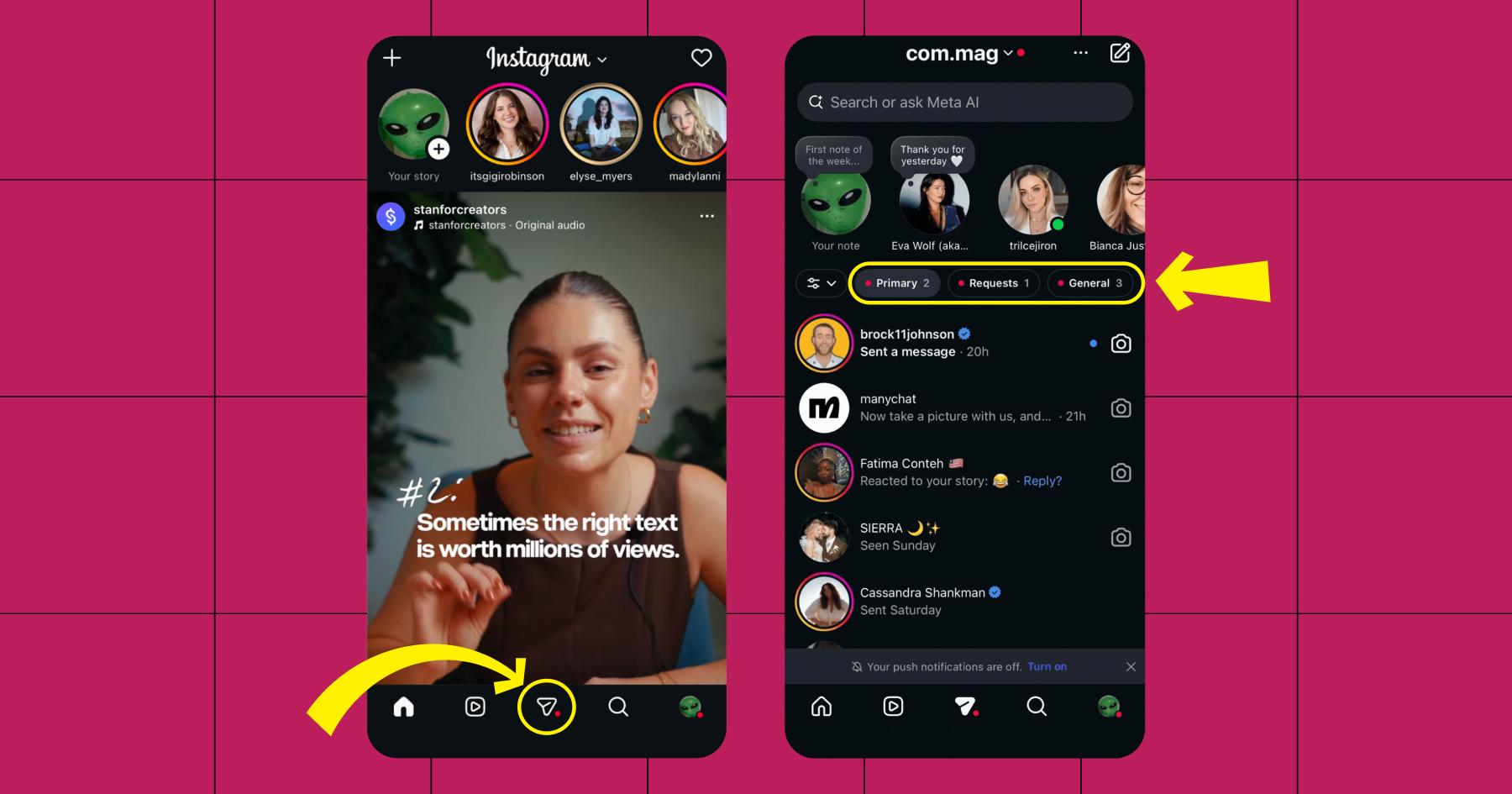
1. Primary
The Primary tab is where high-priority messages go. Here, you’ll find:
- Messages from people you follow
- Conversations you interact with regularly
- DMs Instagram thinks are important for you
- Chats you manually move into Primary (more on this in a bit)
You’ll get a push notification anytime a new message hits your Primary inbox unless you turn them off (go to Settings and activity > Notifications to do that).
2. Requests
Some messages — like DMs from people who don’t follow you or have never messaged your account before — don’t make it to the Primary or General inboxes. Instead, they sit in the Requests tab for you to review.
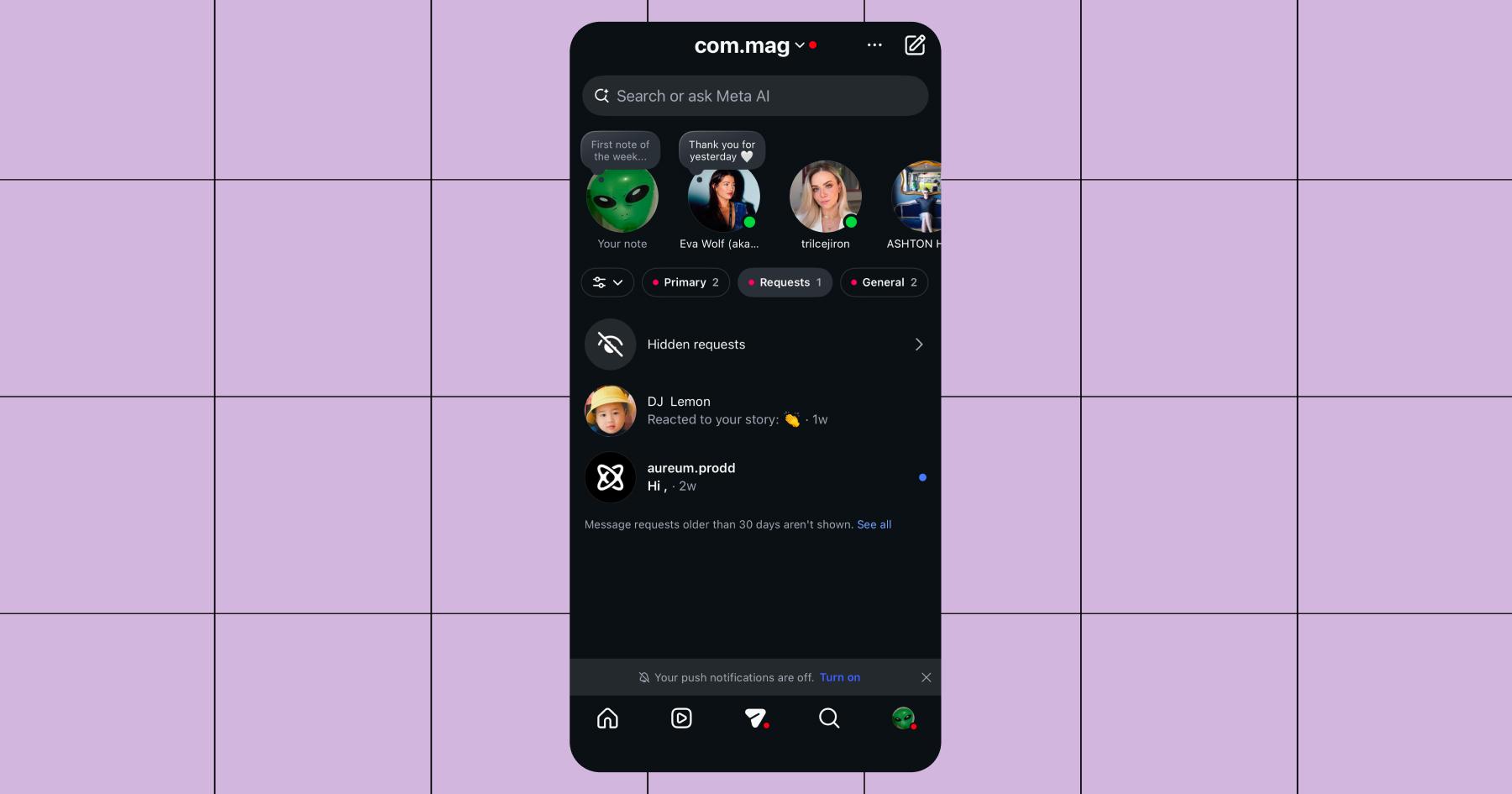
Within the Requests tab, you will see another inbox called “Hidden Requests.” This is where Instagram sends messages it thinks are offensive or spam.
FYI: Mentally prepare yourself before checking the Hidden Requests inbox — it’s where the unsolicited 🍆 pictures end up.
3. General
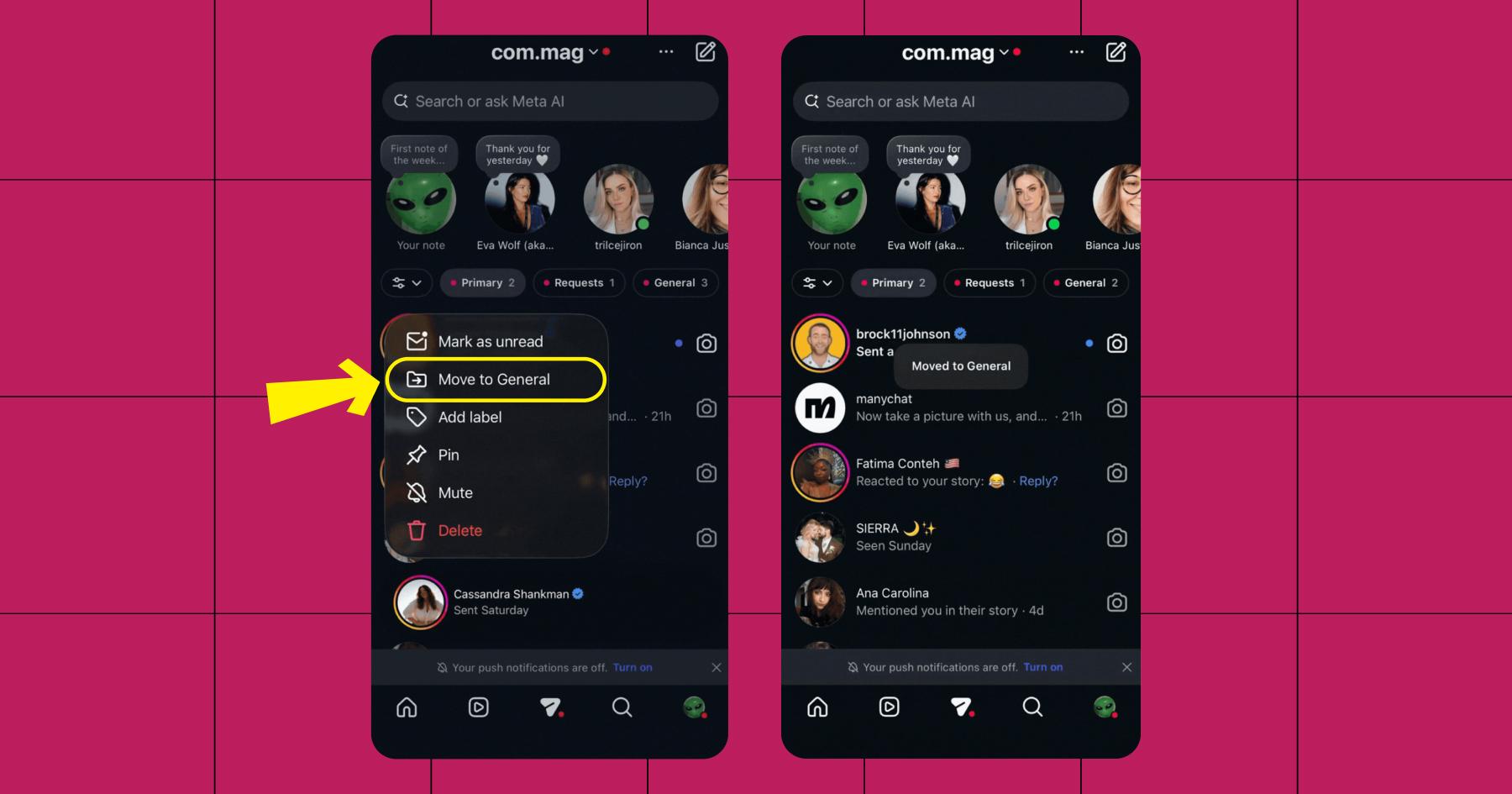
The General tab is where less urgent messages get filtered. You can move conversations from the Primary to the General tab if you’d like to keep them, but you don’t need to reply. Instagram will also automatically do this to messages it thinks are low priority based on your past behavior.
Instagram inbox settings worth knowing about
If you’ve ever wondered how to adjust who can DM you on Instagram, this section is for you.
Open the Instagram app, head to your profile, and tap the ≡ icon in the top-right corner. You should now be at the Settings and activity menu. Scroll down until you get to Messages and story replies.
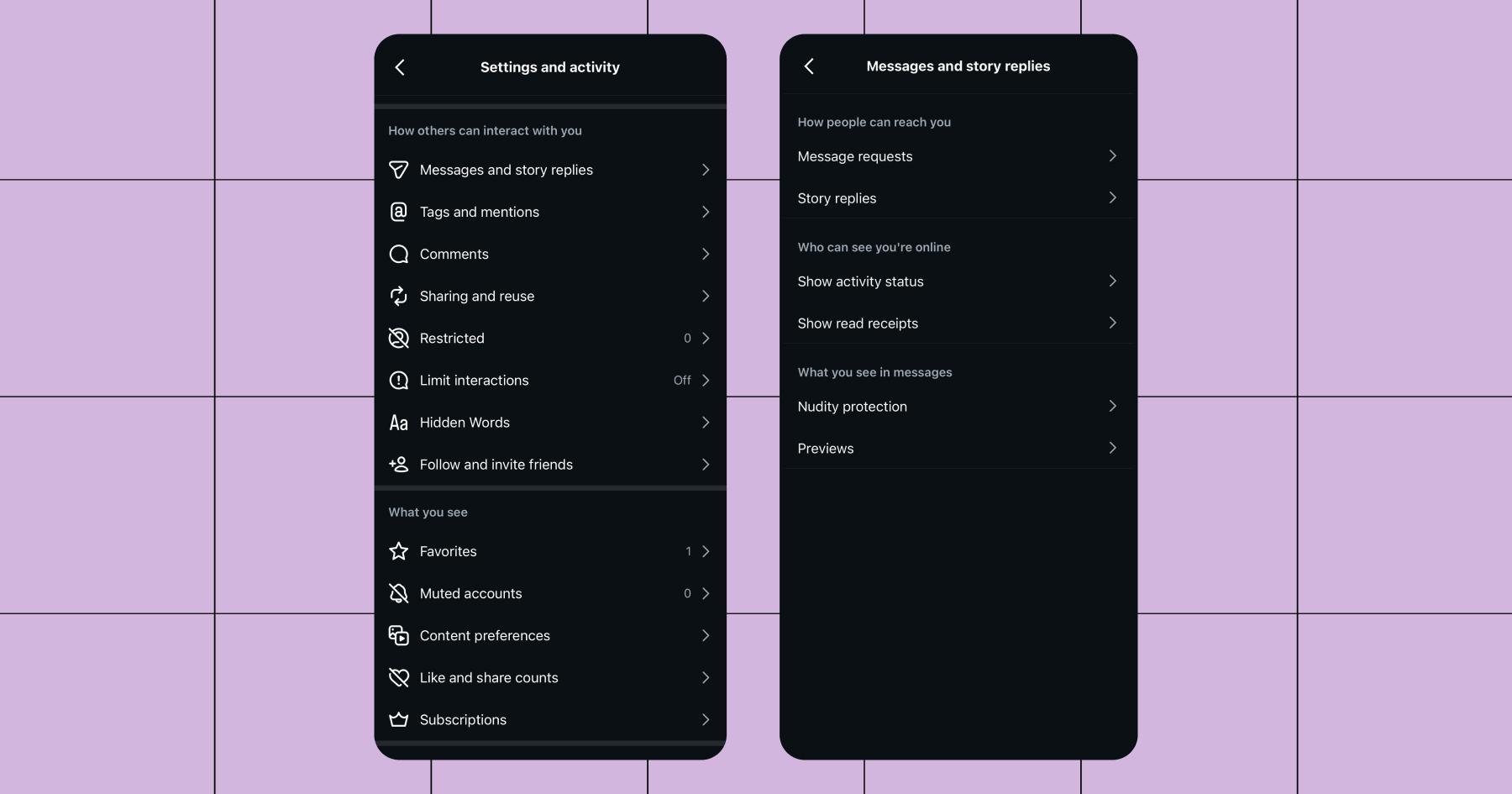
Here’s a quick overview of your options:
- Message requests: Choose who can send you messages (everyone, followers, or no one), as well as who can add you to group chats.
- Story replies: Choose who can reply to your Instagram Story (everyone, followers, or no one)
- Activity status: Choose whether people can see when you’re online.
- Read receipts: Choose whether people can see whether you’ve opened their message or not.
- Nudity protection: Allow Instagram to blur images when nudity is detected.
- Previews: Allow Instagram to display previews of posts shared with you in chats.
A Simple Inbox Management Strategy You Can Steal

Now that you know how the native Instagram inbox works, let’s talk about what you can do to make sure you never miss an important message again.
The three-step process outlined below will help you clear your inbox in less than 20 minutes.
1. Clear Requests
The Requests tab is full of opportunities (and spam), so it’s a good place to start. Quickly scroll through and sort messages based on whether or not they are worth your time.
If it’s a potential fan, lead, or collaborator, accept the message. If it’s spam or irrelevant, delete or ignore the message. Accepted message requests will typically move to your Primary inbox.
2. Answer Primary messages
The Primary tab is where all of your most important messages are, so this is likely what you’ll spend the most time on. Go through your messages and respond as you see fit — double-tap (❤️) anything that’s not that deep, but make sure you reply to:
- Brand deals
- Warm leads
- Engaged followers
- Time-sensitive messages
Respond to these first, then clean up what’s left over. Move any non-urgent conversations to General.
3. Skim General messages
Messages in the General tab are typically old conversations, cold leads, and automation-heavy threads. You should spend a few minutes scrolling through to decide if anything is worth replying to.
If you find something you’d like to respond to, you can either reply in the moment or move it to Primary to follow up on the next time you repeat this process.
FYI: Manychat Can Make Your Inbox Even More Efficient

Instagram’s native inbox tools will help you organize messages, but they still require you to do most of the work. Not to mention, your TikTok and Facebook messages aren’t in there.
With Manychat’s latest Inbox updates, you can spend less time reviewing and replying to DMs.
- Use filters and labels to flag high-priority conversations. Never lose a DM from a lead, customer, or brand partner again.
- Hit snooze and set reminders to follow up at the right time. Pause a conversation and bring it back when it’s actually relevant — whether that’s later today, tomorrow, or sometime next week.
- View and manage all your conversations (manual and automated) in one inbox. See replies from automations and personal chats side by side, so you can jump in when needed without switching from Manychat to Instagram to Facebook to TikTok.
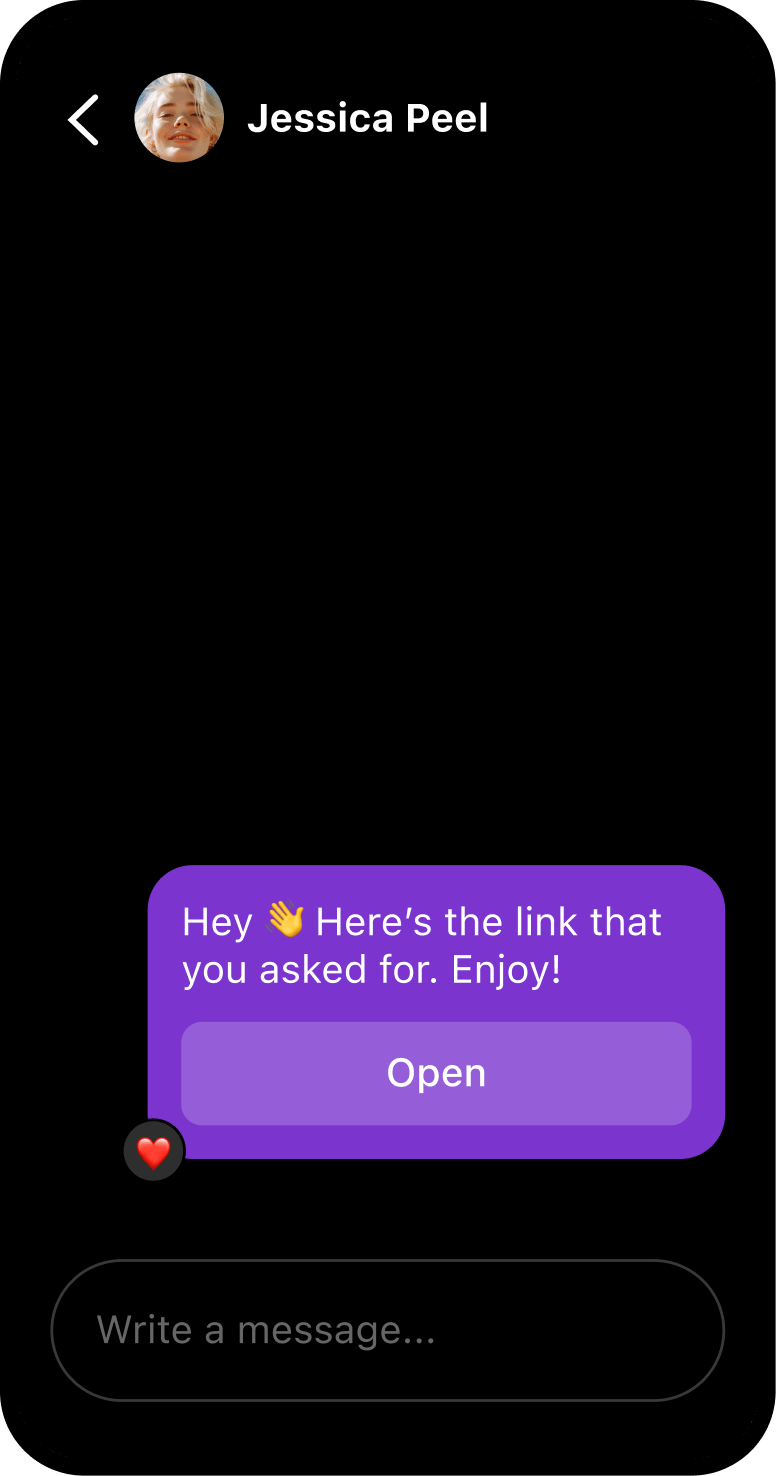
- Set up automations to handle the tedious stuff. Send links, book clients, and set up keywords so questions get answered without even opening your phone.
At the end of the day, Instagram gives you folders. Manychat gives you workflows. So when you outgrow the native Instagram inbox, sign up for Manychat.
Frequently asked questions
To avoid missing something, don’t treat Requests like a spam folder. Check it at least once a day. Brand deals, media inquiries, and even high-intent leads can land in the Requests folder. This usually happens when:
– The person doesn’t follow you
– It’s your first interaction
– They’re using a new or agency account
The Primary tab’s purpose is to surface important messages to you. Unfortunately, it only works if you actively protect it from becoming cluttered.
Be aggressive about moving conversations out of Primary. If a message is no longer urgent, move it to the General folder. Primary should be your working queue — not a storage closet for old DMs.
Reply personally when it’s a high-value message (brand deal, potential sale, engaged follower). Automate the interactions that happen all the time — the questions you answer over and over, and the links you’ve been copying and pasting into DMs.


Originally published: Mar 25, 2026, Updated: Mar 26, 2026
More stories worth reading
More content that's too good to miss