Yay, Digital Hodge-Podge! The Best Collage Apps For Instagram

I’m going to say this gently: Collages aren’t that cool anymore. There was once a time (circa 2014) when they were everywhere online, but take a scroll through your Instagram feed today, and I’d be surprised if you found even one.
Hear me out, though: Collages deserve a comeback. Done well, they look like digital scrapbooks or moodboards. They’re creative, nostalgic, and genuinely fun to make and consume.
If you want to be the visionary who brings collages back to Instagram, you’re right where you need to be. Ahead, four of the best collage apps for Instagram and plenty of examples you can pull inspiration from.
4 Creator-Approved Collage Apps

What apps do creators and social media managers use to make collages these days?
To find out, I asked Sarah Gavilla (@sarahgav.social) and Ana Costa (@costacarolas), two Instagram power users who run Manychat’s socials.
“I don’t really make collages TBH,” says Sarah. “I used to use PicCollage as a child.”
Fair. And PicCollage is still available if you want to take the nostalgic route.
Ana’s answer was this: “There is one app I always see in ads.”
She never did remember the name of it.
All of this to say: If the pros aren’t using a fancy collage app, you definitely don’t need one either. Here’s what they did recommend (besides PicCollage and Whatever That Ad App Was):
1. Instagram
Instagram introduced a photo collage feature in late 2024 as a follow-up to its layout tool. It’s simple to use and accessible right in the app. Here’s what to do:
- Open the Instagram app.
- Click the +.
- Choose Story.
- Click Create in the left-side menu.
- Hit the ‘Happy Little Sticky Note’ up top and add a photo. (FYI, you’ll have to hit this button every time you want to add another photo.)
- Resize and drag your photos around. Tap the photos to experiment with different frame shapes (circle, square, flower, etc.).
Optional: Add stickers! Tap the same button and search for whatever you want; for example, you could search for “bathtub” and add some dimension from another Chronically Online Mag story to the image below.
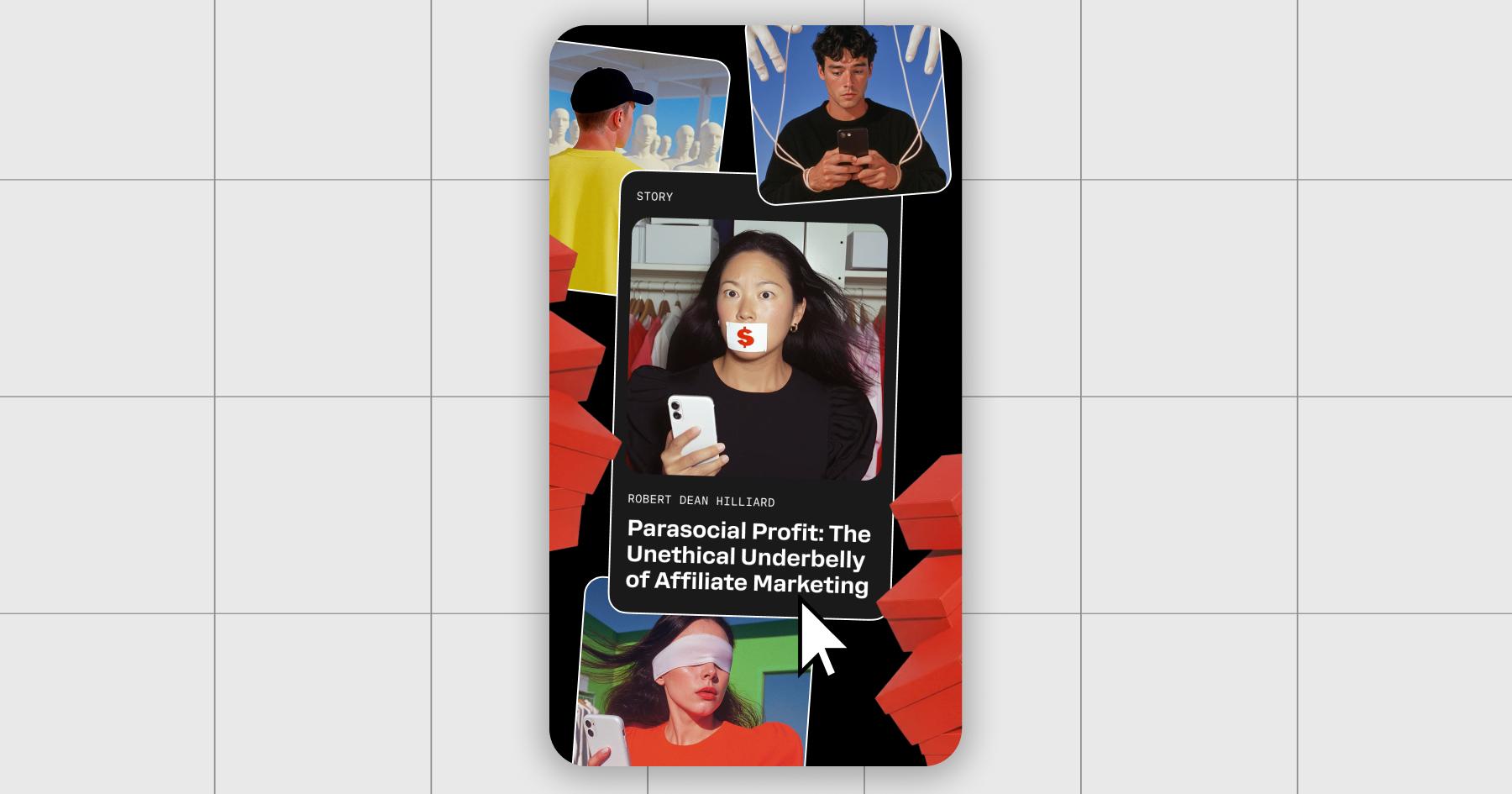
While you’ll have to build your collage as an Instagram Story, you can save it to your phone and upload it as a regular post if you’d like.
2. Canva
Canva doesn’t have a dedicated collage feature, but what it does have is hundreds of templates for creating collages. To access these, all you need is a Canva account.
Once you’re logged in, navigate to templates section and choose one you like. I found a lot of great collage options under the Instagram post section:
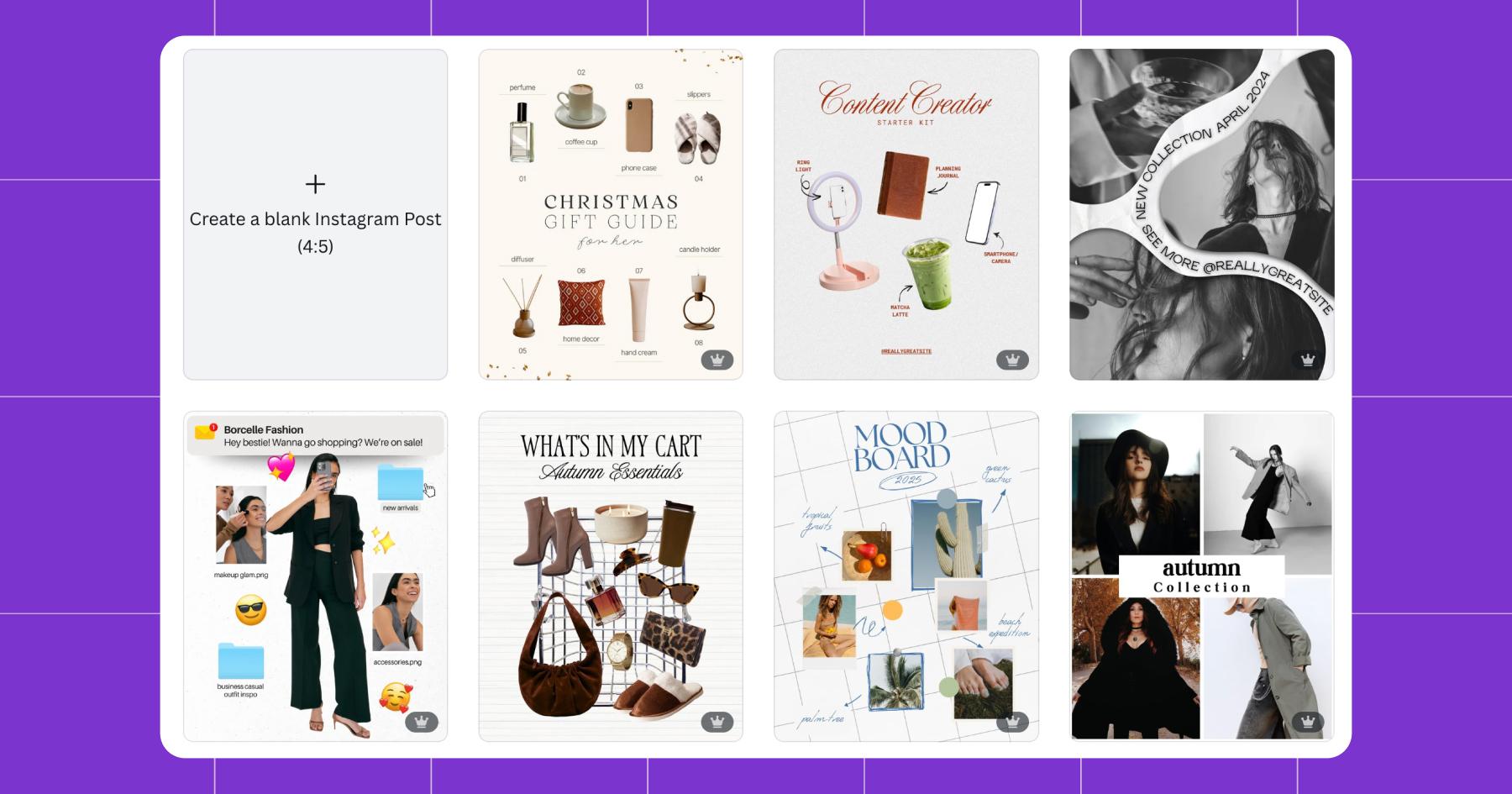
Notably, many of these are only available to paid Canva users. (If you see the crown in the lower right corner, you’ll need to upgrade to use that template.)
Select one, then replace the elements with your own photos, colors, and fonts. When you’re done, click “Share” in the top right corner, then select “Download”. That’s it — you’ve got a collage that’s ready to post.
3. SCRL
SCRL is a photo editing app built for social posts. You can download via the App Store or Google Play.
You need an account to use it, but thankfully, there’s a lot you can do with the free version. Once you’re in, you can choose what type of posts you’d like to create, and SCRL will recommend templates based on your input.
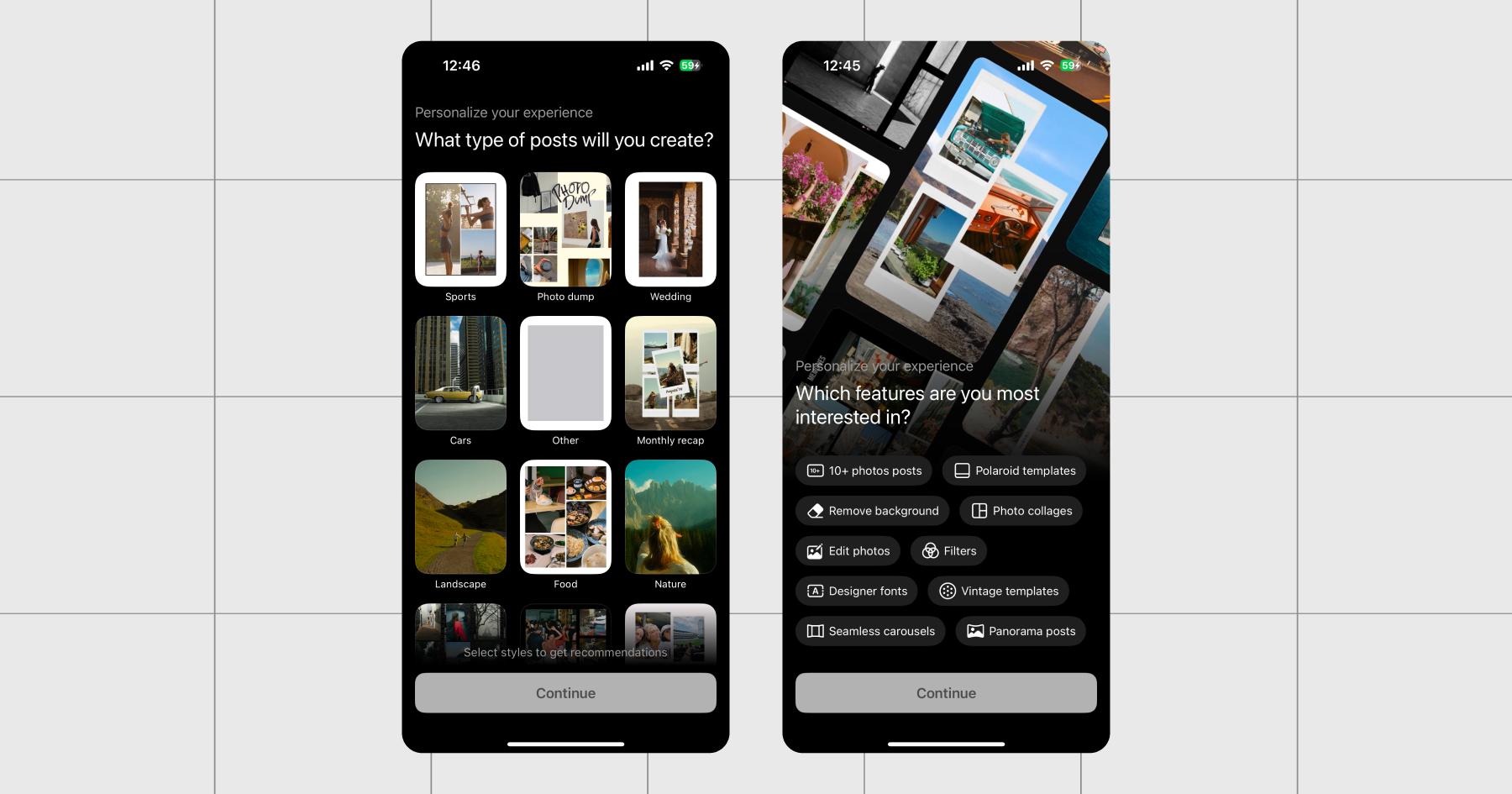
SCRL has a robust template library that’s always changing. There are scrapbook templates, templates designed to support 10+ photos, and templates that look like polaroids. Whatever your aesthetic, SCRL has a collage template to suit it.
One thing I really like about SCRL is that its templates don’t come populated with content you have to replace. You’ll see them full of photos in the previews, but when you access one, there’ll only be frames with a + symbol you tap to add your images in.
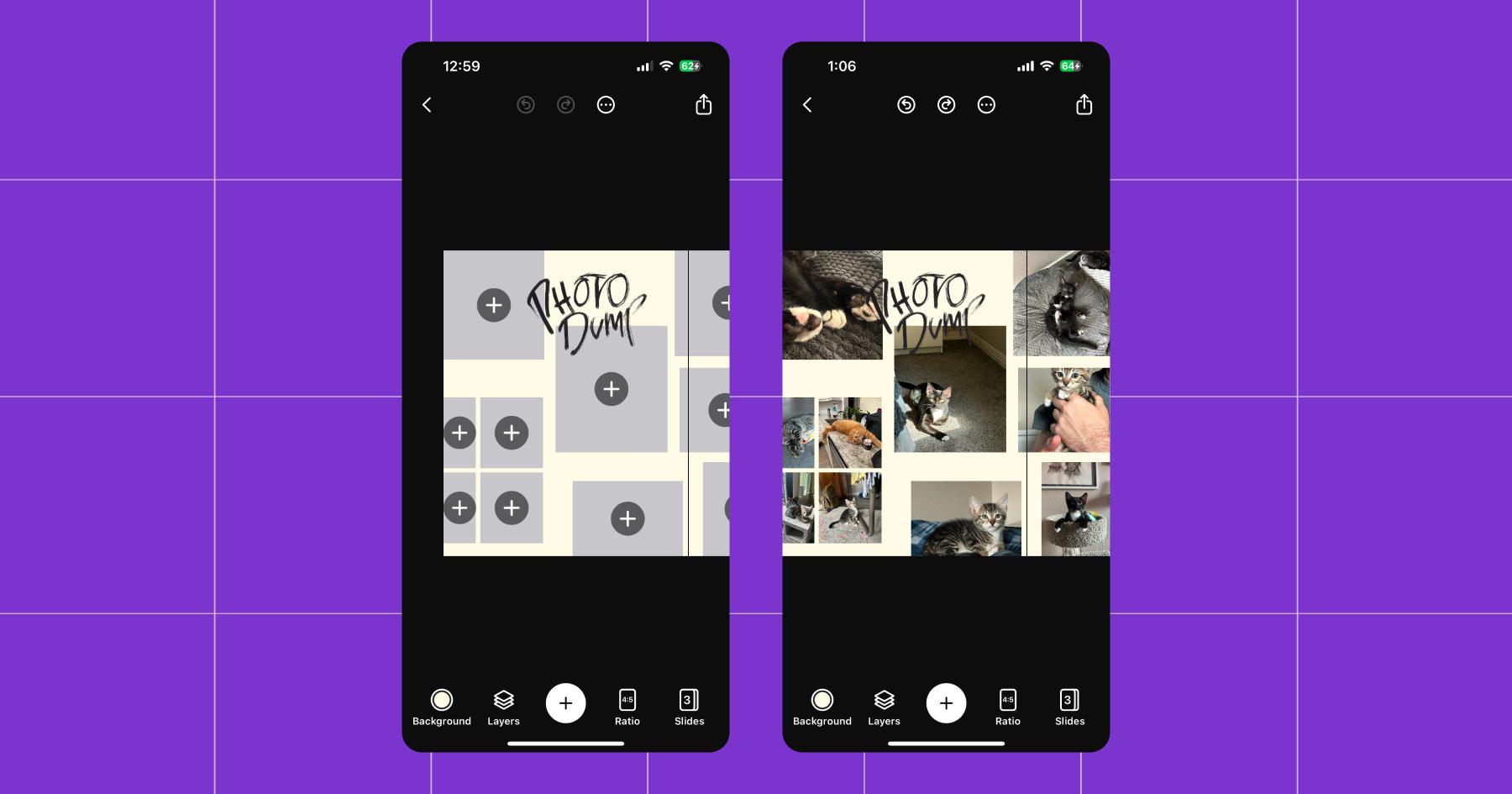
Even more convenient, SCRL places the photos in the frames for you. You can select multiple images from your camera roll, and it’ll position them all in a frame.
4. Adobe Express
Adobe Express is another great tool people use to create Instagram collages. Like SCRL and Canva, you need an account to access its features (the free version works just fine). But heads-up: This one felt a little more complicated to navigate than the other collage makers.
Adobe Express offers a wide range of templates, some of which are optimized for social media, while others are not. To find the collages, simply type the word “collage” into the search bar. Voilà! Now you have some suitable options:
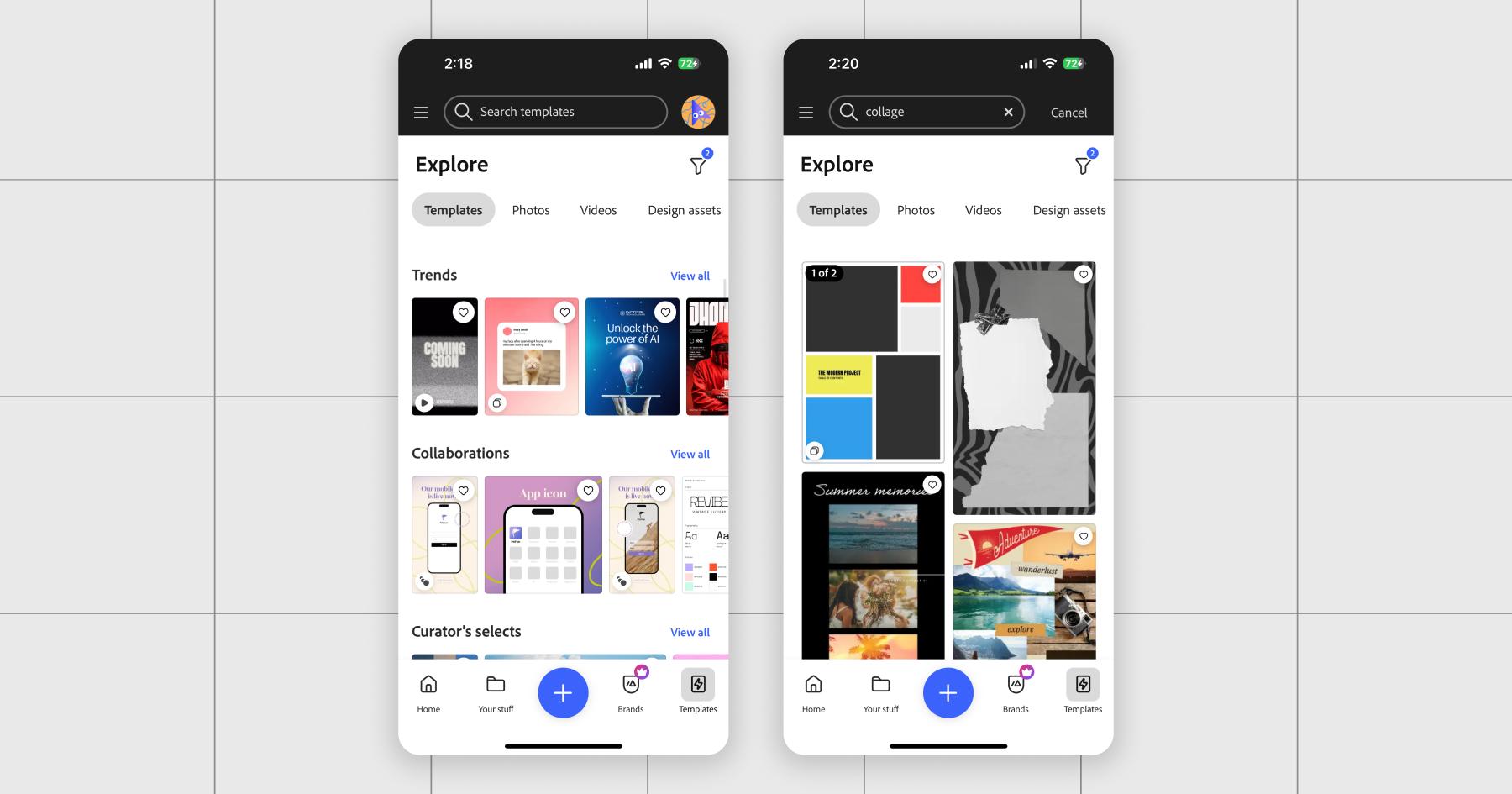
Select one that you like, then click “Customize”. From there, tap an element and choose “Replace”. To resize an object, simply select it and drag the corner/border where you want it.
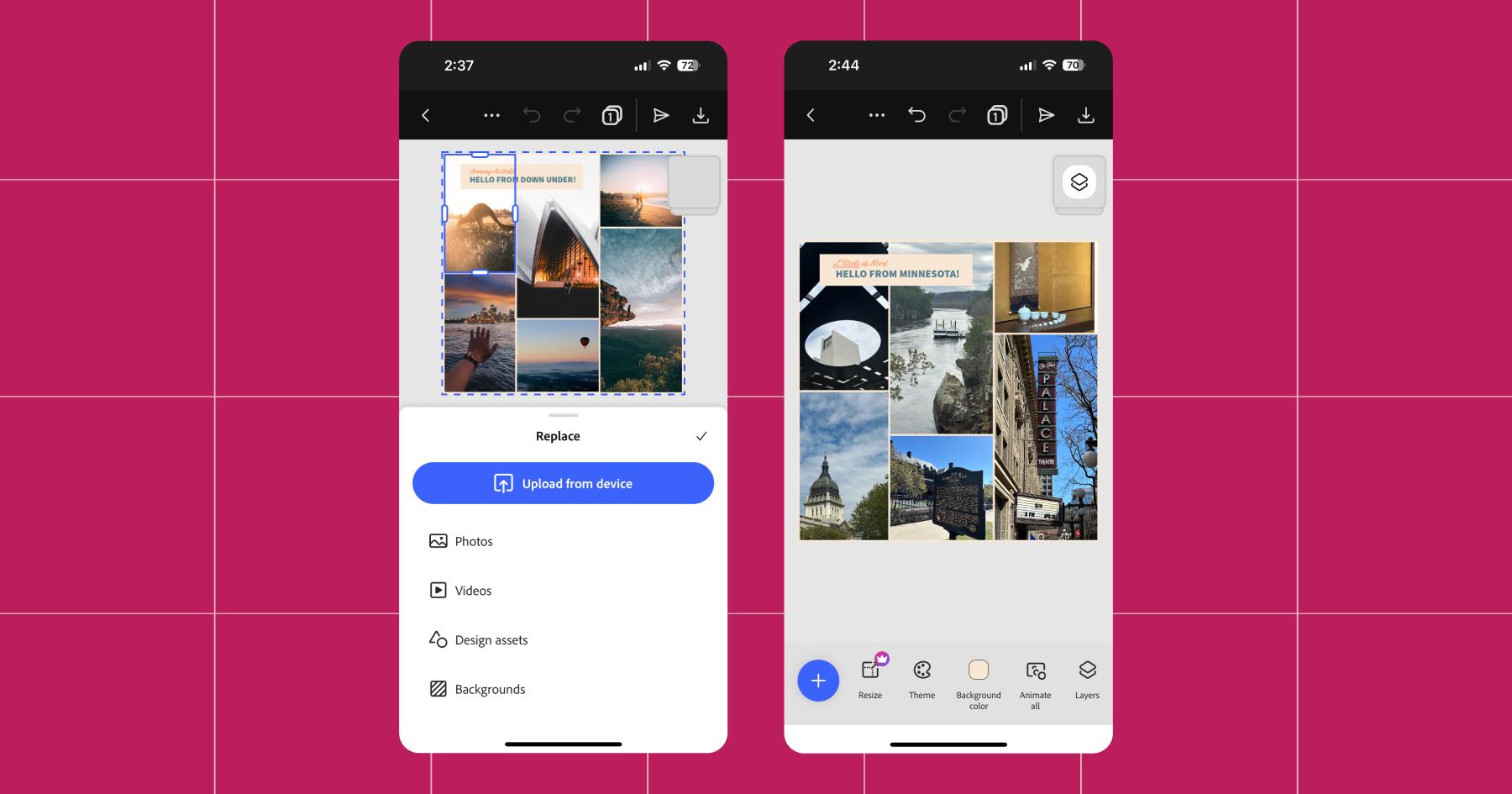
There’s a lot more you can do with Adobe Express than just uploading photos into a template. If you have some graphic design skills, you can skip the templates and start crafting your own layouts by mixing photos, text, and graphics until your collage looks less “drag-and-drop” and more “award-winning designer”.
The Best Ways to Use Instagram Collages (with Examples!)
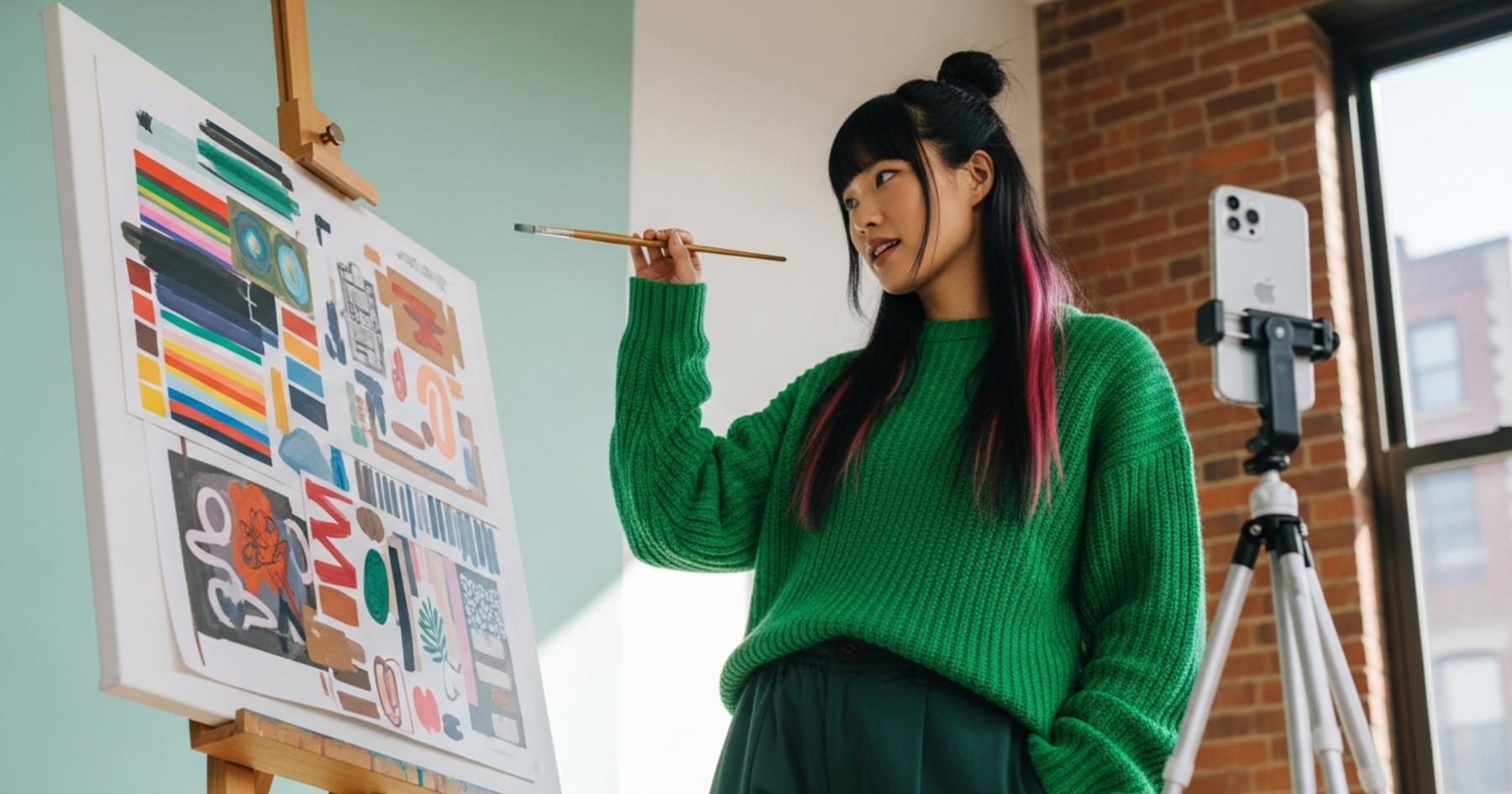
Whether you’re curating an aesthetic, showcasing products, or trying to fit a weekend’s worth of photos into one post, collages can be a good choice. Let’s discuss the top use cases.
Moodboards
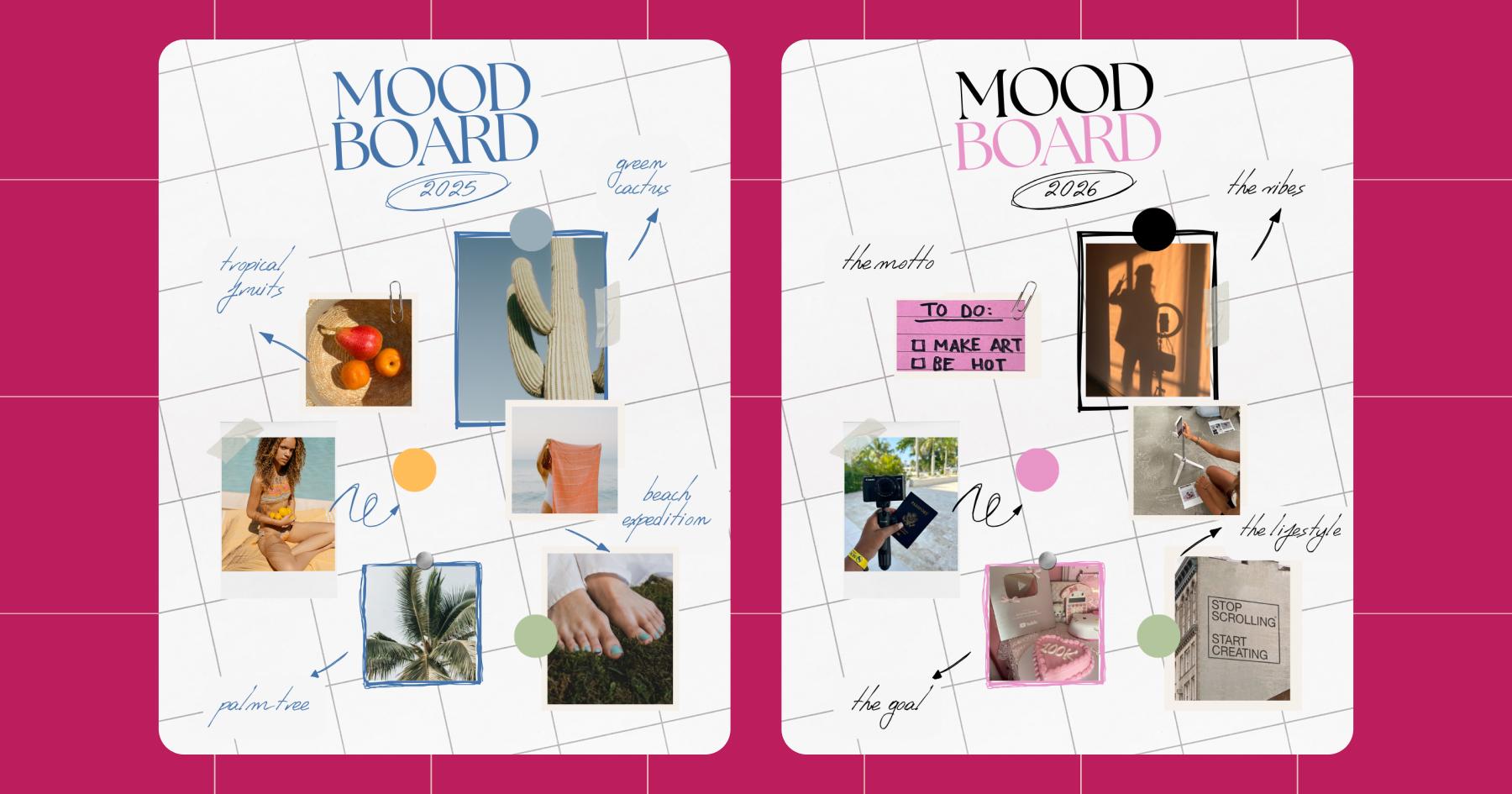
Moodboards and collages go hand in hand. With a mix of colors, textures, quotes, and images, you can bottle up a whole vibe in a single post. They’re perfect for brand storytelling, creative brainstorming, or showing off an aesthetic you’re currently obsessed with.
Gift Guides/Product Roundups
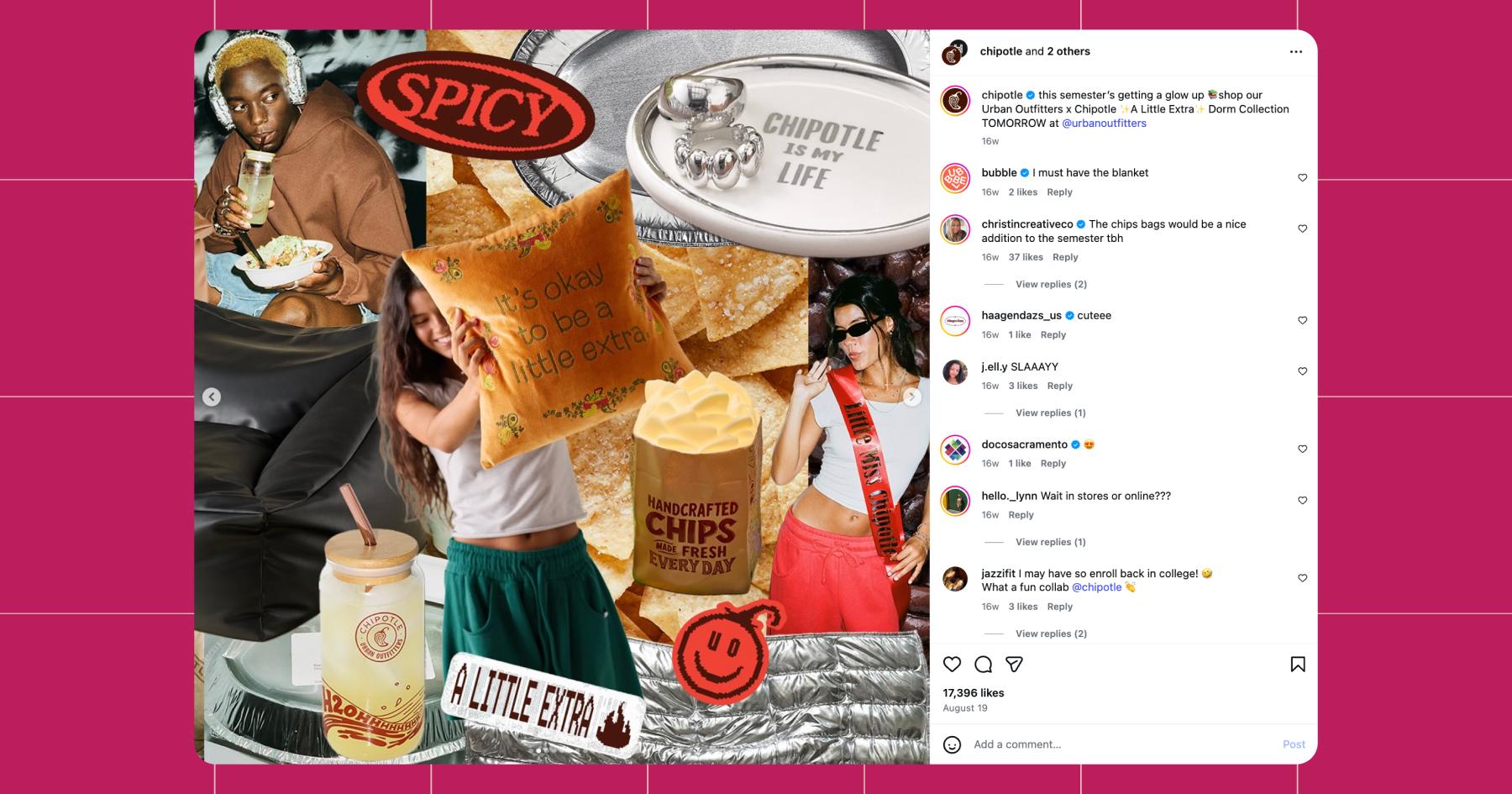
If you’ve ever wanted to showcase multiple products without turning your post into a swipe marathon, collages are for you. It’s an easy way to feature several items at once. Gift guides, “my essentials,” starter kits, outfit ideas — all of these work really well in collage form.
Event Recaps
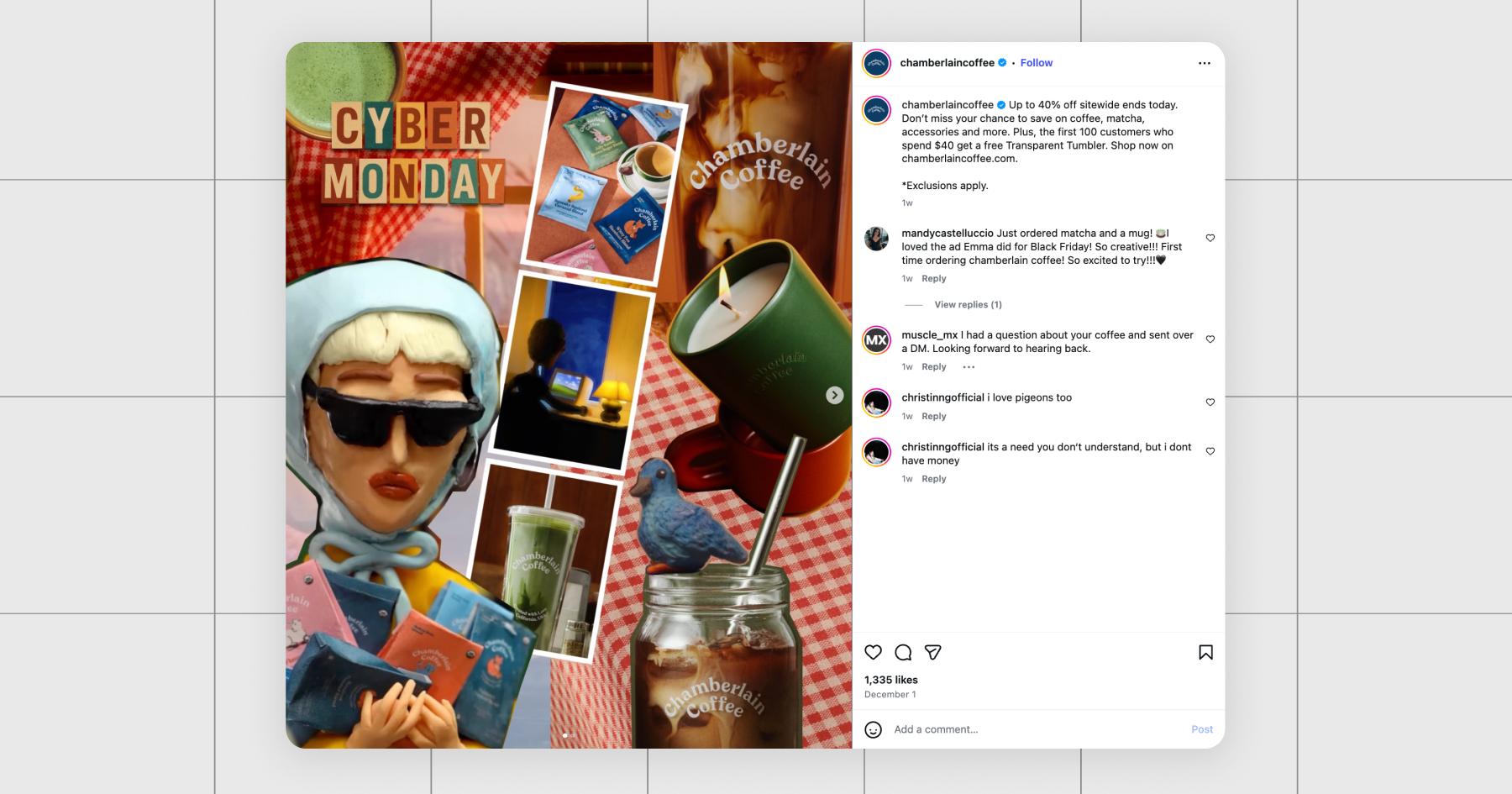
For a brand launch or birthday party, collages offer a way to wrap up an event without posting a million times. You can highlight the best moments in a cohesive layout, like a mini scrapbook page dedicated to the event.
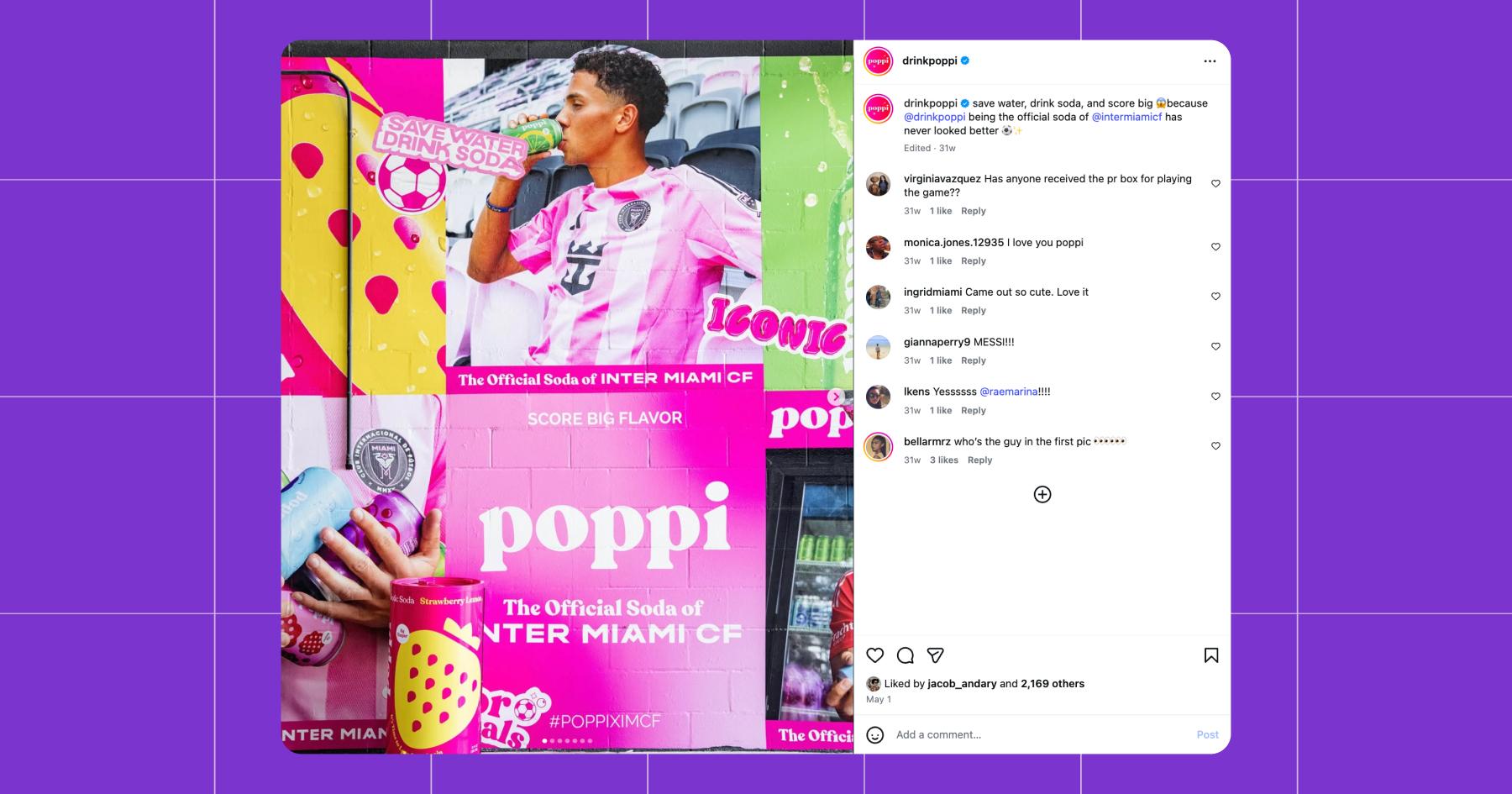
Photo Dumps
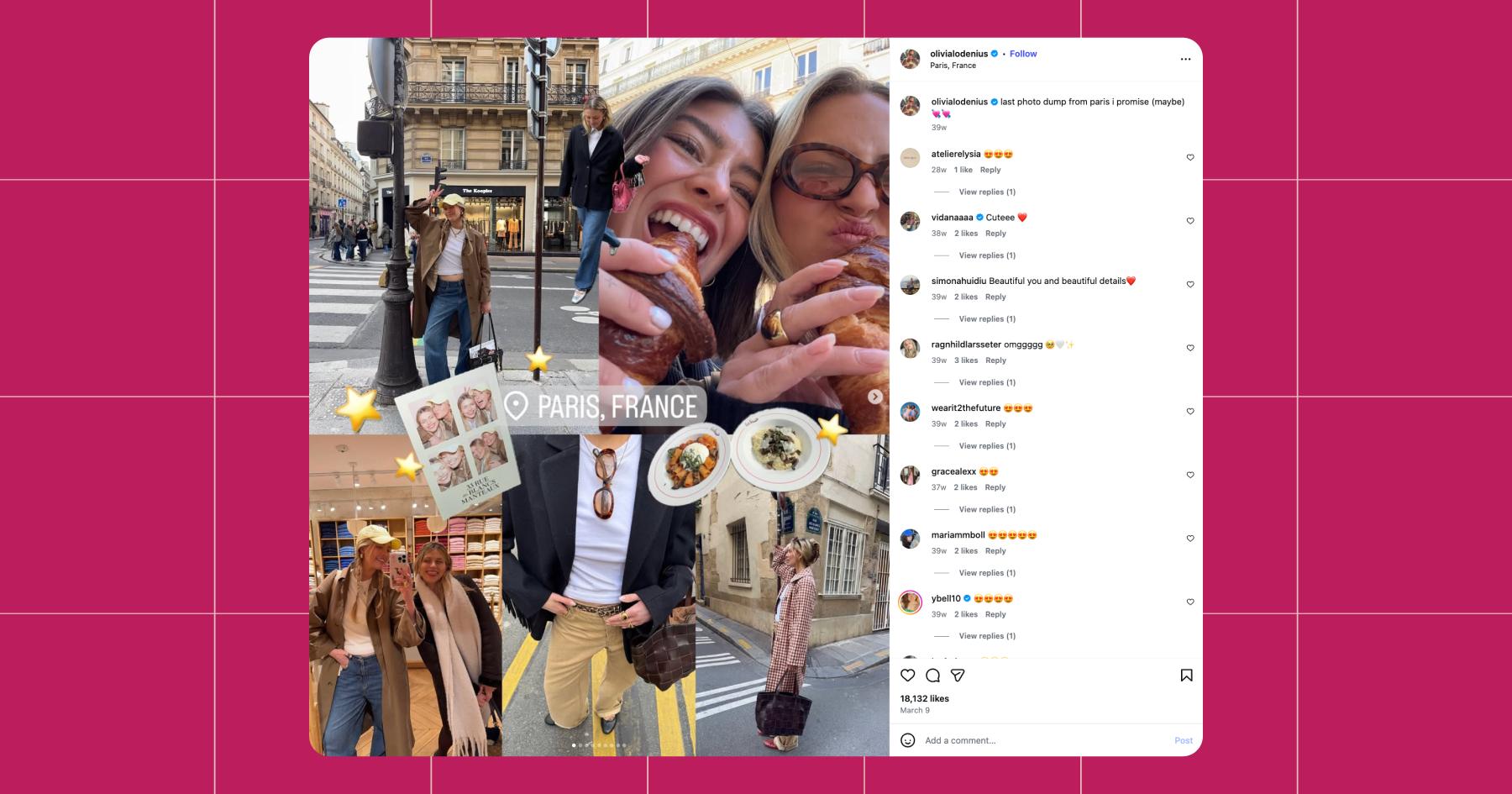
If you love a photo dump but don’t want to commit to a full carousel, a collage lets you pack the same energy into a single post. Combine candid shots, random details, and BTS moments for a quick snapshot of your week, trip, or chaotic camera roll. Make it look like the coolest kid in school’s locker. (Do kids still do that?)
Here Comes the Hodge-Podge

Once you’ve crafted your masterpiece, don’t let the effort go to waste. If people start commenting things like “obsessed” or “how’d you make this??,” Manychat can jump in and start chatting for you.
“Just threw it together in Canva! DM me if you need help! 😎”
Next thing you know, you’ve turned a random comment into a real connection.
So, go ahead: Sign up for Manychat.
✋Frequently Asked Questions (FAQs)
1. How do I know which collage style actually fits my brand?
Aesthetic consistency isn’t everything, but it does matter. If your collage style doesn’t match your typical vibe, it’s probably not going to catch your followers’ eyes in the feed.
Here’s a quick way to check:
- Pick three of your posts that feel the most on brand. Note their colors, fonts (if any), and general vibe.
- Compare your collage to those posts. Does the collage match the same general color palette? Mood? Level of polish?
- Ask yourself: Would someone recognize this as mine without seeing my handle? If the answer is no, make adjustments until it feels unmistakably right for you.
- Pro move: Save your final version as a reusable template.
2. Do I need to be good at design to make collages that look professional?
Nope! Let the templates do most of the heavy lifting. Here’s a tip, though: Less is more. A lot of people make the mistake of trying to cram in too many photos, but choosing three to four hero images usually leads to a cleaner, more visually pleasing result (like in the example from Olivia Lodenius).


Originally published: Dec 30, 2025, Updated: Dec 30, 2025
More stories worth reading
More content that's too good to miss