ICYMI, Edits is Meta’s video editing app for Instagram and Facebook creators. Edits was launched in April 2025, and since then, 130+ new features have been added to the app.
If you’re curious about Edits, strap in. We had our video editor and producer, Ben Kim, give the app a test drive. Ahead, we’ll tell you how to use the best features Edits has to offer and where other video editing apps have it beat.
Our Review of the Edits App (and How to Use Its Best Features)
Ben Kim, Manychat’s video lead, has been a professional video editor since 2020. Most of the content on Manychat’s YouTube and Instagram is Ben’s work (so, like and subscribe).
I asked Ben to try the Edits app and share his honest thoughts. He did not hold back, opening with, "For an app called Edits, it took me 10 minutes to even start editing.”
(Don’t worry; by the end of it, he said: “Might crack it open for some low-lift, on-the-go projects.”)
The best Edits app features
Here’s what Ben liked about the Edits app and why it’s worth the download.
Ideation, production, and editing tools are all in one place
Edits has tabs for ideas, inspiration, and templates, which essentially puts the entire content creation process in one place. The inspiration tab allows you to scroll through reels, but it doesn’t have a comment section, which makes it easy to find inspiration without getting distracted.
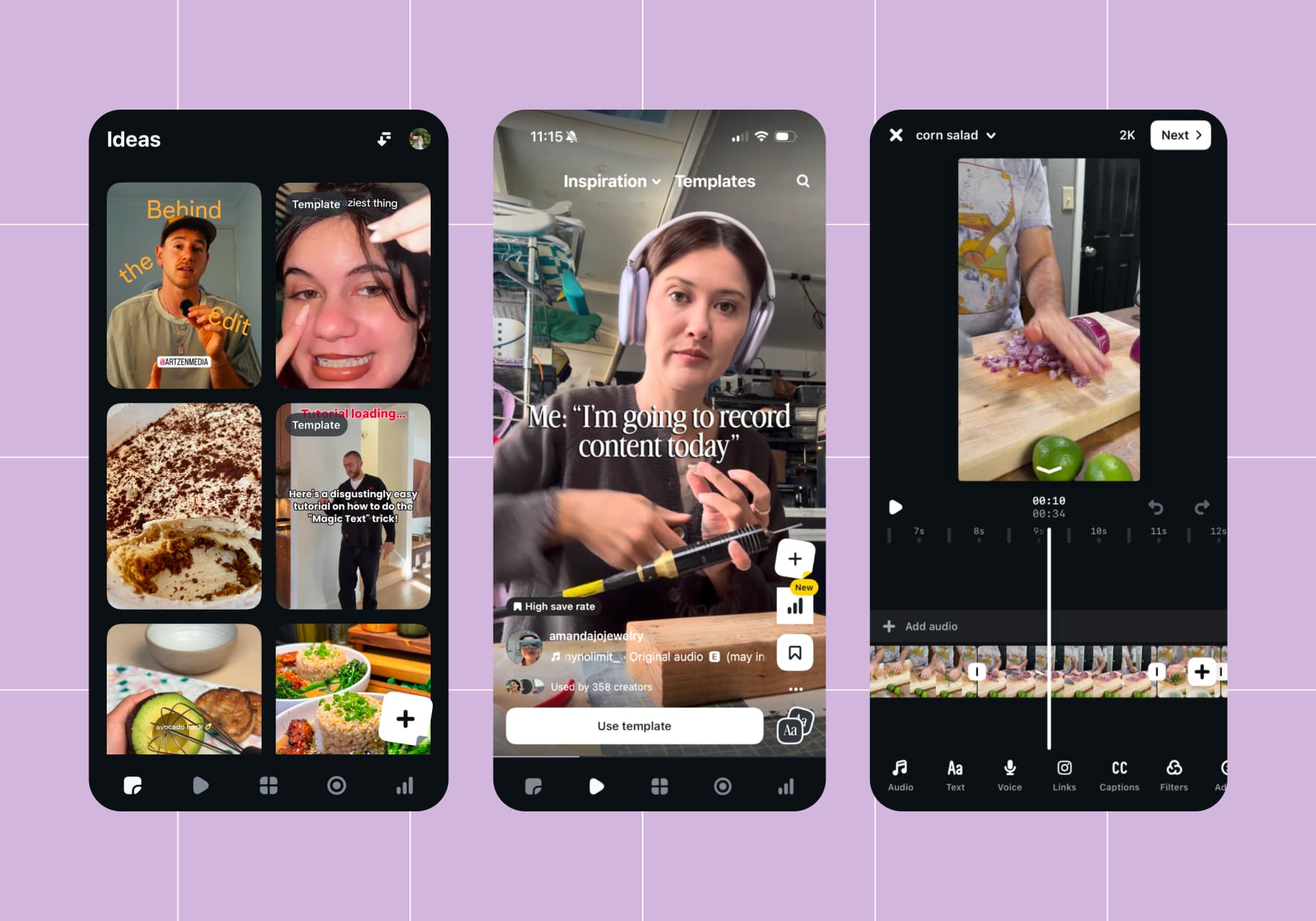
"If you're like me, you scroll through reels on Instagram for inspo, save posts for later, and then you end up completely forgetting about it. But having your process all in one place completely eliminates any hurdles that you might have,” says Ben.
Access to templates and advanced text and video effects is great
In the Inspiration tab of Edits, you can find customizable templates for trending Instagram content. Scroll until you find one you like, then hit Use template. You’ll get the video’s text and audio — all you have to do is add clips.
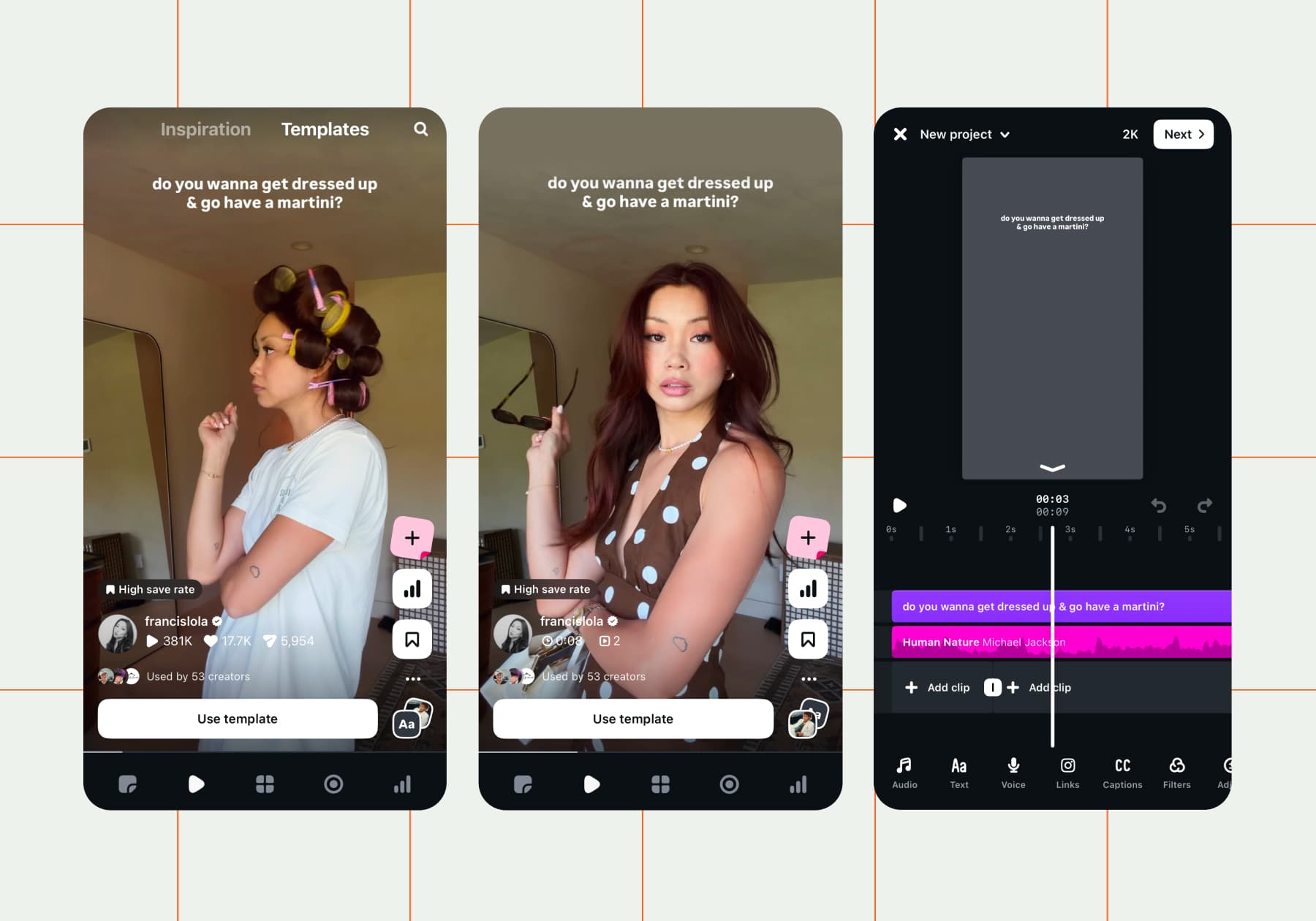
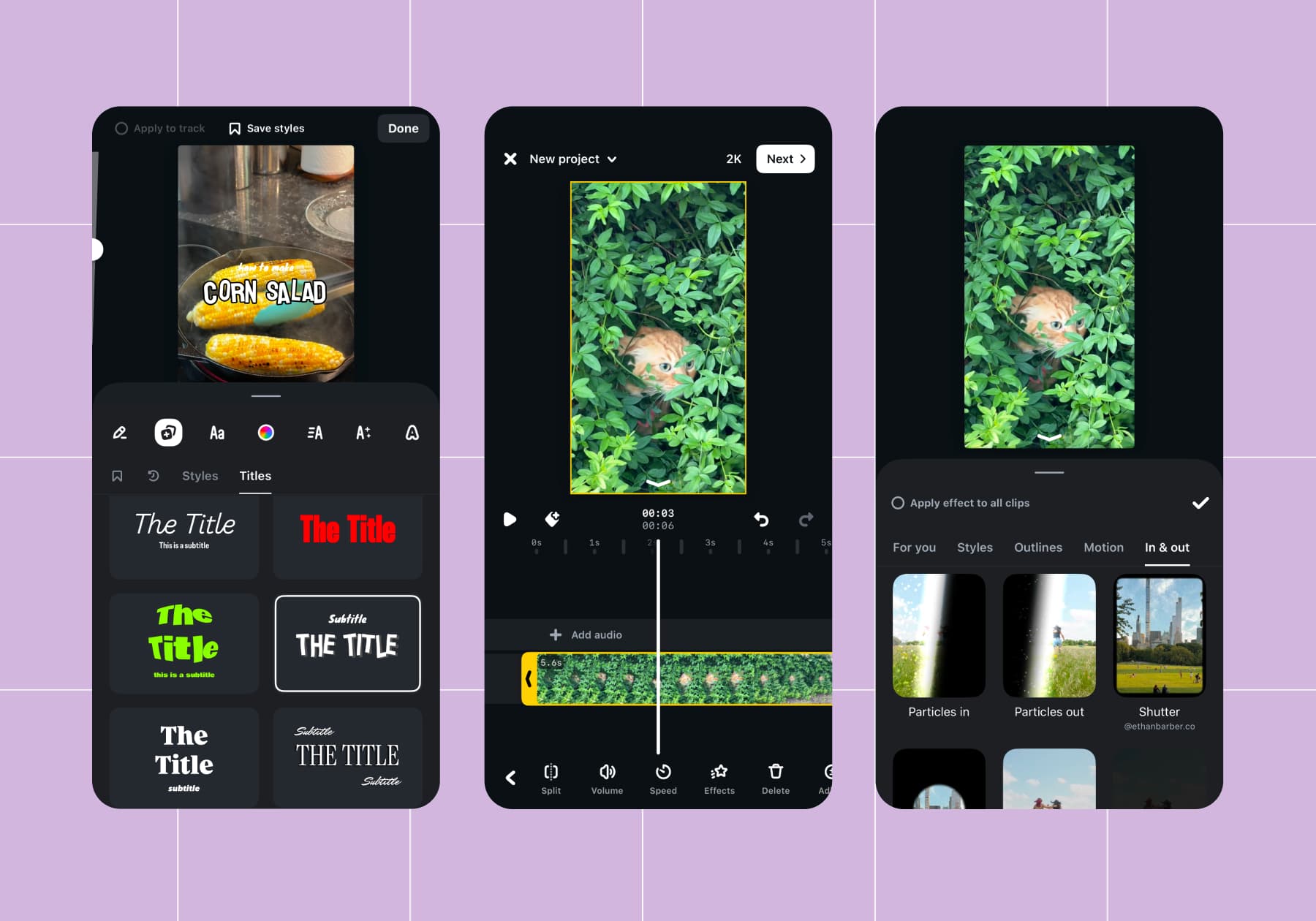
In the editing section of the app, you also have access to a lot of impressive text and video effects. Ben especially liked the title options within the text tool, noting that it would typically take forever to achieve the font effects offered there.
“You’d usually have to go to a stock website like Envato, download something that isn't really that great looking, and then try to adjust it and incorporate it into your usual workflow.”
If you want to experiment with titles, add text to your video, then hit the + sticky note in the text toolbar. For video effects, tap on a clip and hit the ⭐Effects button in the bottom menu.
Ben also called out Edits’ rotoscoping tool. Rotoscoping is an animation technique where a subject is traced over live-action footage. You’ve probably seen the recent freeze-frame trend, which is a great example of rotoscoping.
"Rotoscoping has historically taken forever, so I was really blown away by how much the Edits app could actually do here," says Ben.
“When you're trying to do it in After Effects, it takes forever, and it's wonky. The render doesn't really load that well, and it can be a real big headache, but this is a quick, on-the-go option that I’ll definitely use again.”
If you want to try rotoscoping a person, animal, or other object of your affection, tap on a clip, then hit the Cutout option in the bottom menu. You can trace the subject manually by tapping Custom, or let the app do it for you by hitting Auto.
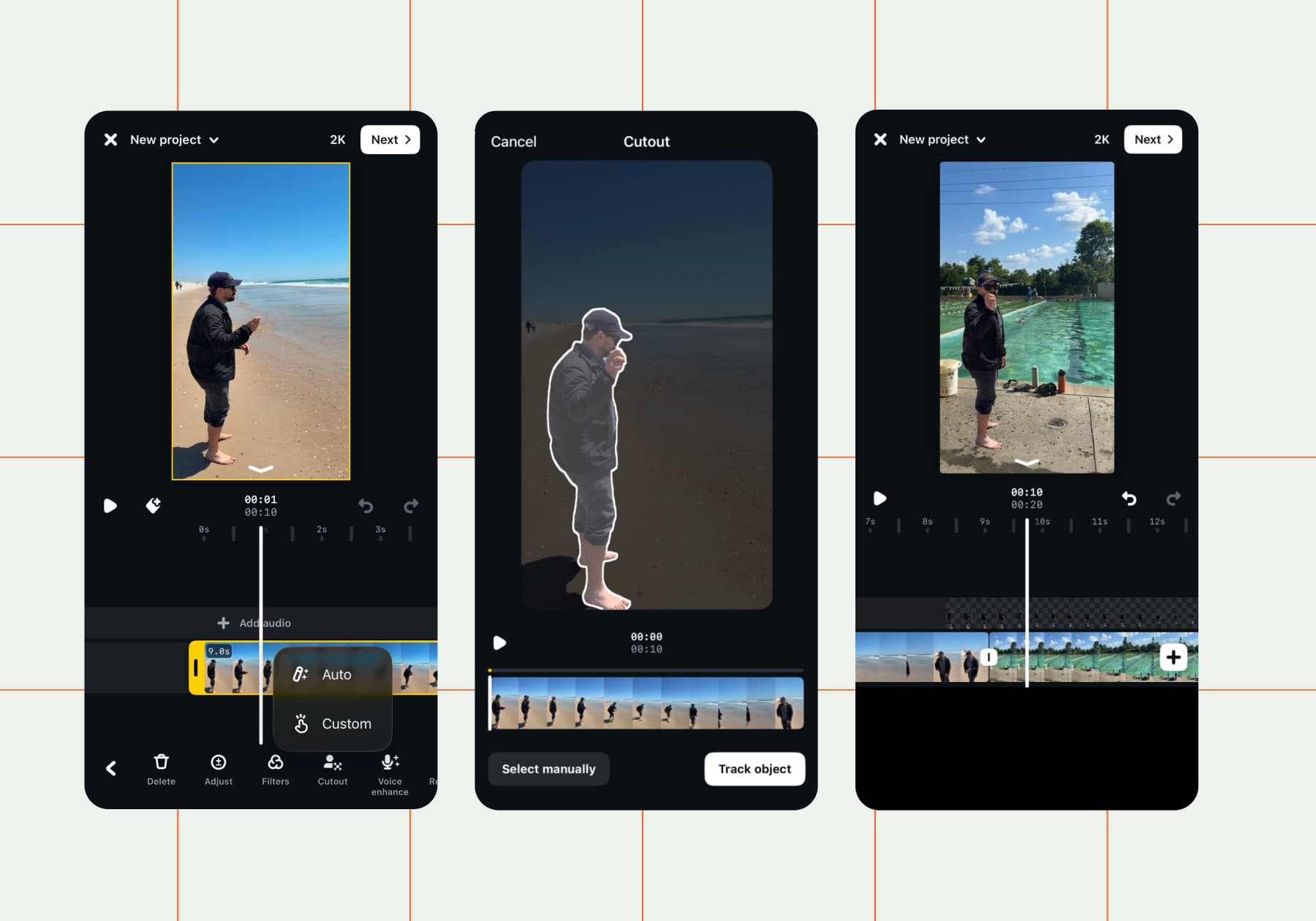
Once you create a cutout, it becomes a sticker you can layer over any background. So, to do the freeze-frame trend, you’d take a photo in a spot of your choosing, then take a video in the exact same spot without yourself in the frame. Create a cutout of yourself from the photo, and add the video you recorded as the background. Boom: freeze-frame!
The Instagram integrations are on point
Lastly, the Edits app features tools that enable direct interaction within Instagram reels. One example of this: the safe zone borders that appear when you’re moving items around on the screen. These borders help you avoid putting text in an area that won’t be legible when you post on Instagram due to things like reposts, the caption, your username, when it was posted, and all the other metadata displayed on posts.
There’s also the Links feature, which allows you to create a sticker with a link to an Instagram profile or reel. You can find the Links feature in the bottom menu.
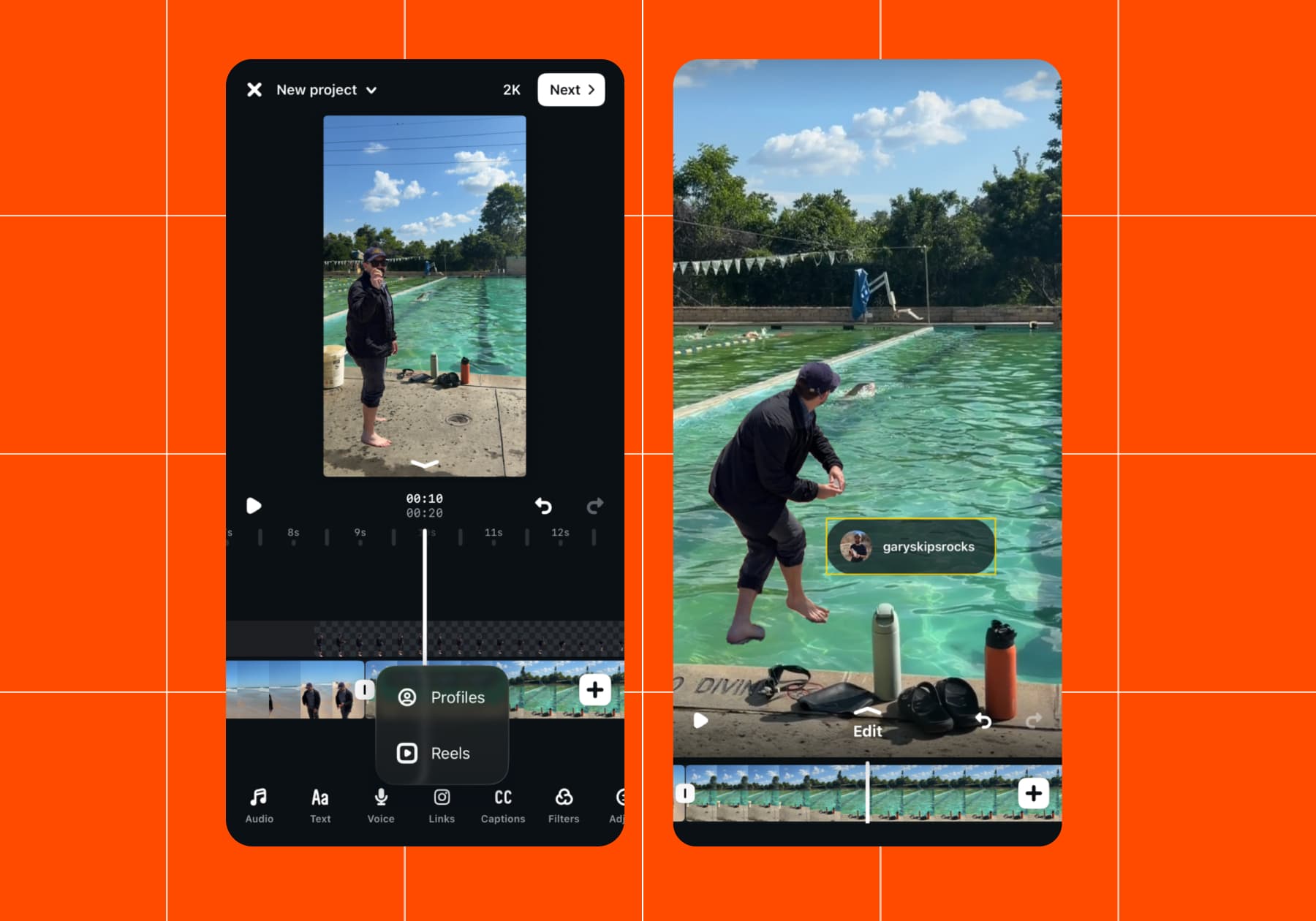
Plus, when you export a video from the Edits app, the first option is to post it to Instagram. The Instagram algorithm likes content with native elements (stickers, text, music, etc.), so that’s another reason to take advantage of the Edits app and all of these integrated features.
Where the Edits app could be better
Now, for the parts of the Edits app experience Ben wasn’t so sure about.
The app has a lot to offer, but much of it gets lost
"It does feel a little cluttered — like there'll be effects that I'll just never see because there's so much packed into this one app,” says Ben.
The fact that all the inspiration, content planning, and editing tools you need are all in one app could actually be a bad thing, because it makes it hard to discover new features. There are already so many tabs and tools in the app.
If you plan to use the Edits app regularly, follow Adam Mosseri (@ mosseri) and @ creators on Instagram. Both accounts regularly post about new Edits and Instagram features, so you won’t have to rely on naturally finding new tools you want to use in the app.
Generating and editing captions is difficult
This one I can vouch for because I also use the Edits app to make videos for Chronically Online Magazine. One known quirk of Edits is that if you generate captions for a project and then add a new clip to that project that you need captions for, you’ll have to delete all of the old captions and generate them a second time.
This is annoying, especially because editing the captions themselves is difficult. You can’t split the text anywhere (a “Can’t split here” error will pop up sometimes), and it’s laggy at times.
“I will say I was not a fan of having to fine-tune the captions and the timing of them and all that. It didn't feel very intuitive, and compared to my experience editing captions on TikTok, it just wasn't there," says Ben.
The TikTok video editor offers a better caption editing experience, and captions are critical because so many scrollers watch videos without sound these days.
Other apps offer a more focused video editing experience
I asked Ben if he still had the Edits app on his phone about a month after he put together this review. “I still have it! Haven't used it for anything since, though,” he said.
"Personally, I think apps like the Premiere mobile app and the TikTok app have a more streamlined and easy-to-edit experience."
Edits is great if you need a catch-all for the entire content creation process. It also has specific strengths, like the Instagram integration features and trending templates. But other tools — like CapCut, Premiere, and the TikTok video editor — provide a more focused video editing experience. Perhaps because those apps are all built for video editors, while Edits is built for creators.
Are You a Creator? We’ve Got More For You

In the end, Ben gave the Edits app 3.5 out of 5 stars. “Would Edit again,” he says.
If you made it this far and you’re a creator, hang with me for a second, because these other articles might be of your interest:
- The 2026 Instagram Trends Creators and Marketers Are Actually Doing
- A Short-Form Video Strategy for Social Inspired by the Pros
- Instagram Reels vs TikTok Videos: Same Idea, Different Algorithms
Also, did you know that creators who use Manychat grow up to three times faster than those who don’t? So, if you haven’t yet, why don’t you sign up for Manychat.
FAQ
Instagram Edits is a standalone video editing app from Meta designed to help creators make and publish high-quality reels. The app includes editing tools like clip trimming, transitions, automatic captions, green-screen effects, and performance insights. Unlike Instagram's built-in editor, Edits provides a dedicated workspace for creating videos before publishing them to Instagram or other platforms.
It depends on your needs. Edits is tightly integrated with Instagram, while CapCut offers a larger library of templates, effects, and advanced editing features. If your primary focus is growing on Instagram, Edits may be all you need. If you create content across multiple platforms or want more advanced editing capabilities, CapCut may still be the better option.
Download the Edits app, import your video clips, and use the built-in tools to trim footage, add text, create captions, apply effects, and arrange scenes. Once you're happy with your video, you can export it or publish it directly to Instagram.
Yes, Edits is currently free to download and use. Creators can access a variety of editing tools without paying for a subscription, and videos can be exported without a watermark. Meta may introduce additional premium features in the future, but the core functionality is available at no cost today.