
If you’re a creator trying to turn followers into revenue, you already know that staying visible is half the battle. Social feeds are noisy, algorithms change overnight, and even your most loyal followers can miss a post. That’s why Messenger Channels (formerly called Broadcast Channels) are such a hidden gem.
Instead of hoping your content shows up in someone’s feed, you can send announcements, promotions, or reminders directly to their inbox, where the majority (66%) of users prefer to talk to businesses.
In other words, Messenger can be a powerful marketing channel if you know how to use it. It gives you a direct line to the people most likely to support your work.
What Is a Messenger Channel? And How Do They Work?

In Messenger, a Channel allows a business or Page to send a one-to-many message to its subscribers. Think of it as the Meta equivalent of an email blast.
Before we go any further, let’s break down how Messenger Channels work:
- Meta sets the policy framework — the rules that govern when and how you can send messages on Messenger. These rules exist to prevent spam and protect the user experience.
- Manychat offers broadcast options that map to those rules, so you can choose the right message type without needing a law degree.
In other words, Meta sets the guardrails around how you can use Messenger Channels. Manychat makes it easy to follow them.
Next, let’s run through how Channels work as of 2025.
Promotional messages
These are your bread-and-butter sales blasts, but they come with a catch: You can only send promotional content to subscribers who have interacted with your account in the last 24 hours.
This 24-hour rule is designed to keep Messenger spam-free. You can run flash sales, special offers, or product drops only if the subscriber has interacted with your business within the last day.
If you’re using Manychat, this is easy; Manychat will never violate the 24-hour rule (though it may use tags to work around it, more on that later in this post).
Reminder messages
Sometimes, one message isn’t enough to close the deal, which is where follow-up comes in. Manychat gives you the option to send one additional reminder within 24 hours of your promotional message — perfect for “last-chance” nudges or gentle reminders.
After that, you’ll need another tool, like a tag, a Messenger List, or an opt-in, to keep the conversation going.
Non-promotional (subscription) messages
Not every message will be related to a promotion. Meta allows some Pages to send non-promotional subscription messages, including updates, tips, reminders, or educational material.
There is a catch, though: Meta no longer lets businesses send unlimited non-promotional content to everyone.
Instead, subscription-style messaging is limited to very specific categories. The most common is News Messaging, only available to Pages registered in Meta’s News Page Index (NPI). These publishers can send updates in Messenger but must stick to pure editorial content. Anything that looks like a sales pitch (subscription offers, discounts, coupons, or branded content) is considered promotional and not allowed under this category.
For Pages outside the news space, the best options to share non-promotional updates are Message Tags, Messenger Lists, or OTNs.
Need to know the finer details? Visit Meta’s Overview of Messenger Platform and IG Messaging API Policy.
One-time notifications (OTNs)
Meta’s One-Time Notification (OTN) API allows you to send a single, time-sensitive follow-up message outside the 24-hour window, but only if the subscriber has explicitly opted in.
Here’s how it works: Meta issues your Page a unique token when a user taps a “Notify me” button (for example, to get an alert when an item is back in stock). That token acts as permission to deliver one message to that user in the future. Each token can only be used once and expires one year after it is issued.
In practice, this means you can respect Meta’s rules while still delivering value exactly when your customer wants it — like sending a back-in-stock alert, a price-drop notification, or a reminder about a restock.
BTW, you should bookmark this: How to Use One-Time Notifications (OTNs) on Messenger
Messenger Lists
Messenger Lists are a Manychat-native feature that helps businesses manage opt-ins for recurring engagement. Think of them as an easy way to organize subscribers who’ve explicitly said, “Yes, I want to keep hearing from you.”
Setting up a Messenger List in Manychat is straightforward. Once someone joins a list, you can re-engage them through broadcasts, drip sequences, or automations — whether that’s a weekly newsletter, a product update, or event reminders. Unlike OTNs, which only allow a single follow-up, Messenger Lists provide ongoing permission until the subscriber opts out. That means you’re not limited by the usual 24-hour rule when it comes to sending automated messages (yay!).
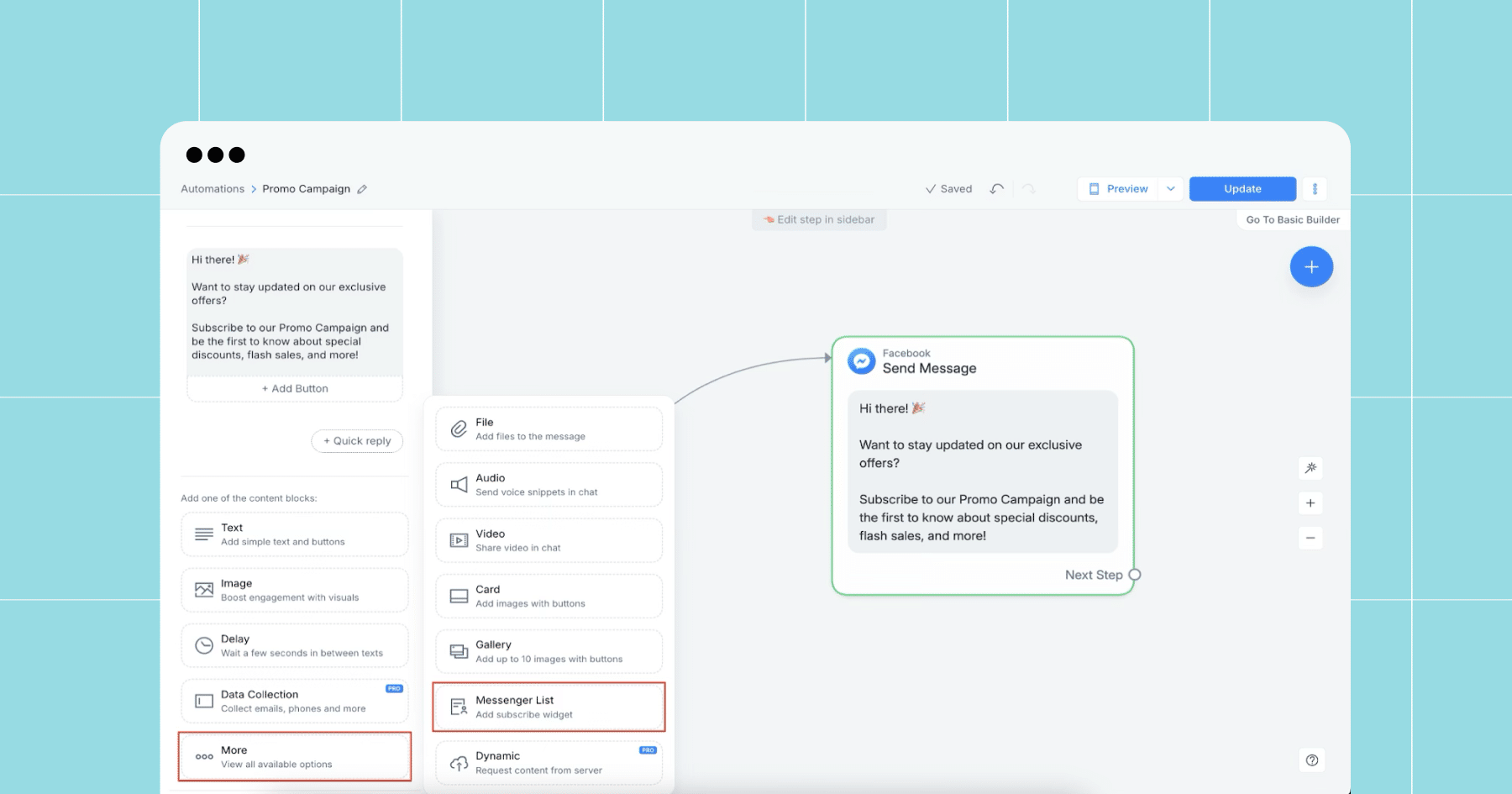
Manychat also helps enforce healthy pacing so subscribers don’t feel spammed, keeping your messaging strategy user-friendly and compliant with Meta’s opt-in rules.
Live Chat/Human Agent tag
Some conversations take more than a day to resolve. Meta offers the Human Agent tag for those cases, extending the standard 24-hour messaging window to seven days. This extension is designed for manual, human replies — like weekend support requests, complex troubleshooting, or guiding a customer through a longer purchase process.
The Human Agent tag is only available to approved Meta Business Partners (Manychat included). In Manychat, the tag gets applied automatically when you use Live Chat, so you don’t even have to think about it.
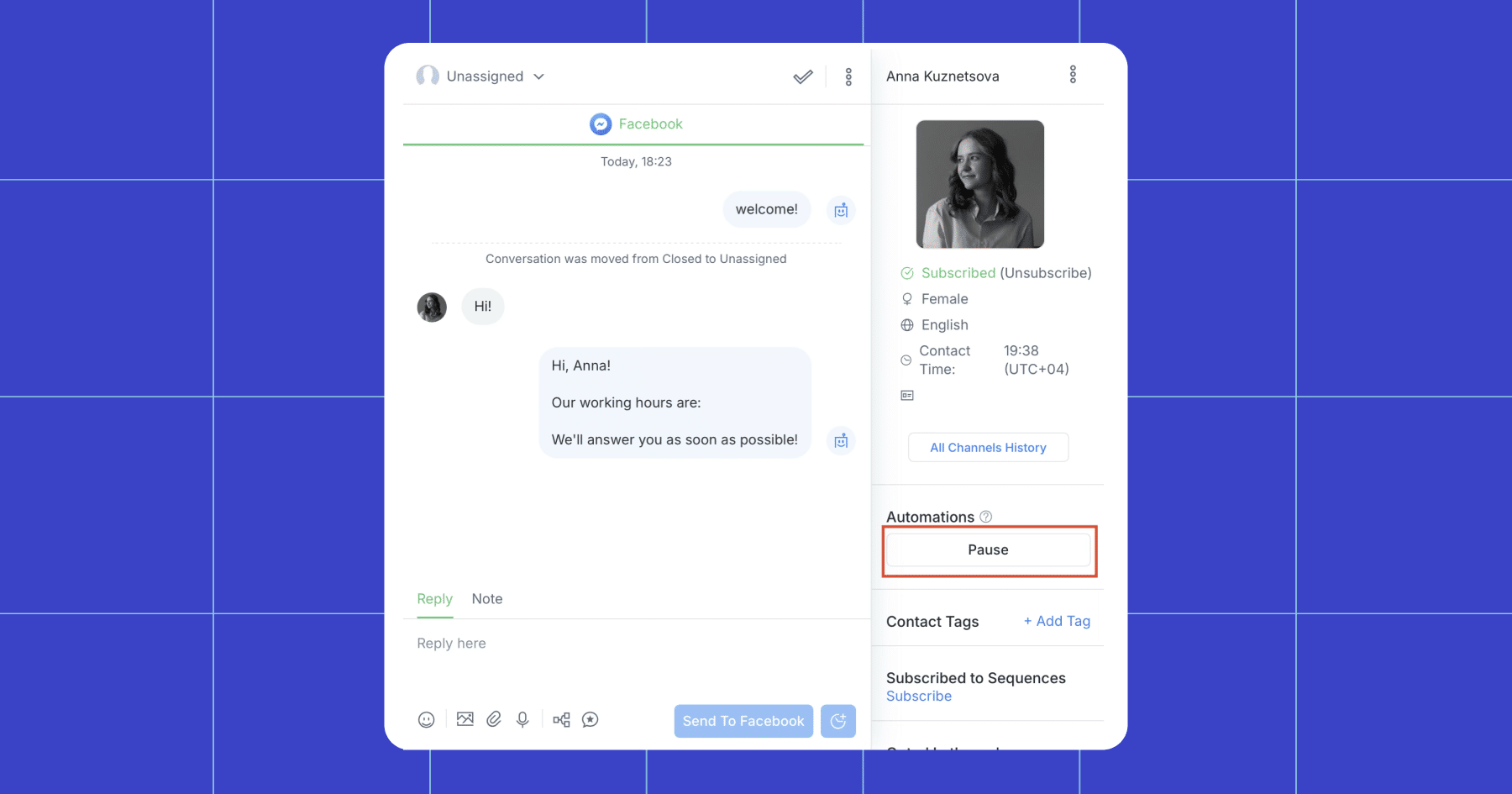
Once the seven-day window ends, you’ll need another compliant method (like Message Tags, Messenger Lists, or OTN) to keep the conversation going.
Message Tags
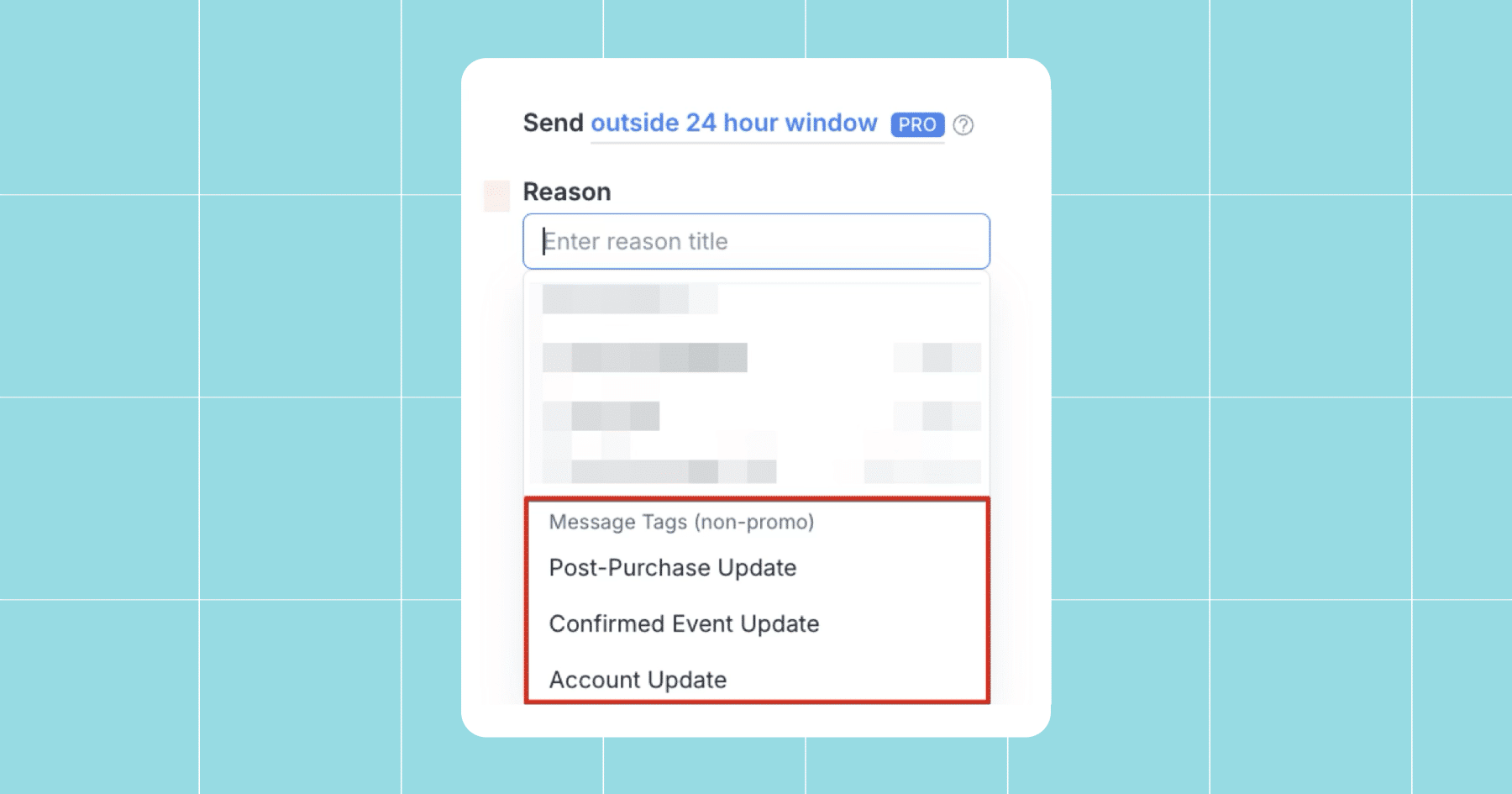
Message Tags are Meta’s way of letting you send important, non-promotional updates outside the standard 24-hour window. They’re meant for things your customer genuinely needs to know, like a shipping notification, an upcoming reservation reminder, or a critical account update.
If your goal is to promote outside the 24-hour window, tags aren’t the right tool. Each tag comes with a very specific use case. For example:
- Post-Purchase Update: shipping confirmations, receipts, or return instructions
- Confirmed Event Update: reminders or changes to events a user has registered for
- Account Update: one-time account changes, like a password reset or billing notice
- Human Agent: allows a support rep to manually respond for up to seven days after the user’s last message
When you’re building automations inside the Flow Builder, you can directly select the appropriate Message tag as a reason for sending a message outside of the 24-hour window (see below). That way, you stay compliant without memorizing all the fine print.
Stay Out of Meta Jail — Use These Channel Best Practices

As you’ve probably noticed, Meta is serious about protecting the user experience. Businesses that ignore the guidelines risk warnings, blocked messages, or even losing access to Messenger entirely.
Here are some best practices to keep your broadcasts both effective and compliant.
Respect Meta’s rules (especially the 24-hour one)
Stick to the 24-hour window and use the right tags. Subscribers are quick to mute or block brands that feel pushy. Keeping your messages conversational, timely, and relevant ensures you stay on the right side of Meta’s policies and your audience’s patience.
Always get clear opt-ins
In most cases, Meta requires explicit permission to message someone outside the standard 24-hour window. That means the user must actively opt in; for example, tapping “Get weekly VIP offers” or “Remind me about the webinar” before you’re allowed to send ongoing or follow-up messages.
The exception applies to certain critical updates that the user expects, like a shipping confirmation or an event reminder. These don’t require a separate opt-in because they’re directly tied to an action the user took.
Use other channels as fallbacks
If a subscriber falls outside the messaging window and you don’t have the right tag or opt-in, don’t force it. Instead, use other channels, like SMS or email, to continue the conversation.
Monitor delivery status
Keep an eye on your Channel metrics and Page status. If you notice unusually low delivery rates or get policy warnings, take them seriously.
Meta can restrict or suspend accounts that misuse Channels. Manychat helps by blocking obvious violations (like trying to send a promo outside 24 hours), but it can’t stop misuse of tags — that’s on you.
Meta Makes The Rules, Manychat Helps You Follow Them

Messenger Channels let you turn conversations into a direct marketing funnel, but only if you use them in a helpful and compliant way. Manychat makes the mechanics simple; your job is to keep the message valuable and, ideally, fun.
If you want to send a Channel Message in Manychat, here’s how:
1. Make sure you’re eligible
Before you hit send, make sure:
- You have a Facebook Page connected to Manychat ✅
- Your subscribers have already interacted with your Page in Messenger ✅
- The content you’re planning to send fits Meta’s rules ✅
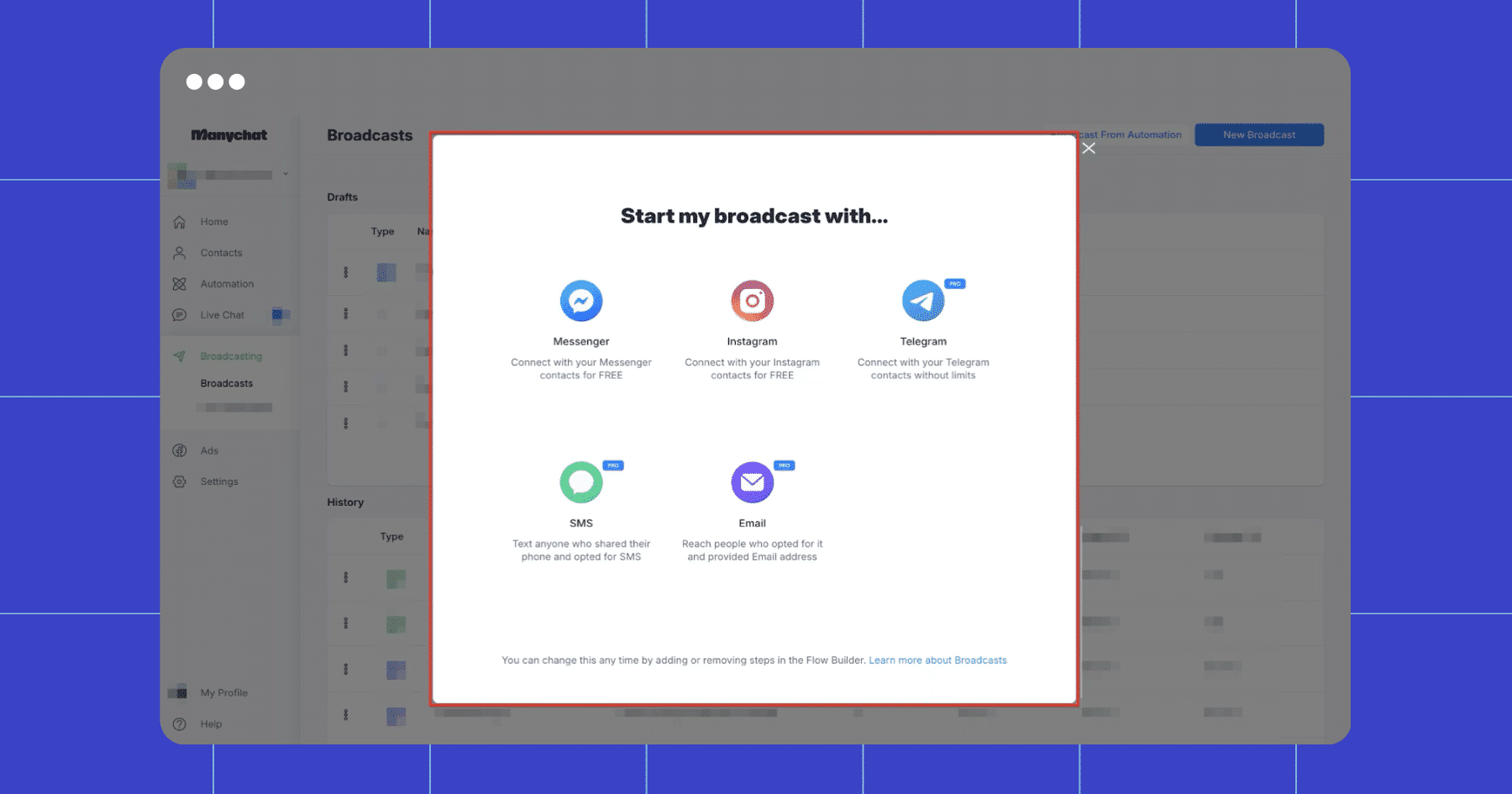
2. Go to the Broadcasts tab in Manychat
From your Manychat dashboard, click Broadcasts in the left menu. Then, hit the + New Broadcast button.
3. Choose Messenger as your channel
Manychat supports multiple channels, so make sure you select Messenger as your broadcast channel.
4. Create your message
Add text, images, buttons, or quick replies to your message. Keep it conversational — broadcasts perform best when they feel like a chat, not an ad.
Here are a few examples of how you can use broadcast messages:
Use case | Example message |
Flash sales/product drops | “24-hour merch drop! Get it before it’s gone. 🚨” |
Event reminders | “Going live in 30 mins — tap here to join!” |
Content alerts | “New podcast episode just dropped — listen now.” |
VIP discounts | “Thanks for being here! Here’s 10% off my course.” |
Giveaway updates | “Winner reveal happening tonight — don’t miss it.” |
Customer updates | “Your order has shipped. Track it here ➡️” |
And if you’re promoting something, ensure you’re within the 24-hour rule.
5. Apply the right settings
Once your message looks good, it’s time to fine-tune how it’s delivered. This is how you ensure the right people get the right message at the right time.
Manychat gives you a few options to adjust, including:
- Target audience: Use filters (like tags, segments, or conditions) to decide who gets the message.
- Message type: Manychat will prompt you to pick the correct type (Promotional, Non-Promotional/Tagged, OTN, etc.) to stay compliant with Meta.
- Send time: Choose whether to send immediately or schedule it for later.
6. Preview and send your message
Use the Preview button to test the message on your Messenger before sending it. When you’re ready, click Send Now or Schedule.
Ready to try it? Sign up for Manychat today and start turning conversations into conversions.
✋ Frequently Asked Questions (FAQs)
1. Can I send Channel messages without using Manychat?
You can — Meta lets Pages send messages directly through their API. However, it requires developer access, coding skills, and a clear understanding of Meta’s policy framework. In other words, not exactly creator-friendly.
Manychat mirrors Meta’s rules, automatically blocking out-of-compliance messages, and giving you a drag-and-drop builder to create broadcasts in minutes. Instead of hiring a developer (or spending hours studying the policy terms), you can focus on crafting your message.
2. Do I need permission from Meta to send Channel messages?
Not exactly — you don’t need “permission,” but you do need to follow Meta’s messaging rules. Remember the 24-hour rule for promotions, use the right tags for updates, and get explicit opt-ins for recurring messages.
3. What happens if I accidentally send a non-compliant message?
If you send content outside the rules, your Page could get warnings, delivery limits, or even lose access to Messenger.
4. How big does my Messenger audience need to be for Channels to work?
Even a small subscriber list can be powerful. Messenger messages have much higher open rates than email, so a message to 500 people in chat can feel like reaching 5,000 in email. Start small, keep it valuable, and your list will grow.
5. Can I use Messenger Channels to replace my email newsletter?
Not exactly. Email is great for long-form updates, while Messenger is ideal for quick, time-sensitive, or interactive messages. The best strategy is usually a combination of email + Messenger, not one or the other.


Originally published: Feb 6, 2023, Updated: Jan 5, 2024
More stories worth reading
More content that's too good to miss