TikTok is great at getting people’s attention on your content, but getting them from your content to your website? That’s not as easy to do.
Sure, you can point viewers to the link in your bio, but you’re probably going to lose half of them the moment they swipe away from your video. That’s not ideal, but you know what is? Sending them what they want directly to their inbox. And with Manychat for TikTok, you can do that. (Yay!)
In this guide, we'll show you how to use a Manychat template to automatically send links in TikTok DMs, whether you're sharing products, promoting an event or course, or answering common questions.
TL;DR
- Manychat for TikTok uses DM triggers rather than comment triggers, so the way links are delivered works a little differently than Instagram's comment-to-DM automation.
- Manychat has a ready-made template for automatically sending links in TikTok DMs. We'll walk you through how to set it up, customize it, and put it to work.
- You can get started with TikTok DM automation for free with Manychat’s Free plan.
How to Send Links on TikTok with Manychat
Manychat is a TikTok Marketing Partner, which means TikTok approves it for use on the platform. Even so, automating on TikTok isn’t the same as automating on Instagram (just like automating on Instagram isn’t like automating on Facebook, and so on).
Let’s talk about that before we get to the step-by-step.
Manychat for TikTok vs. Manychat for Instagram
If you’re new to Manychat for TikTok, you might be wondering how the automation experience differs from Manychat for Instagram.
- On Instagram, creators and brands can use automations triggered by comments on posts and reels, Story interactions, and direct messages.
- On TikTok, you need a Business account or a TikTok account with advanced access to use Manychat. TikTok automations work through direct messages; you can trigger them when someone sends a DM, clicks a special link, or scans a QR code.
On that note, there isn’t an equivalent to Instagram’s comment-to-DM for TikTok. Instead, it’s more like DM-to-DM, because a user has to send you a DM to trigger an automated response; leaving a comment won’t trigger one.
Fortunately, there is a Manychat template for a TikTok automation that sends people a link. If you want to learn more about that template and how to use it, keep scrolling.
Step 1: Sign up for Manychat and connect your TikTok account
- If you don’t already have a Manychat account, sign up for one.
- Then, connect Manychat to TikTok.
FYI: You’ll need a TikTok Business Account or an account with advanced access to use Manychat. Creator and Personal TikTok accounts aren’t currently supported.
Step 2: Find the ‘Direct your TikTok audience to a website’ template
- Once you’re in Manychat, open the dashboard and head to Automations.
- Click + New Automation.
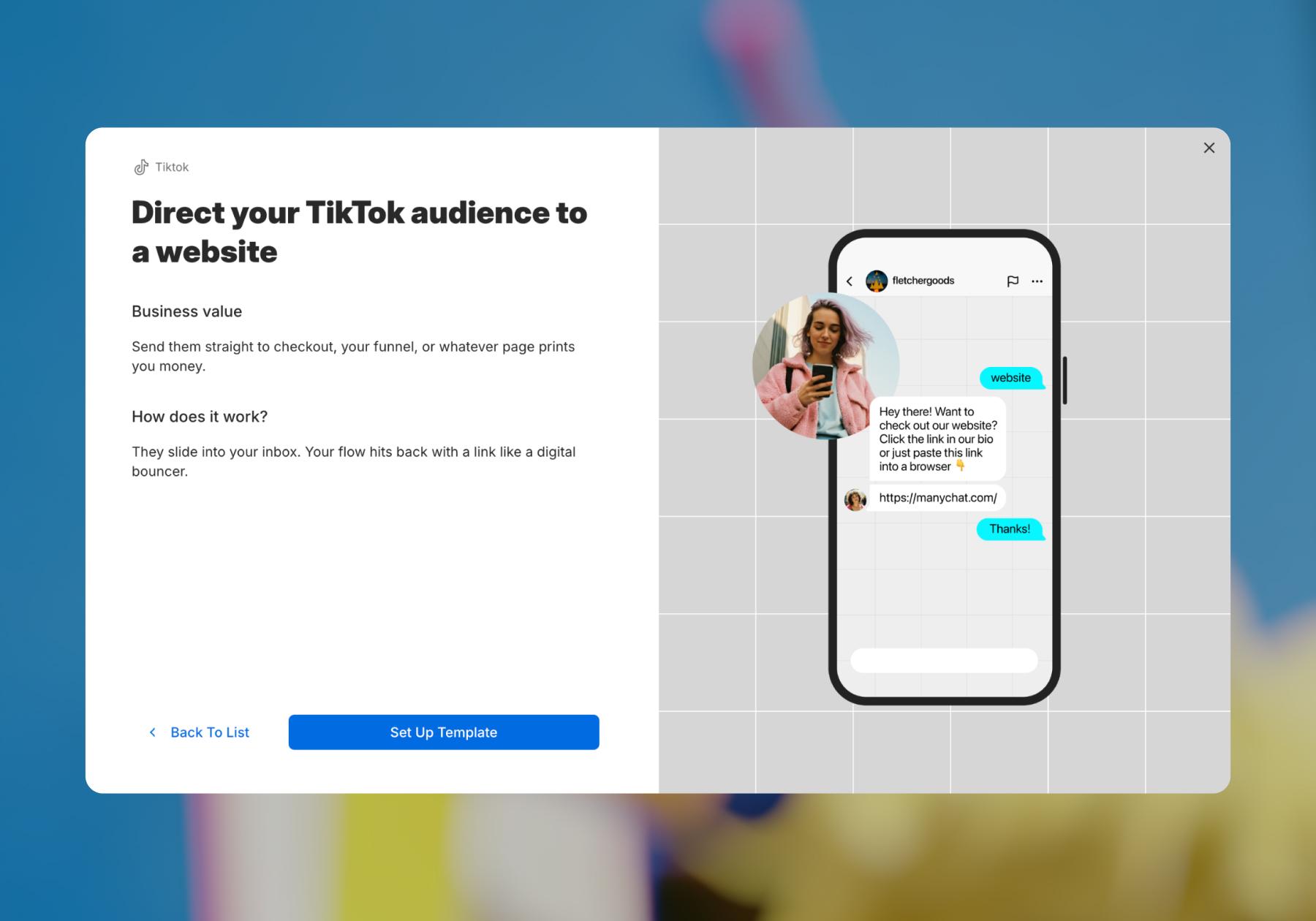
- Click the "Direct your TikTok audience to a website" template.
- Click Set Up Template.
Step 3. Customize the template
You’ve found Manychat’s template for automatically sending TikTok links. Here’s how to use it.
- Click on "User sends a message" in the first block, and add a trigger keyword (plus any common typo versions of the keyword). For this example, I set the trigger keywords as “website,” “website,” “link,” and “site.”
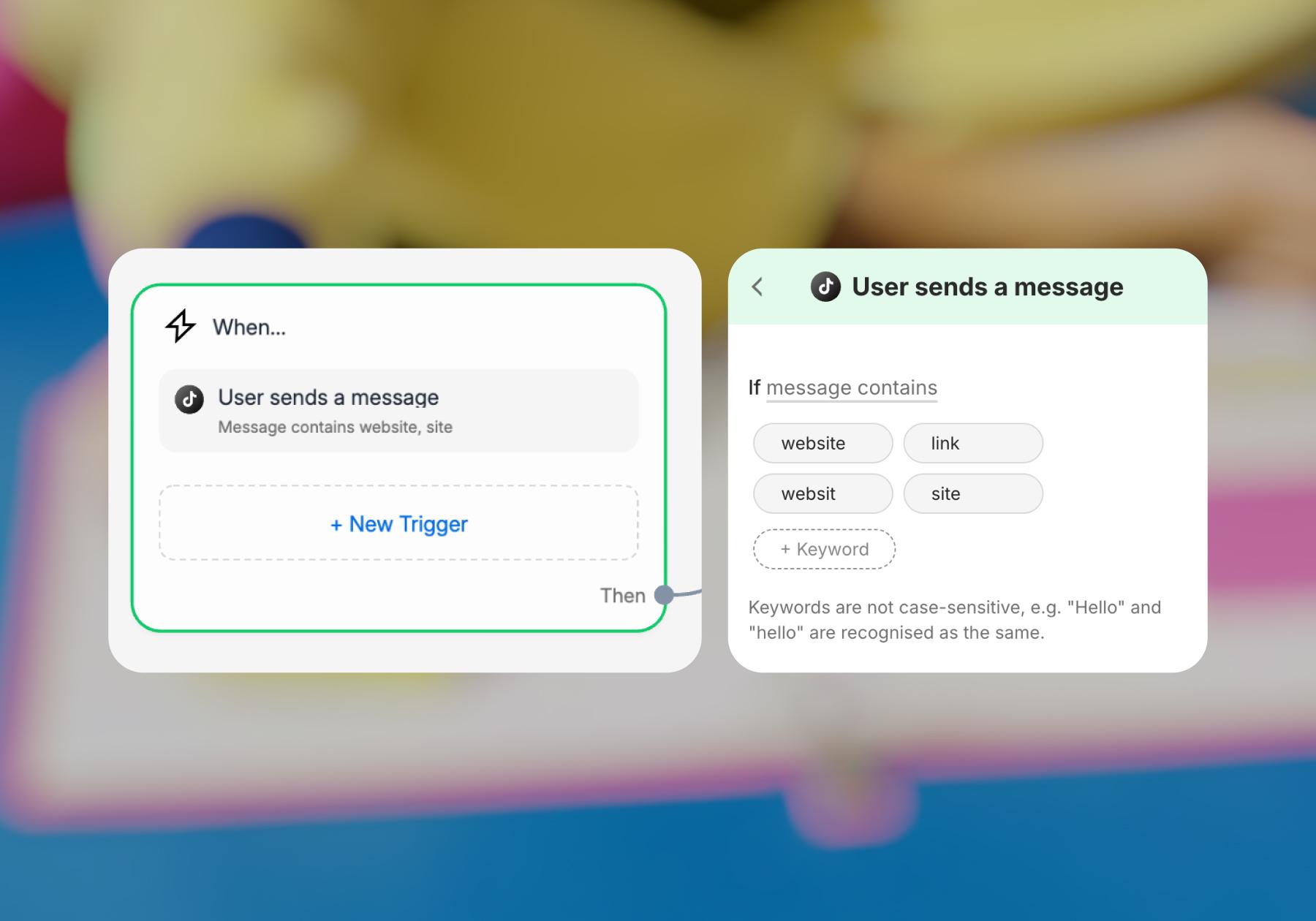
Choose a keyword that reflects the contents of the link you’re sending. If you want to send people to your shipping policy, make the keyword “shipping” or “returns.” If you want to send people to your store, choose keywords like “store,” “products,” or “availability.”
- Next, click on the Send Message block and customize your opening message. You can keep it simple here and send over your link immediately (like the template’s pre-filled text or my example below), or have Manychat perform an action before sharing the link.
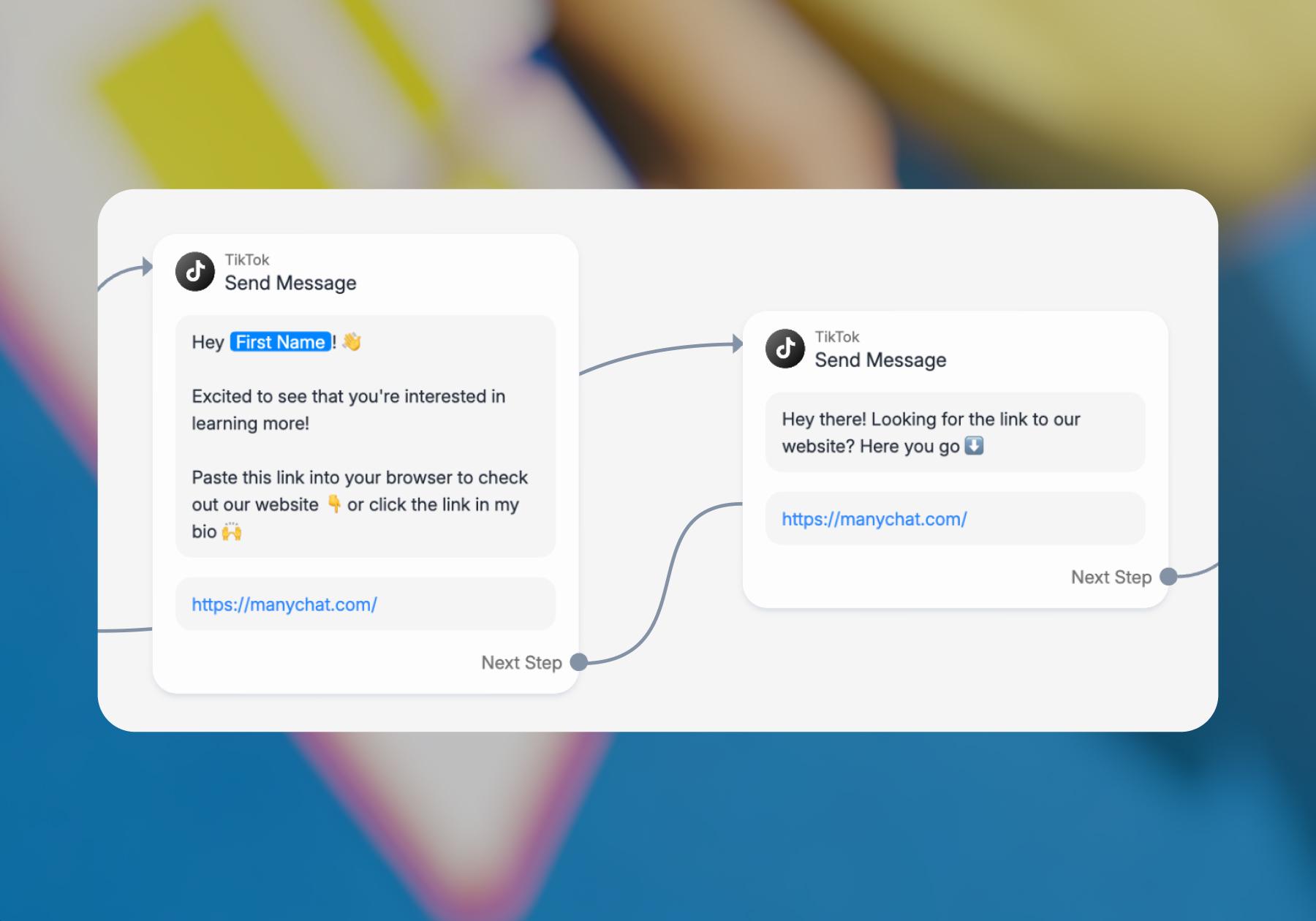
If you want to add an action to the flow, click + Add Button, then choose from the available options. You can use buttons to guide people to another automation, update their contact information, or trigger other actions in Manychat.
For example, you could add a button labeled "Subscribe for more" and link it to another automation that prompts the user for their email address. Once they've shared their email and agreed to receive marketing messages, you can save their information and update their email opt-in status.
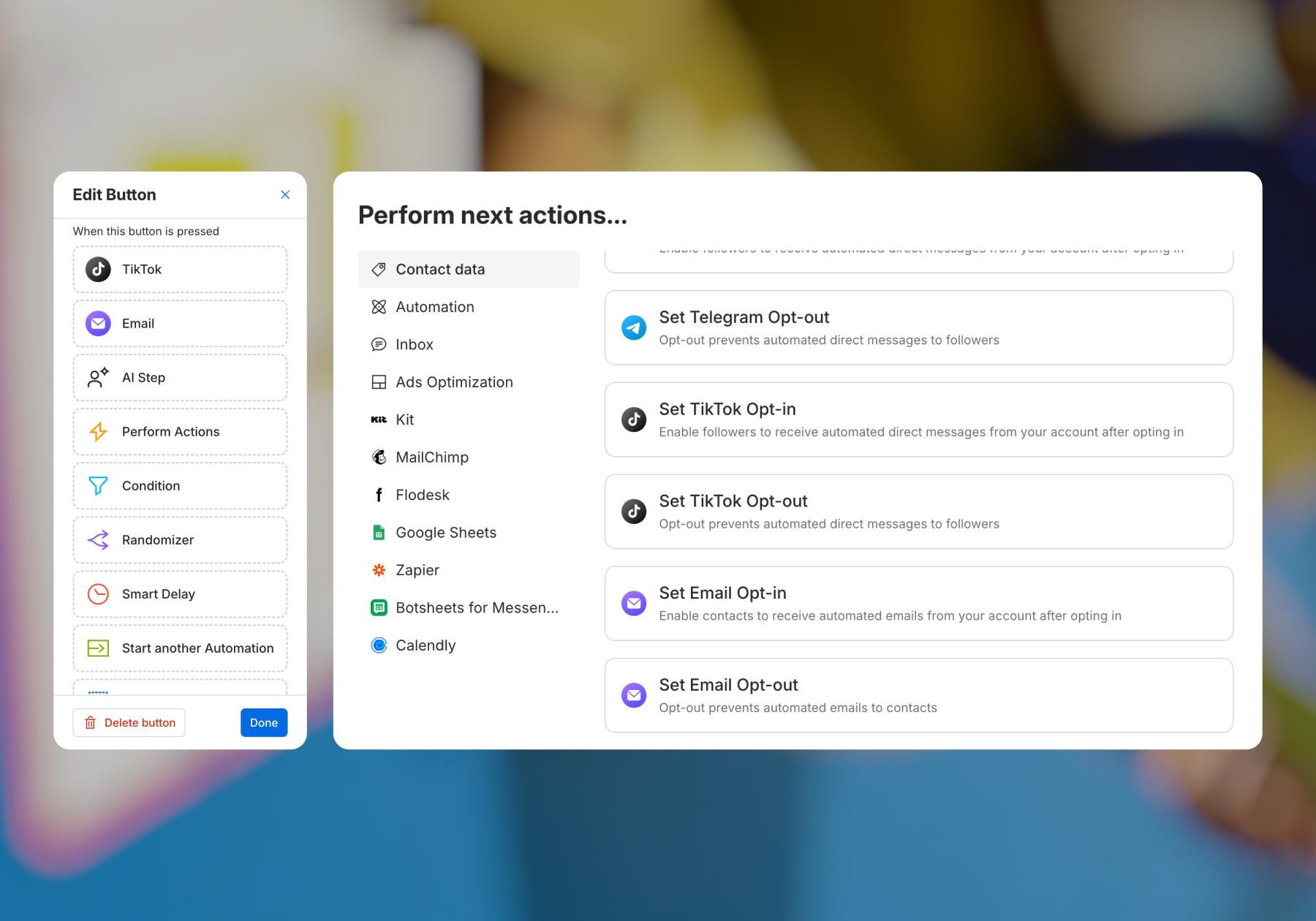
For now, we're going to keep it simple, but it's worth mentioning that these options are here should you need them in the future.
Make sure to add your link to the Send message block, unless you want to direct people to Manychat (which is what will happen if you forget to edit the template 😉).
- At this point, you could delete the next two blocks in the flow, and it would work as a simple link delivery automation.
If you want to send a follow-up message after delivering the link, click on the Send Message #1 block and edit the text as needed.
Since you already have people in their inbox, it’s best to give them what they’re looking for. For example, if you’re setting up this automation to send people to your help center, you could say something like, “We hope you found the information you need. If not, email us at [email protected] for more help.”
You can also adjust the Smart Delay on this block to be longer or shorter. The maximum delay you can add is 60 seconds.
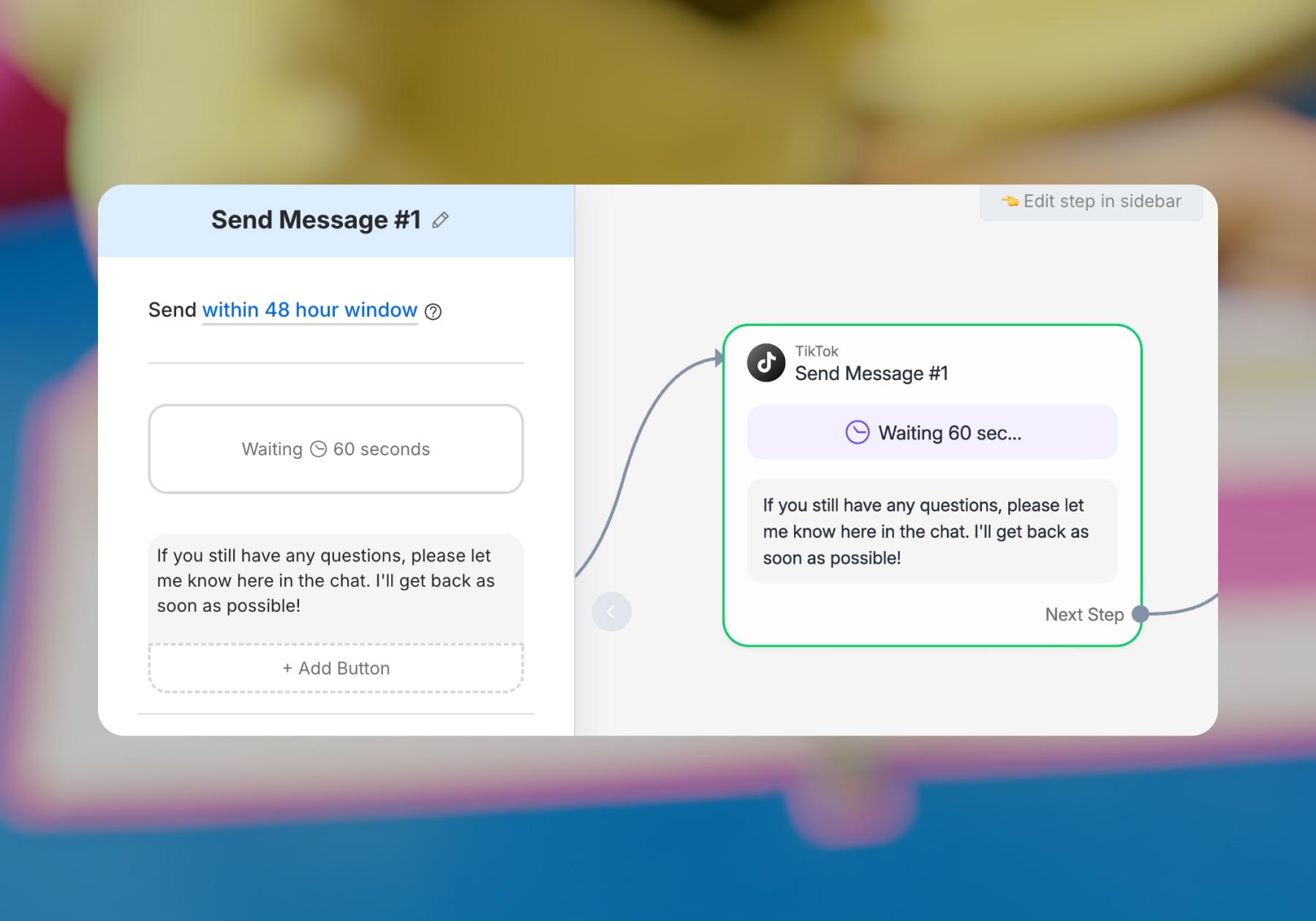
When you’re customizing your flow, keep in mind that TikTok allows you to send up to 10 messages within 48 hours of a user's last interaction. After that window closes, they'll need to message you again before your automation can continue the conversation.
- The last block in this template marks the conversation as Open in Manychat so that you know to check it yourself in the Live Chat feature or in TikTok’s native inbox.
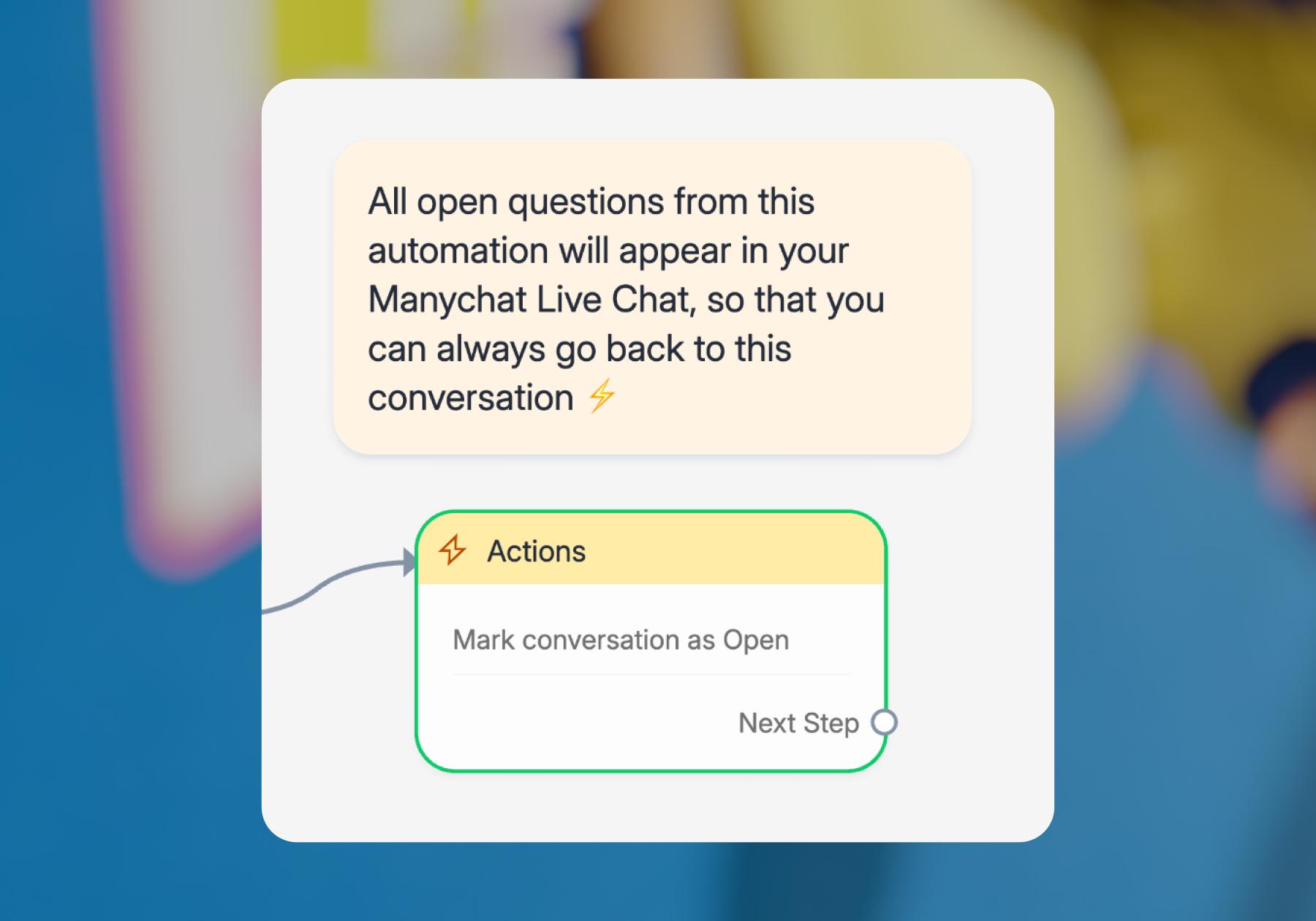
- If you’re setting up this flow as a customer service automation, leave this box as is. If you’re using the flow to send people to your store, you can delete this box.
Marking a conversation as Closed in Manychat doesn’t delete it; it just means that the person’s immediate need has been addressed and no further action is required from you or your team.
Step 4. Preview your automation, then send it live
You’re almost there! Let’s do this.
- Click Preview in the top right corner to see how your automation will look in the TikTok app. If you have buttons in your flow, you can click on them to experience that.
Note: If you kept the Smart Delay in the flow, you will have to wait for the message to pop up in the preview.
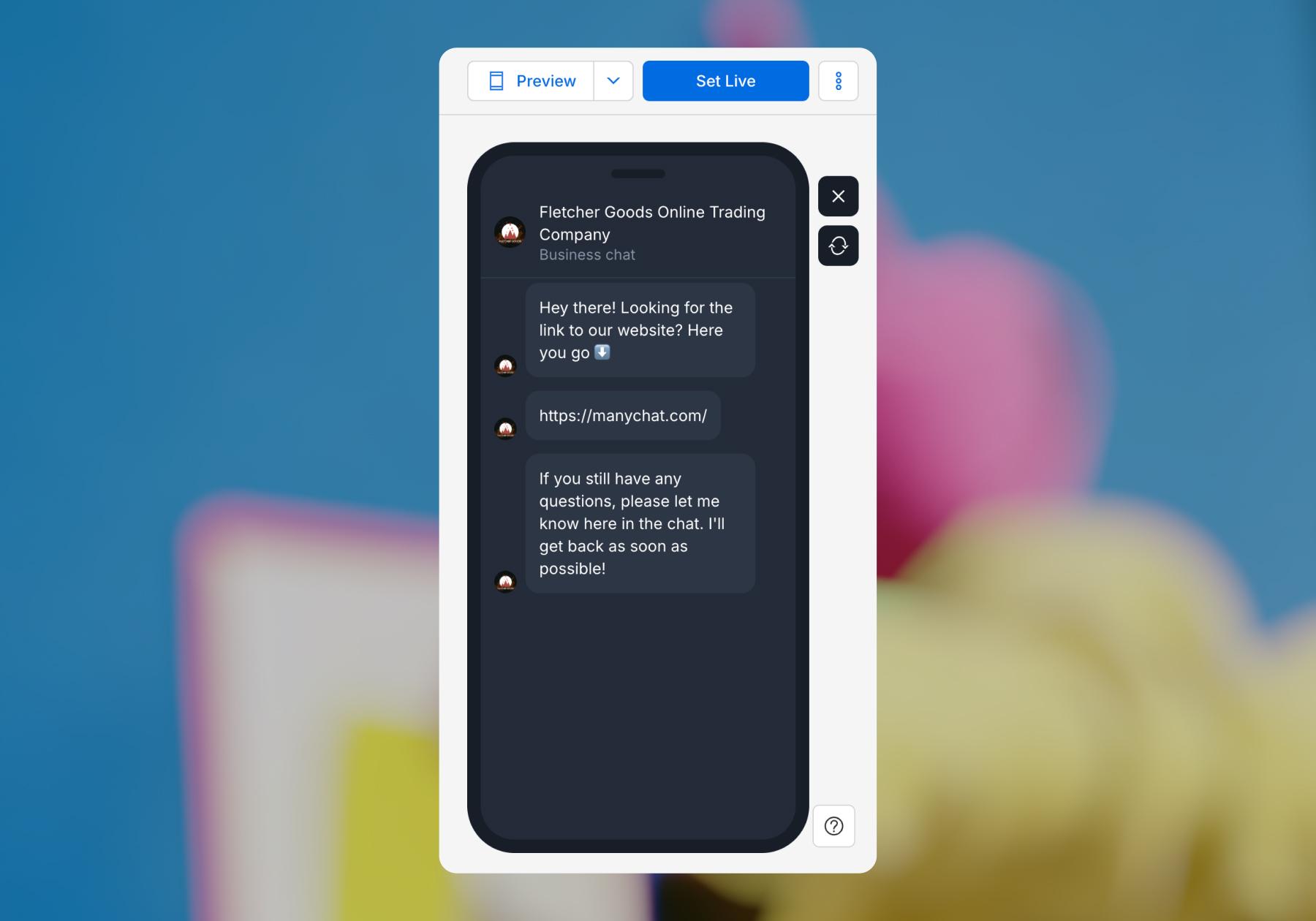
- Once you’re happy with your automation, click Set Live. Use your personal TikTok account to test the automation and make sure everything goes smoothly.
And that’s it! You’ve sent your first link with Manychat on TikTok.
3 Ways to Use Automated Links on TikTok
We've touched on a few ways you can use Manychat’s Direct your TikTok audience to a website template throughout this guide, but here they are again.
1. Share product links
If you’re selling something, you can use this template to automatically send interested scrollers a link to your online store, product page, or affiliate offer when they DM you. That way, they can find exactly what they’re looking for without digging through your bio or hoping your product pops up in their feed again.
2. Drive sign-ups and subscribers
Whether you're launching a course, hosting an event, or giving away a freebie, you can use this template to send people straight to your registration page, waitlist form, or downloadable resource.
If you're a course creator, you could create a TikTok sharing a sneak peek of what participants will learn. If you're hosting an event, you could explain what attendees can expect from the experience.
Either way, invite viewers to DM you a keyword, like "COURSE" or "RSVP," to receive the sign-up link automatically. You can also take things a step further by building an automation that collects their email addresses directly in the conversation.
3. Answer FAQs
You can review your TikTok DMs to identify the questions people ask most often and the different ways they phrase them.
Then, build an automation that recognizes those keywords or phrases and automatically responds with the corresponding answer or link. That way, your followers get what they need without waiting for you to reply, even when you're offline or a video goes viral.
Deliver Links, Then Do More
Once you’ve got the hang of automatically delivering links, there’s plenty more you can do with TikTok automation. You can collect contact information, qualify leads, and personalize conversations based on your audience's interests.
Ready to take things a step further? Check out this recap of a TikTok automation workshop our team hosted to see what else is possible with the latest Manychat features:
Frequently asked questions
Yes. With a tool like Manychat, you can automatically send links to people who message you on TikTok. Set up an automation that responds to specific keywords or phrases, and when someone sends a matching message, they'll receive a DM with your link. You can use this to share product pages, affiliate offers, registration forms, and more.
Not currently. Unlike Instagram, TikTok doesn't support comment-to-DM automation through Manychat. Instead, users need to initiate a conversation by sending you a direct message. You can encourage viewers to DM you a specific keyword in your TikTok videos, captions, or comments to trigger an automated response.
First, connect your TikTok account to Manychat. Then create an automation with a keyword trigger, such as "LINK" or "SHOP," and add a message that includes the URL you want to share. Once your automation is live, anyone who sends you that keyword in a TikTok DM can automatically receive your link.
Yes, any links sent in TikTok DMs are now clickable, including those delivered automatically through Manychat. This means recipients can tap a link to visit your website, product page, or offer without copying and pasting the URL. However, TikTok doesn't currently support attaching links to buttons in automated messages.
Yes, Manychat's Free plan supports TikTok automation, including automatically replying to messages and delivering links. You can have up to four live automations and 25 Active Contacts per month for free. If you need to reach more people or use additional features, you can upgrade to a paid plan.


Originally published: Oct 27, 2026
More stories worth reading
More content that's too good to miss