A Facebook Messenger bot is a tool that lives inside Messenger and replies to people for you, answering questions, capturing leads, and closing sales without you having to type a thing.
Messenger marketing delivers some of the highest open rates of any channel, and people increasingly expect to chat with businesses the same way they text their friends. If you’ve got a Facebook Page and an inbox you can’t keep up with, automation is how you fix that.
This guide walks you through the basics of building your first Messenger bot with Manychat (setup, use cases, Meta’s rules, and the advanced stuff) so you can turn simple chats into real conversations.
TL;DR
- A Facebook Messenger bot automates conversations on your Facebook Page.
- You don’t need to write code to set one up. Manychat lets you go live in minutes.
- Messenger still pulls 70% to 88% open rates, making it one of the highest-engagement channels for businesses.
- This guide covers setup, use cases, Meta’s rules, and advanced features to help you build a bot that actually works.
So What’s a Facebook Messenger Bot, Anyway?

A Facebook Messenger bot is an automated tool that interacts with people inside Messenger for you. Instead of manually answering every message, you use a platform like Manychat to automate replies, keep followers engaged, and move them closer to a purchase, sign-up, or booking.
Not all chatbots are created equal, but the good ones are sophisticated enough to qualify leads, hand off discussions to people, and understand the intent behind what people say (so they don’t have to message you an exact keyword to get what they want).
Believe it or not, many people still use Messenger. It’s one of the most popular messaging apps worldwide, with 26 million monthly downloads, keeping it in the global top charts. It’s especially big in Vietnam, Thailand, the Philippines, the UK, and Mexico — markets where people rely on chats to shop, ask questions, and connect with businesses.
One more thing worth knowing: Manychat is an Official Meta Business Partner, so the automations you build here play by Meta’s rules from day one.
Messenger Bots vs. Email: It’s Not Even Close

Open rates for Messenger conversations regularly crush email; we’re talking 70% to 88% versus 5% to 10% for email. Messages get seen faster, answered quicker, and actually spark conversations instead of rotting in a spam folder.
Speed matters too. A HubSpot survey found that 66% of consumers expect a response within five minutes. A Messenger bot lets you meet that expectation by instantly answering FAQs, booking appointments, or sending product recommendations, no matter what time it is.
Bottom line: Messenger automation is worth the effort, especially if your Page already has a decent following.
What your bot can do while you sleep
Creators and businesses use bots for all kinds of tasks, from capturing email addresses to keeping the comments rolling in. These are the heavy hitters.
Capture leads without the clunky form
You can use your bot to collect emails, phone numbers, or other contact info directly in Messenger. For example, someone DMs you “pricing,” and your bot collects their email before sending the link. It’s the easiest way to grow your subscriber list and keep the conversation going.
Manychat even integrates with email platforms like MailChimp, so you can collect emails and phone numbers and push them right into your existing tools.
Turn ad clicks into actual conversations
When someone clicks or comments on one of your Facebook ads, an automation tool like Manychat can start a conversation in Messenger automatically. And we’re not just talking about a “hi there.”
Your bot can qualify the lead, answer objections, and offer a discount. Instead of sending clicks to a landing page, click-to-Messenger ads open a chat instantly.
Answer FAQs so you don’t have to
Never leave people on read again. With FAQ automation, your bot can instantly answer common questions. All you have to do is set up trigger words like “hours,” “shipping,” or “returns” to fire off the right info on the spot.
Sell, book, and upsell on autopilot
Messenger bots can share product links and send discount codes. For e-commerce, that might look like a discount-code flow that drops a promo the second someone says “deal” or “promo.” For services, picture a flow that walks someone through picking a time and a stylist, all without a single phone call. Restaurants, shops, and creators can all win with a chatbot.
Build Your First Messenger Bot in 15 Minutes

Let’s talk about how to make a Messenger bot with Manychat.
Before you dive in, make sure you’ve got:
- A Facebook Business Page
- A Manychat account (don’t worry, you can run plenty of automations for free)
- Admin access to the Page you want to connect
Manychat is more than a Facebook Messenger Bot. It’s an automation tool that works with Instagram, Facebook, TikTok, WhatsApp, and Telegram. We’re also an official partner of both Meta and TikTok.
How to connect your Facebook Page to Manychat
Connecting a Facebook Page to Manychat takes about 30 seconds:
- Log in to Manychat and click Get Started.
- Select the Facebook Page you want to connect to.
- Hit Connect, and you’re in.
Write a welcome message that doesn’t bore people
When someone first reaches out, your Welcome Message is the very first thing they’ll see, so make sure it’s a good one.
To set up your Welcome Message:
- Open Manychat and click Settings.
- Click Messenger under channels.
- Scroll down to Welcome Message.
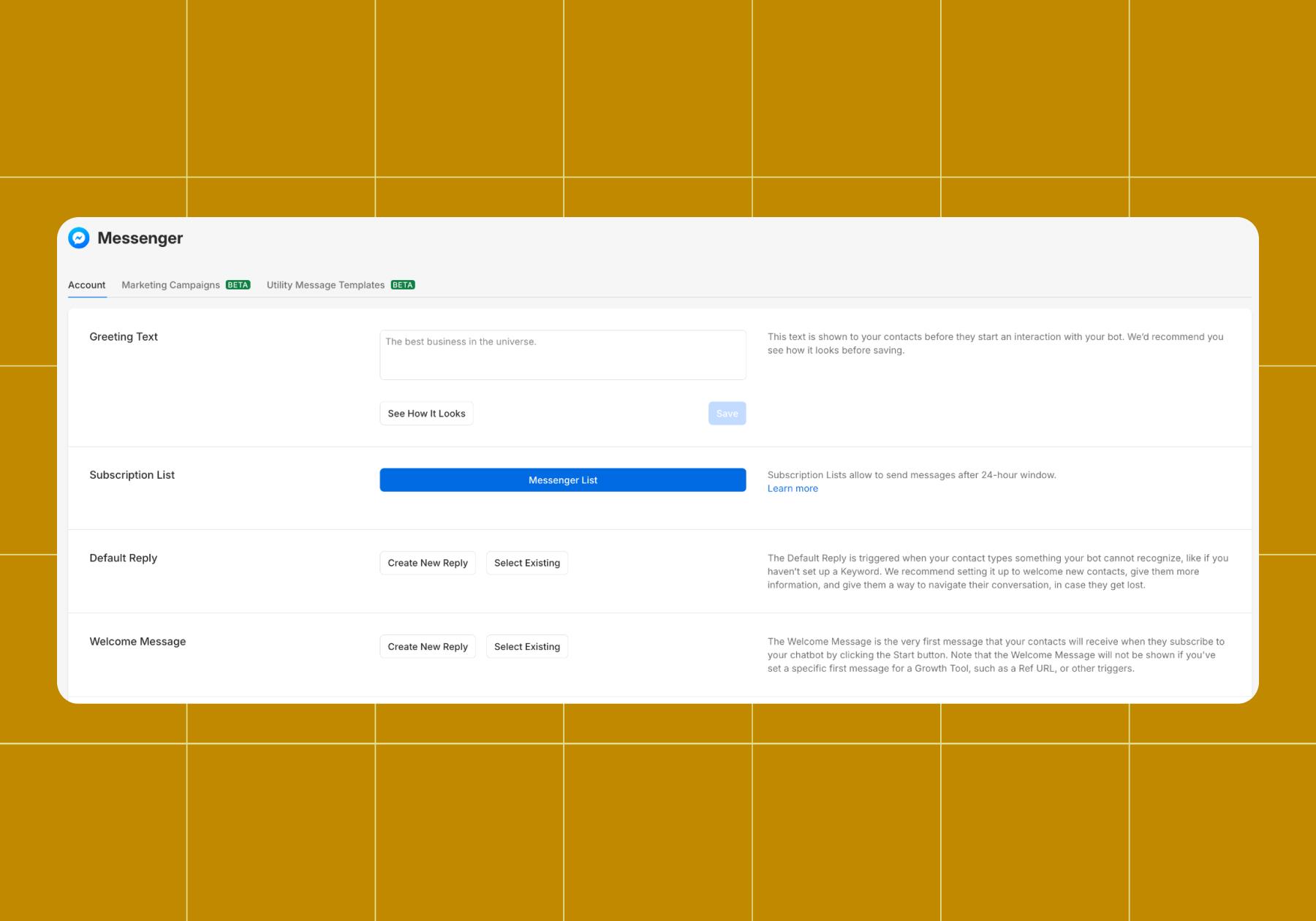
- Click Create New Reply, and you’ll be sent to the Flow Builder to create your automation.
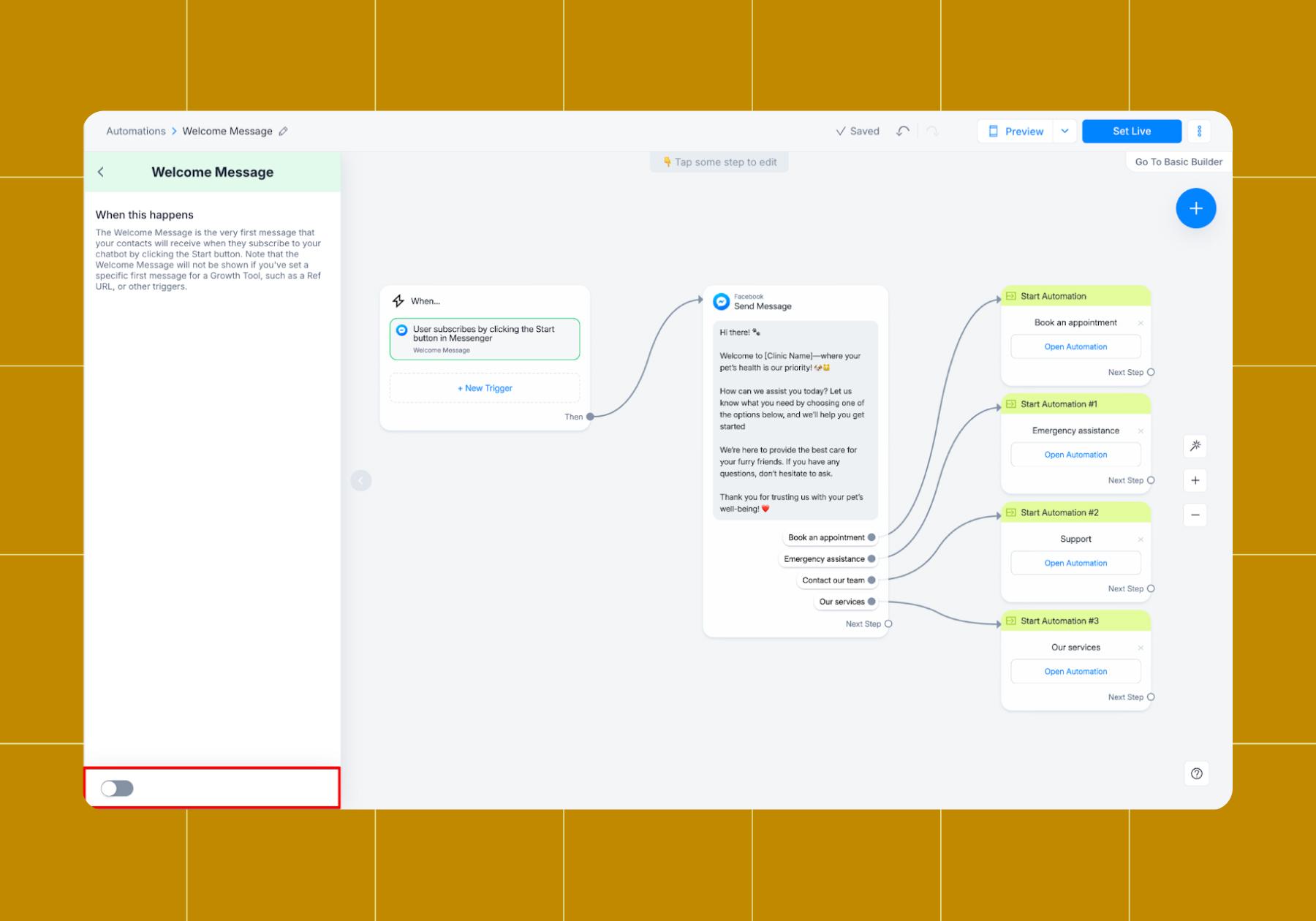
When drafting your Welcome Message:
- Keep it short and friendly. Emojis are fine if they fit your typical voice.
- Offer clear next steps. Adding Quick Reply buttons, like in the example below, is a great way to do this.
Set up a main menu
Manychat’s Main Menu feature gives users quick access to your most important options. It’s a great way to replicate what you get out of a built-out flow like the one in the section above.
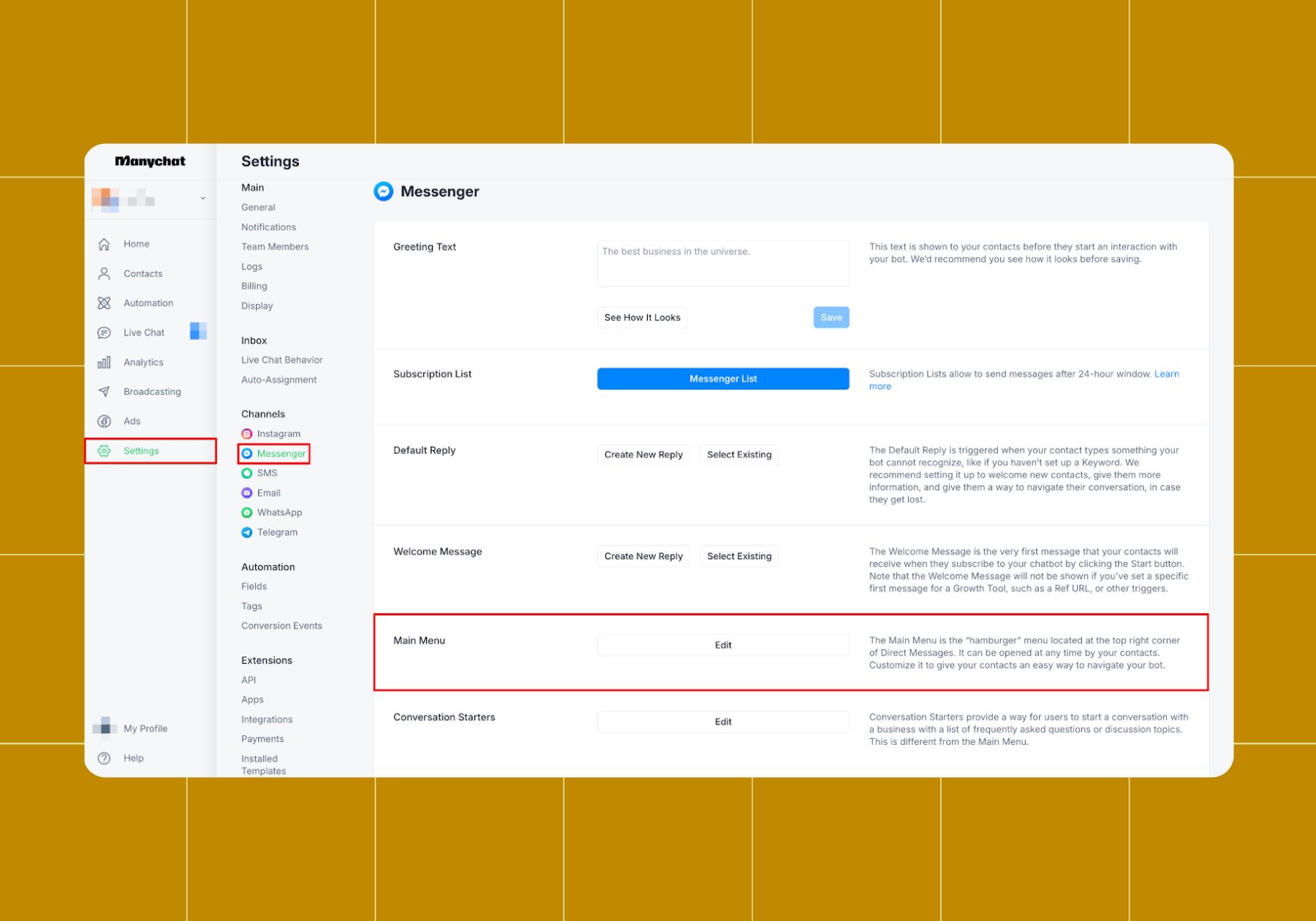
To set up Main Main with Messenger:
- Open Manychat and click Settings.
- Click Messenger under channels.
- Scroll down to Main Menu.
Click + Menu Item to add an option (like Shop Now, Book a Table, or Visit FAQs). - Link each item to an automation, message, or your website.
- Hit Update Menu and toggle it on to go live.
One perk of using Manychat with Messenger is that you can create a Dynamic Menu, a customized menu for specific contacts based on their actions or the data you gathered about them.
Set up some keyword triggers
Keywords are one of the easiest ways to make your Facebook Messenger bot more useful. Instead of answering the same questions over and over, you can teach your bot to recognize certain words or phrases and respond automatically.
So what can Manychat automate with keyword triggers? Pretty much anything, but here are the most popular use cases:
- FAQs: Set up trigger words like “hours,” “location,” or “shipping” to serve up helpful info right when users want it.
- Promos and discounts: When users DM words like “discount,” “coupon,” or “promo,” give them a reason to click “add to cart.”
- Resources and links: Drive followers to your website or Linktree by connecting flows to words like “menu,” “catalog,” or “pricing.”
To set them up:
- Open Manychat and head to the Automation menu.
- Click + Start From Scratch, then click + New Trigger.
- Choose User sends a message as the trigger.
- Click Detect specific words in a message in the left-side panel.
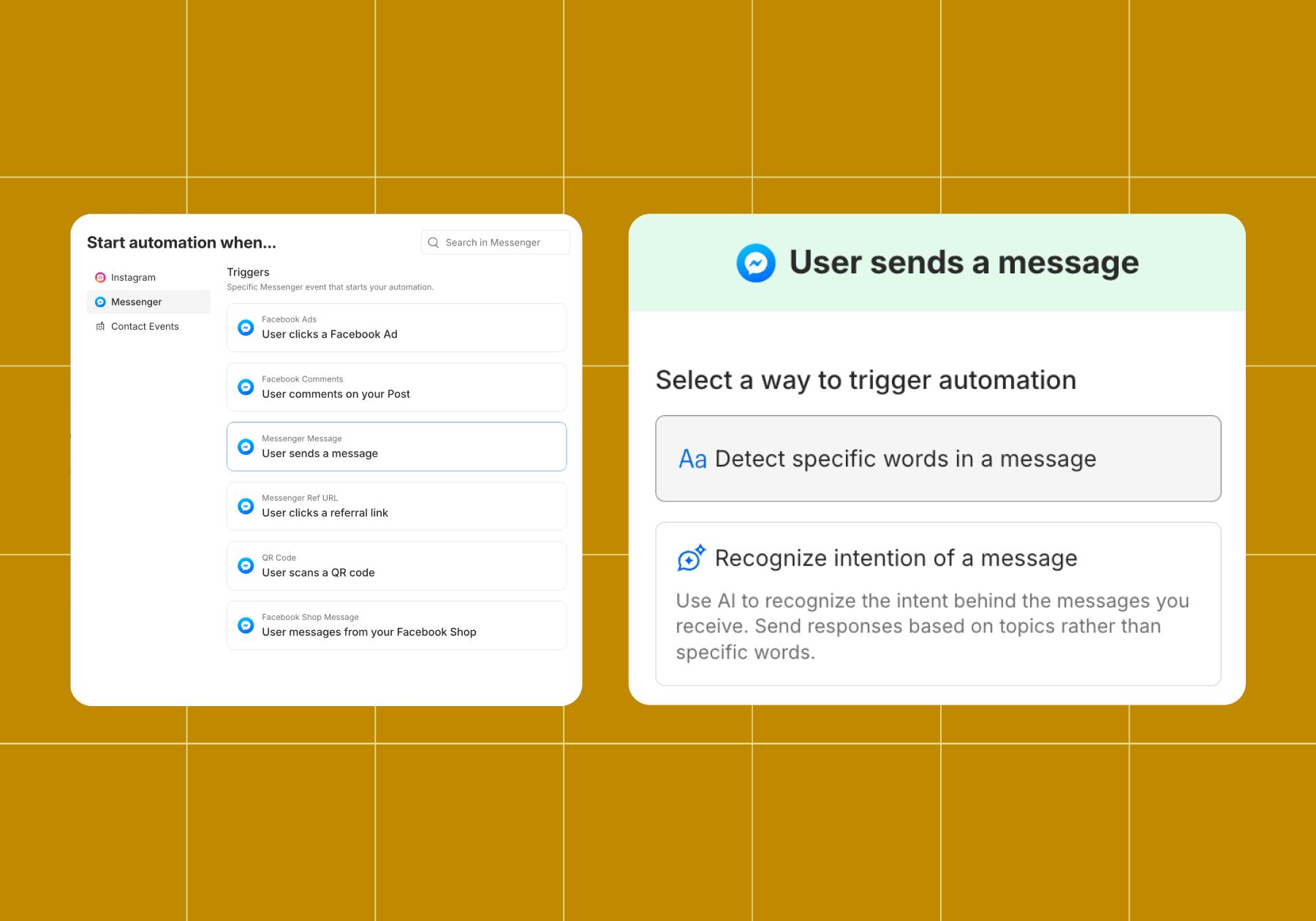
- Add your keyword or phrase.
- Link it to an existing automation or build a new one in Flow Builder.
- Save, preview, and send it live.
Nobody’s Talking to Your Bot (Yet)

Your bot only works if people actually start conversations with it. Luckily, it’s easy to turn clicks, comments, and real-world moments into Messenger chats. You just have to know what you’re doing.
Click-to-Messenger ads
Click-to-Messenger ads are the top way to generate new leads on Messenger. Instead of sending clicks to a landing page, your ads start a conversation instantly. From there, your bot can qualify leads, offer discounts, or guide people through the buying process.
Comment-to-DM automations
When someone comments on one of your Facebook posts, you can turn that engagement into a private conversation. Just use the Facebook Comments trigger to set up a comment-to-DM flow.
Links, QR codes, and Ref URLs
Odds are, Facebook isn’t your only marketing channel. To drive people to Messenger from elsewhere, you can share a link that launches a chat with your Page on your website, Instagram, or in emails.
To create a shareable link that starts a Messenger chat with your Page:
- Make sure you have a username for your Facebook Page.
- Copy and paste or type your Page username after “https://m.me/” (For example, ours would be https://m.me/manychat.)
- Share this link anywhere you’d like — just know it works best for users who have the Messenger app installed and are already logged in.
Learn more about how this works from Meta’s Help Center: m.me Links
Make your bot multi-channel
Your audience likely isn’t only on Facebook. There’s a good chance they’re on Instagram, WhatsApp, and TikTok too.
Good news: Manychat works with all of those platforms, so the same Messenger bot strategy we just covered can be applied to Instagram, WhatsApp, and TikTok.
So instead of juggling five different inboxes and five different tools, you build once and meet people wherever they are. That’s how you turn a single-channel experiment into a conversation marketing engine.
Meta’s Rules for Messenger Bots (The 24-Hour Rule)

Before you start blasting messages out, you’ve gotta know the rules Meta has in place to prevent Messenger from turning into a spammy, scary place.
The big one is the 24-hour messaging window. Once someone messages your business, you have 24 hours to send automated messages. After that window closes, you can’t just keep pinging them with promotional content whenever you want.
A few other things to keep in mind:
- Opt-in matters: People need to engage with your business before you can message them. No buying lists, no cold-blasting strangers.
- Keep it clean: Meta’s unified Community Standards apply to your messages. Spammy, misleading, or prohibited content can result in your messaging being restricted or your Page being unpublished.
- Re-engaging outside the window: To reach people after 24 hours, you’ll lean on ads that click to message or specific message tags that Meta allows for non-promotional updates.
Build That Bot

You have the blueprint. Now it’s time to bring your Facebook Messenger bot to life. Whether you just want a simple welcome message or you want to answer FAQs without lifting a finger, every automation you publish will save you time and improve the follower experience.
You know what to do now: Sign up for Manychat
Frequently asked questions
Yes. Facebook Messenger supports automation tools that businesses and creators use to reply to messages, answer questions, capture leads, and drive sales without manual effort.
Messenger bots built on approved platforms like Manychat are fully compliant with Meta’s policies and go through regular review. As an Official Meta Business Partner, Manychat will always make sure your automations play by the rules and that your Page isn’t at risk.
Clear entry points (ads, links, QR codes, comments) are what bring people in. Without traffic, your bot just sits there idle and sad. Make sure whatever you’re using to drive chats actually stops the scroll: entertain or educate, and always include a clear next step.
Messenger bots can only send automated messages within 24 hours of a user’s last interaction. To reach people after that window closes, you’ll need re-engagement strategies like ads that click to message or Meta-approved message tags for non-promotional updates.
You can with Manychat. Manychat can collect emails and phone numbers for you and sync with email marketing platforms and e-commerce tools. Using these integrations is key to scaling beyond Messenger.


Originally published: Apr 14, 2020, Updated: Jun 24, 2026
More stories worth reading
More content that's too good to miss